Recap is a free student video response and reflection app. It gives teachers and parents insight into students’ learning and progress. Recap provides evidence of critical thinking, improves formative assessment, and supports personalized learning. It is fun and easy to use.
Free Coding Class
Are you interested in learning how to code? There is a free workshop in St. Paul on December 3, 2016 from 9:00 - 3:30. Click here for more information and to register.
Tech Tools for your Classroom
Here is a Symbaloo webmix with links to some of our favorite digital classroom tools.
Please contact your Digital Learning Specialist if you would like additional information on any digital tools or have questions about the 4 C's.
Padlet is a versatile and easy to use tool to promote collaboration among your students. Think of it like a virtual wall that allows users to share their thoughts using text, images, videos, documents, and more. It is easy for teachers to set up, share out and can be used on any device.
Book reviews, topic summaries, question walls, and student reflections are just a few ideas on how Padlet could be brought into your classroom.
Click here to view the example below from a 5th grade discussion on the different types of conflict in literature. It was used as a reflection piece for the students to think about their own reading.
Click here for a YouTube playlist on how to get started using this tool.
Infographics with easel.ly
Infographics are a visual representation of data. They can be a visually effective way to deliver content to your students, and for students to share their learning. Easel.ly is a tool that makes creating and sharing infographics easy. Start from scratch or use one of their many templates.
Take a look at these examples. Content is visual and engaging for learners.
Here is also a quick video that shows the benefits of using infographics in your classroom.
Quizlet Live
Quizlet has an engaging in-class team-based learning game called Quizlet Live. Use study sets that you create to have students work together to correctly match the set’s terms and definitions. It's a blast for students to play and can make reviewing concepts a can't wait experience.
Click here for a guide on how the game works. There is also a live demo you can try out here to get a feel for it yourself.
Please contact your Digital Learning Specialist if you would like additional information on these digital tools or any other digital learning tools.
This video shows how to create a Google Slides presentation with clickable hyperlinks. A hyper- linked slide presentation allows students to go to different slides based on their choices. This has many applications for differentiation, literacy, assessment and more.
Alice Keeler also has a great tutorial and lesson ideas. Click this link for her website.
3 Text-to-Speech Chrome Extensions
great for supporting struggling readers and English Learners
Pear Deck is an interactive presentation application. Pear Deck can be found in Google Drive. Our district has purchased this application. This link contains video and explanations of how to get started with Pear Deck and the new features that were added this fall! If you want additional information or PD on Pear Deck please make an appointment with your Digital Learning Specialist. Shannon Treichel says, " this is my favorite tool by far!!!!"
Classroom Design around the 4 C's
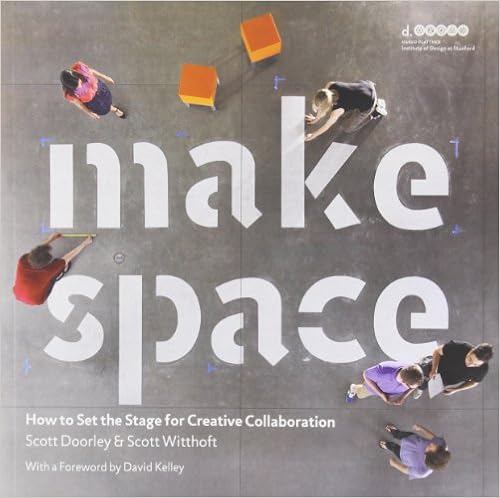
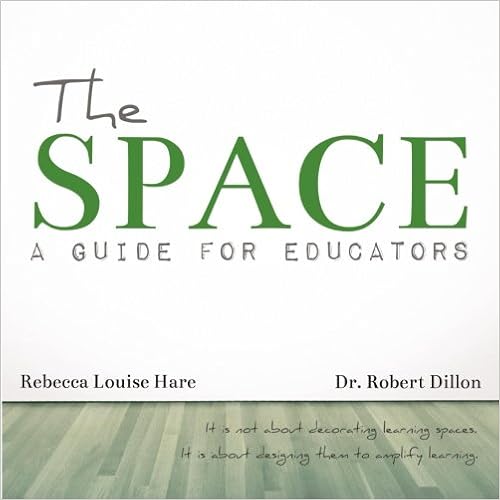
Here are some great resources for design and implementation ideas for your classroom spaces. November's DLS focus is on classroom space. Brainstorm with your DLS on how to create the best space for student learning and the 4 C's classroom.
Chrome Apps are web-based applications that run in the Chrome browser. Teachers can push these applications to students' Chromebooks by following these simple steps:
1. Go to Google Play for Education (play.google.com/edu). If you haven't logged into your isd624 Google account already, log in when prompted.
2. Click on "Chrome Apps" on the left side of the screen. The apps are broken down by subject area.
3. Click on the desired app and click "install."
4. Type the email of the student or group of students that you want to push the app out to. Click here to see a short video on finding pre-made groups for your classes. Your student groups should populate upon typing the name of your class(es).
There are many great content applications, but there are also general tools that you can explore! For example, you could push students the Google Keep application covered in last week's tips! Students find the applications that have been pushed to them by clicking the circle in the lower left corner of their Chromebook screen.
NOTE: Not all applications available in the Chrome Webstore are available to be pushed out to students through Google Play for Education. If there is an application you available in the Webstore that you wish to push to students, please submit a Bear Tech Ticket with this request. Google Extensions that are available in the Chrome Webstore add features to the Chrome Browser. They cannot be pushed from Google Play for Education. If you would like your students to have a specific Google Extension, please submit a Bear Tech Ticket.
RealTimeBoard: A Chrome App for Collaboration
RealTimeBoard is a Chrome application currently available in the Chrome Webstore or at https://realtimeboard.com/app that serves as a collaboration space. You can add pictures, drawings, videos, sticky notes, Google Drive files and more on an endless whiteboard canvas. Watch the following video for a quick preview of this application:
One of our tech tips last week showed how to create a self-grading quiz in Google Forms. Since that tip went out we got many questions about how Google Forms quizzes compare to another popular grading tool for Forms, Flubaroo. Flubaroo is an add-on for Google Sheets that allows you assess student responses to a Form and send them feedback. This short article by Eric Curts gives details on the benefits and limitations of each. I'll include the summary chart below for a quick way to compare your formative assessment options for Google Forms.
New Google Forms Quiz option
vs Flubaroo Add-on
Forms
Quiz
Flubaroo
Add-on
Requirements
Add-on required
No
Yes
Google Sheets required
No
Yes
Question Options
Can grade multiple choice, checkbox, and drop-down questions
Yes
Yes
Can grade other question types such as textbox
No
Yes
Option to hand grade subjective questions
No
Yes
Option for alternate correct answers
No
Yes
Option for partial credit
No
Yes
Option for case sensitivity
No
Yes
Option for range of mathematical answers
No
Yes
Option for extra credit
No
Yes
Results for Teachers
Bar graph of grade distribution
Yes
Yes
Average quiz grade
Yes
Yes
Median quiz grade
Yes
No
Range of quiz grades
Yes
No
List of most missed questions
Yes
Yes
Scores for individual students
Yes
Yes
Scores for individual questions
Yes
Yes
Results for Students
Option to give student results immediately
Yes
Yes
Option to send student results later
Yes
Yes
Results shared via email
Yes
Yes
Results shared via Google Docs
No
Yes
Include missed questions in student results
Yes
Yes
Include correct answers in student results
Yes
Yes
Include points in student results
Yes
Yes
Feedback Options for Students
Specific feedback for a wrong answer
Yes
Yes
Specific feedback for a correct answer
Yes
No
General message for entire class
Yes
Yes
Specific message for individual student
Yes
Yes
Google Keep
On the surface, Google Keep looks like yet another sticky note app. While it does provide the ability to take quick notes, it can do so much more. You can attach pictures and links to your notes, color code them, add labels for easy sorting and also set reminders. Notes can also be collaborative when shared with other users.
Keep is a tool that you could use to help organize your professional life. It could also be used by students in the classroom. Notes could be shared between group project members as they collect research. A student might also use it individually to keep track of their to-do list. I encourage you to at least try Google Keep for a while to see how you might make use of it.
To get help using Google Keep, visit the Google Support Center or contact one of your Digital Learning Specialists.
Google Form Quizzes, Google Cast for Education and more great Chrome extensions for teachers
Google Cast for Education
Google Cast for Education is a free Chrome app that allows students and teachers to share their screens wirelessly from anywhere in the classroom. Cast for Education carries video and audio across complex school networks, has built-in controls for teachers, and works seamlessly with Google Classroom.
The Cast for Education app runs on the teacher’s computer that’s connected to the classroom projector, and it doesn't require new hardware. Teachers receive casts through the Cast for Education app, and students share their screens using the latest version of the Cast feature in Chrome.
Click here to find helpful hints and easy steps to set up your Cast for Education app.
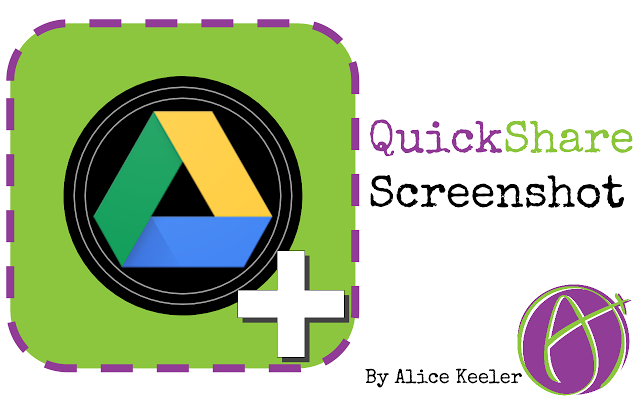
Quick Share Screenshot by Alice Keeler
This is an extension that saves your screenshots instantly to Google Drive. A link to the screenshot is saved to your clipboard allowing you to quickly share it.
Google Chrome App and Extension Database for Teachers and Students
Try these tips to increase your efficiency and effectiveness while using Google Classroom
Reuse post- To add a previously used assignment, announcement, or question to your current classroom stream, click on the plus icon located in the bottom right hand corner and select reuse post. Select a class that the previous post was originally used and select the previous post.
Star your original templates -When “Making a copy for each student” in Google Classroom, a copy of the document is made for each student. Since Google Classroom documents save to your Google Drive now your search results returns the student documents. A secondary level teacher might have 150-200 versions of students copies. This creates a problem when you search Google Drive. Try starring your original Google Doc templates by clicking the star icon next to the title or pressing S when the Google Doc is highlighted in your Google Drive. Then when searching Google Drive for templates include is:starred in the search box or click on the starred folder to find your original templates, and not student work.
Number your posts -Number your assignments and templates by using the pound symbol and 3 digit numbers. ie: #001, #002, etc.. This makes it easier for both teachers and students to locate assignments in the Google Classroom stream. To quickly find assignment 5, students can use the shortcut Control-F and type in, #005. Since the numbering is unique, students can locate that assignment quickly.
Use topics - When creating an assignment, teachers have the option to organize their stream by adding a topic. This option is located next to the due date when creating a new post. You can type a new topic or select from a previously used topic. To retroactively add a topic, click on the 3 dots in the top right corner of your post. Unfortunately, each post is limited to one topic. Streams could be organized by units, standards, or the 4 Cs. Students can then filter their stream by topic, allowing them to more easily locate assignments or narrow their workflow.
Featured Chrome Extension: Tab Scissors and Tab Glue
Use these two Google Chrome extensions together to organize multiple tabs.
Tab Scissors divides one window into two at the selected tab. If you have at least two tabs in the selected Chrome window, it will split that window into two smaller side-by-side windows. All the tabs on the left of the selected tab will stay in the left window, and the rest will move to the window on the right.
Tab Glue is a simple organization tool puts all of your Chrome tabs together into one window with a single click. The new window has your tabs arranged in the same order your windows were, and makes the selected tab in your current window be the new selected tab, so you won't lose track of where your tabs were or what you were doing. It has an option to include minimized windows.
Users can perform a glue or cut using a shortcut. The default shortcuts are Alt+S to cut, Alt+G to glue, and Alt+A to glue all (including minimized windows).