Search This Blog

Showing posts with label Add-ons. Show all posts

Tuesday, May 2, 2017

#Fakenews, Print Friendly, + Badgewall update.


The 24 hours news cycle creates a seemingly insurmountable amount of content for students and teachers to navigate through.  Unfortunately, not all of it is factual or true, making it hard for readers to distinguish fact from fiction. To empower our students against #fakenews, Google has created Fact Check to supplement the already powerful Google Search.
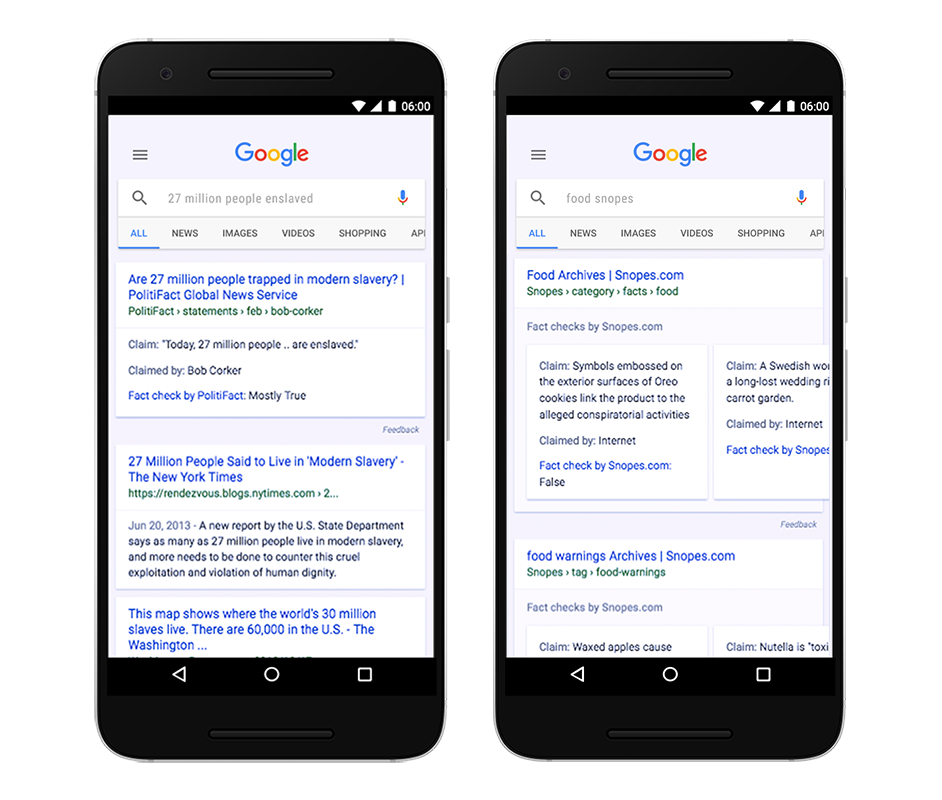

FactCheck_Apr7.png
...when you conduct a search on Google that returns an authoritative result containing fact checks for one or more public claims, you will see that information clearly on the search results page. The snippet will display information on the claim, who made the claim, and the fact check of that particular claim.
Fact Check is not available for every search result. If a fact check made by a publisher meets certain requirements, Google automatically shows a summary of that fact check. In order for a search result to have a fact check, it requires: 
  1. The publisher of the fact check must be a trusted source of information (determined by an algorithm)
  2. The content must clearly tell you which claims are being checked, conclusions about the claims, how conclusions were reached & citations and primary sources of information
It is Google's position that even though differing conclusions may be presented, they still think it’s helpful for people to understand the degree of consensus around a particular claim and have clear information on which sources agree. As Google makes fact checks more visible within search results, they believe people will have an easier time reviewing and assessing the validity of the search results and making their own informed opinions. Keep in mind that Google does not endorse any of these fact checks.

To find out more about this new feature, visit the Help Center. 


Image result for print friendly

Print Friendly and PDF removes ads, navigation, and junk before your print. Optimize any webpage for the ultimate print or reading experience and save on paper and ink when you print with Print Friendly.

Print Friendly and PDF boast two primary features
  1. Edit Before Printing: Click-to-delete any content before printing, remove images or individual images, or change the text size from larger to smaller.
  2. Print or Save as PDF: Generate PDFs for archiving, sharing, or saving. PDFs include clickable links, and source URL so you can continue to interact with the content.
Click here for "Print Friendly & PDF": 


Our self-guided EdTech Badge Wall Challenge has been a tremendous success. Over 75 teachers from our district have invested time into building their G Suite Competency! The cut-off to earn up to 15 PD hours is May 17, but the actual Badge Wall will continue to be available going forward. For more information on the White Bear Lake Badge Wall Challange, see this blog post.


Tuesday, April 11, 2017

Choice Eliminator 2 Add-On + Expeditions Update

Choice Eliminator Google Form Add-On
Choice Eliminator 2 will eliminate options from multiple-choice, dropdown, or checkbox types of question in a Google Form. Choice Eliminator 2 is great for signing up for time slots or having students choose topics without doubling up. Watch the video below for a quick tutorial or contact your digital learning specialist for help.


The basic work flow:
  • Create your Google Form.
  • Add the Choice Eliminator 2 add-on.
  • Configure the Choice Eliminator 2 add-on to eliminate choices after a certain number of responses has been reached for a particular choice. 
  • Use the response spreadsheet to see response data.

Update on District Google Expeditions Kits

We are very excited about how many of you are integrating Google Expeditions into your 4 C's lessons. The calendar has become a challenge and so to make sure the kit is where it is supposed to be on the correct days and times, we are asking that you contact your DLS to set up times. You will notice that you can see the calendar but only a DLS can schedule your expedition. Don't let this deter you! Look at the calendar and find a time, let your DLS know what day and time you would like and we will schedule it. Thank you for partnering with us!

Tuesday, January 10, 2017

Form Publisher + Flipgrid One

Form Publisher

Google Forms is a powerful data collection tool, but it does have its limitations. As you may know, the responses to a Google Form are all recorded in a spreadsheet. Working within a spreadsheet is great when you need to do calculations with the data or if the information you are collecting is for a small audience and individual responses don't need to be shared. One of the questions that I am often asked is if there is a way to take the spreadsheet data and turn it into a more useable format. The answer is YES! With Form Publisher, you can create an individual Google Doc, Slides presentation or Google Sheets spreadsheet for each response to your Google Form. These merged documents can automatically be shared back with the respondent or sent to someone else via email.

Form Publisher is an add-on for Google Forms. See the image below to learn how to install add-ons within a Google Form. 


After Form Publisher is installed, click on the puzzle piece in the top right corner of your Form and select 'Form Publisher'. A menu will appear in the bottom right corner of your screen that will walk you through the process of creating your template document, slides presentation or spreadsheet. The video below has more detailed directions. 


FlipGrid One


Flipgrid is a tool that allows students to submit video responses to a question. This platform, developed by a professor and graduate students from the University of Minnesota, now has a basic free version for all educators.  Check it out here.


Click here to sign-up for your free account.


Tuesday, October 13, 2015

Lucidpress and Lucidchart Add-ons, Google Voice Typing, and Computer Timers

Lucidpress and Lucidcharts
You and your students can create stunning visual displays with Lucidpress and concepts maps or flow charts with Lucidcharts. Lucidpress and Lucidcharts are add-ons available to you and your students in your Google Drive making them easy to access and share.

To access Lucidpress and Lucidcharts...
1. Go to your Google Drive
2. Select "NEW"
3. Select "More"
4. Select Lucidpress or Lucidchart from the menu - You may need to connect these apps by clicking "Connect more apps" and searching for them.

Click here for a video on Lucidpress and click here for a video on Lucidcharts.

Google Voice Typing
You and your students can type with your voice using Google Voice Typing. Click here for more information. Click here for a video on Google Voice Typing. This could be a great option for students who struggle with typing when typing is not the focus of the writing activity.

Computer Timers
This tech-tip comes from Otter Lake Elementary teacher, Luanne Oklobzija! You can set music timers on your computer to cue students. You might consider using this to schedule brain breaks or a time when student may begin packing up their things. Click here for instructions to set up computer timers.

Thursday, February 5, 2015

Turn a Google Document into a Google Form

Turn your Google document...

into a Google Form...

Have a paper test, quiz, or survey that you would like to make into a Google form? GFormIt is a Google document add-on that will allow you to take questions and answers and translate them into a Google form with the first submission of the form being an answer key for grading using another add-on like Flubaroo. Check out this video on GFormIt. 

To use GFormIt...
  1. Install GFormIt as an add-on in your Google document.
  2. Create questions and answers as with the same format as shown in the video.
  3. Run the GFormIt add-on. A link to the form and the form responses will be emailed to you. GFormIt will take your answers as the first submission to create a key for grading with another add-on like Flubaroo.
  4. You can edit the form after it is created to change the theme or questions.
Google Educator Certification
This week is the last week of the certification process. This week we are working on the elective lessons and taking the exam. Click here for training page. Remember that you will have to pay $15 to take the exam and will reimbursed for the cost of all of your exams upon completing the certification. If you need any help, please email Cassie or Matt!

Upon completion of the certification click here to submit for reimbursement. You will need to provide links to your receipts and links to your exam certificates. If you choose to do two electives you will be reimbursed $90.00. If you choose to do one elective you will be reimbursed $75.00.