Search This Blog

Showing posts with label Google. Show all posts

Monday, April 30, 2018

The New Gmail: 3 Helpful Tips for a Better Inbox

If you're anything like me, you've already seen the new Avengers movie. How insane was that scene where [REDACTED] [REDACTED] like [REDACTED] the [REDACTED] with a [REDACTED] of his [REDACTED]?! 

Oh, man.

If you're anything like me, you're also excited by the improvements Google makes to its suite of educational tools, right? Let's talk about that first--then geek out over movies later.


Gmail Gets a Makeover

Google released its first big update to Gmail in over five years last week. You can turn it on today and try it out by clicking on the gear icon and selecting "Try the new Gmail." 


But what does the new Gmail do differently?

You can instantly see any Drive attachments on your emails


Whenever you get a Drive attachment, you'll see them under the preview text of the email. You can click on it to be taken directly to the document!

You can snooze emails until you're ready to respond


Click the clock on the right to set a reminder time (I'm personally a fan of responding Someday) and it will appear again at the top of your inbox when you wish!

You can access your Calendar, Keep, and Tasks right from Gmail


Click on any of those icons and you'll be able to check your daily schedule and add an appointment, jot a quick note to yourself, or check something off of your to-do list--all without opening a new tab!

If you're as excited as I am about new email layouts, give it a try! If you're unsure, book some time with your DLS to go over the features in person and make sure you're confident with all the changes.

Tuesday, November 29, 2016

Collecting Files With Google Forms + Globally Collaborative PD

Collecting Files With Google Forms


Google Forms just got even more powerful. Users now have the ability to add "File Upload" questions to their Forms to collect things like images, videos, audio files, PDFs or Word files. This addition gives teachers another way to collect student work and check for understanding. This will also be useful for office staff looking to collect files from building staff or parents. 

First, add a "File Upload" question to your Form. Respondents will attach their files when filling out the Form. Files that are submitted are organized within a folder in your Drive and a link to each file is posted in the responses spreadsheet for your Form.  

You can read more detailed information on how this works here.

Education On Air

This weekend Google is hosting Education on Air, an online conference featuring speakers from all over the globe. Tune in to participate in sessions on a range of topics designed for teachers, school leaders and IT professionals. Check out the video below to catch a glimpse of what last year's event was like. 

"Share with and learn from other educators. Hear from inspiring speakers. Get tips and tools to help boost student engagement, collaboration and productivity and in the classroom."


(FREE)

Tuesday, March 29, 2016

Search smarter, not harder

Advanced Search Tools in Google

When you have a question that you don't know the answer to where do you go to find an answer? Chances are that you find yourself entering a few search terms into Google on your computer or smartphone to see what you can dig up. I've definitely seen students take this approach when trying to conduct research.  With the enormous amount of information that lives online it's not always easy to find what you're looking for. Here are just a few tips for you and your students on how to attain your desired search results quicker.

This, but not that

If you're using a search term that has another meaning or is popular for something else, you can type your search term followed by subtraction symbol and the term you want to avoid. 


Exact phrase

You may be looking for something that has an exact phrase in it. In this case, use quotation marks to only return results that contain those exact words.


Fill in the blanks
When you can't remember the full phrase of what you were looking for you can add asterisks within the quotes where the missing words are. 


Define 
Use Google as a dictionary by adding the word "define" before your search term.


Translate
You can also translate words to other languages by typing the word you want translated followed by the language. 


Digging even deeper
There are even more search options that you can use to narrow your search that can be found within the advanced search menu. To get to the menu, click the gear icon to open the settings menu and then "Advanced search".


As you can see, there are many more parameters to modify to narrow your search. The option to filter by usage rights provides an opportunity to talk to students about digital citizenship and copyright usage. 

The "site or domain" option is a great way to seek out more credible sources. You can limit the search to only include websites that end in .edu, .gov or .org.
_____________________________________________________________________________

Try out the advanced search tricks next time you're looking for browsing for that perfect resource on Google. If you want to pass on some good search habits to your students, Google has some pre-built search lessons that are differentiated for beginner, intermediate and advanced levels. Topics include:

Picking the right search terms
Understanding search results
Narrowing a search to get the best results
Searching for evidence for research tasks
Evaluating credibility of sources


You can also sharpen your search skills by trying out the "a Google a day" game which requires you to use advanced search techniques to find the answer to difficult questions. Try it out here.


Tuesday, February 23, 2016

Exploring Culture with Google + Schoology Course Pictures Hack


Google Cultural Institute


The Google Cultural Institute has a huge number of engaging resources for teachers and students to explore. Think of it like an online museum. Their content is arranged into collections within three different categories, art projects, historic moments and world wonders. Tools such as gigapixel photos, street views, and videos are used to tell different stories throughout history. 


Gigapixel Photos
These are extremely high resolution images that let you zoom in and see all of the miniscule details of famous paintings and artifacts.


One of the best features of the Cultural Institute is that you can organize items from the public collections into your own galleries. Annotations can be added to the items that you save. Creating a personal gallery would be a great feature to have students use during a project as they interact with content and add their own reflections or explanations. 

Get started with this intro video (1:49) and then head over to the site


Schoology Course Pictures Hack

I've had a few people ask me if it is possible to change the section name of each Schoology course so it is easier to figure out which hour it corresponds to. Unfortunately, you are unable to change that because it will revert back to the original every time it syncs with Skyward. The work around for that is to change the Schoology course picture for each class to include the hour which you teach that class. See the example below.


Follow these steps to make that happen:

  1. Create a new Google Drawing in your Drive by click New then More and Google Drawing.
  2. To resize the drawing to a profile picture size click File --> Page Setup and then select Custom. Enter the dimensions 170 x 170 pixels.
  3. Add a picture by using the Insert menu and then clicking Image. You can upload an image that your already have or search for one. 
  4. Crop the picture to fit in the square
  5. To add the number to your picture click Insert and then Word Art. Type the number that you want on the picture and then hit enter. Change the font, size and color settings to your liking.
  6. After it looks good, click File --> Download As and then select JPEG image. Choose the location where the file will download to your computer. 
  7. Open Schoology and navigate to the course that you wish to change the picture for. 
  8. Hover your mouse over the current course picture and you will see the Edit Picture button pop up in the top right corner of the square. Click that.
  9. Select Attach File and then find the picture that you just downloaded. 
  10. Repeat for any course that you wish to change. 


Tuesday, April 28, 2015

Google Education on Air + Make Belief Comix

Google Education on Air

Last month Google announced Education on Air—the free online conference for educators May 8-9. As of this week you can now check out the
full schedule of sessions.

Day 1- Leading for the future: From 10 a.m. to 3 p.m. ET hear from speakers who will challenge us to innovate and improve education. In the kickoff session, panelists will tackle the question “What are the skills of the future?”. Keynote speakers include actor and Reading Rainbow host LeVar Burton, Google Vice President Laszlo Bock, Google Science Fair 2012 winner Brittany Wenger, and education experts Sir Michael Barber and Michel Fullan, OC. There are educator panels on "transforming learning with technology" and "empowering students."

Day 2- Shaping the classroom today: From 7 a.m. to 9:30 p.m. ET there are over 100 sessions led by educators from 12 countries and 29 U.S. states. Sessions have been designed to offer practical advice and examples. Find ones you like and add them to your calendar. Sessions include:
Register today on the website or learn more in the blog post. You can help spread the word about this free event by sharing the announcement Google+ post and tweet.

Featured 4C's Mini Lesson: Make Belief Comix

Our graduates from the Technology and Leadership Cohort have been building short lessons that highlight different ways to incorporate the 4C's and technology in the classroom. Today's featured lesson is on how students can use Make Belief Comix to create comic strips to demonstrate understanding in a creative way. Click here to view the lesson.

Find this lesson and all of the other 4C's lessons on our new website. bit.ly/4CsWBL

Tuesday, February 17, 2015

Warm-ups With Google Forms + Differentiating News Content for the Classroom


Warm-ups With Google Forms 


Bell ringer, eye opener, lightbulb question... I've heard class warm-ups called many different things. It's no surprise why so many teachers choose to add some sort of warm-up to their class routine. They can help students remember elements from the lesson the day before or be used as a pre-quiz to get a better picture or your students' prior knowledge on a new topic.

If your students have access to a computer, using a single Google Form for all of your warm-ups is an easy way to take this snapshot of student understanding in your classroom.

How-to

  1. Create a new form in Google Drive and create two questions, one multiple choice and the other paragraph text.
  2. After getting the form looking like you want it, shorten the URL to the form using a service like bit.ly or goo.gl.
  3. Students can bookmark the link on their own devices or you can have the short link written somewhere in the room so students can navigate to your form easily.
  4. Anytime you want to do a warm-up just post a slide with your multiple choice question or extended response. Students will fill out the generic form.
  5. You can now see all of the class responses populating in the spreadsheet that your form will create. Use this information to steer the discussion for the day.


Newsela - Differentiate The News

It is often difficult to find text that is appropriate for all of your student's reading levels. If you teach current events or are looking for some good articles for class, check out Newsela. Newsela is a collection of news articles that is updated daily and each article is offered at 5 different lexile levels. Using this tool allows you to deliver the same content to all students while differentiating for their individual needs. There is also a quiz feature built in so that students can test their understanding of the article.


Wednesday, January 21, 2015

3 things you can do to keep on trucking when the internet is down + A simple notepad for any web browser


a5.gg - A simple notepad for any web browser

I often find myself needing a space where I can type a quick note but don't have a simple way of doing so. Recently I discovered that typing a5.gg into any web browser will bring up a very simple notepad that you can use to record that note or brainstorm ideas with students.


What can you do when the internet is down?

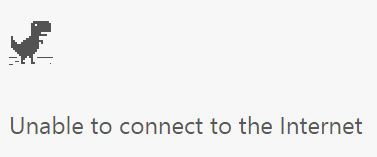
We've all been there. The bell just rang and you are frantically trying to pull up that engaging webpage or video that you scoured the web for in your free time at home the night before. All that you see on the screen is...


What do you do? Get the textbooks out and start reading aloud for the next 50 minutes? Throw your hands up in the air and abandon everything? Fret not, friends! There are a few things that you can do to smooth the bumps when the inevitable happens. It just takes a little planning ahead of time.

Setup Offline Docs in your Google Drive

If you are already using the "New" Google Drive, offline docs should already be turned on. Click here to get instructions on how to make sure that you will be able to view and edit files in your Google Drive when you are not connected to the internet. All changes that you make to your Google Docs while offline will be synced the next time you connect to the internet. You must be using the Google Chrome web browser to enable offline docs.

Download your online videos to your computer

Maybe you uploaded a great screencast or tutorial video for your students on YouTube. If the internet isn't working you won't be able to watch it, but there are ways to download your online videos to your computer. If you type "ss" at the beginning of your video link it will bring to to a service that will allow you to download your video. See the example below. 


www.ssyoutube.com/watch?v=TY4R2l-4xMI

After you type the "ss" at the beginning of the link and press enter you should see a screen like the one below. Wait for the download links to appear on the right side of the screen and click on the highest resolution possible for the best quality. The highest resolution this service offers is 720p. The video will then be downloaded to your computer for viewing offline. This will work with many video streaming websites including Vimeo!


Load an archived version of a webpage 

If you are using the Google Chrome web browser there is a way to get some basic functionality out of websites that you were using even after the internet goes down. Here's how to set that up.


  1. In Google Chrome, navigate to chrome://flags
  2. find "Enable Offline Stale Button"  (Ctrl + F will let you search for the words on any webpage. Search for "stale" to find this faster)
  3. Select "Enable" from the drop-down menu
  4. Click "Relaunch Now" to save changes


The next time that you are working on a page and the internet goes down you should be able to get back to the places on that site that you have already visited before the internet went down. Note that many of the features like animations or videos probably won't load but you will still be able to read text and see pictures.

Tuesday, December 16, 2014

eduCanon + Favorite Chrome Extensions

eduCanon 

eduCanon is an online learning environment to build and share interactive video lessons with your students. You can begin with any YouTube, Vimeo, or TeacherTube video content (screencasts, Khan Academy, Minute Physics, TED, NOVA, etc.) and transform what is traditionally passive content into an active experience for students. At certain points in the video you can add a number of different questions to assess understanding of what they are watching. You can also monitor their responses in real-time and decide how to proceed with your lesson. Oh yeah, it's also free! Click here to give it a try.


My Favorite Chrome Extensions


Chrome extensions add exciting new functionality to your Chrome web browser and help you get things done. There are thousands of them out there so it's hard to know where to start! Here a few of my favorite that I use almost daily. 

Nimbus Screenshot - Capture Web page, a part of it or the whole browser window, edit screenshots and save the images to Local File or Google Drive.


Adblock Plus -  The free adblock tool for Chrome: Blocks annoying video ads on YouTube, Facebook ads, banners and much more.


Clipboard History - Roll back your clipboard! The product keeps a history of a content, which has been recently copied to the computer clipboard. By selecting any last copied text you automatically copy it into the clipboard again. You can also see the time every text was copied. Don't lose your information!

Tab resize - Split Screen made easy. Resize the current tab and tabs to the RIGHT into layouts on separate windows. With multi monitor support.

ShortenMe - Quickly shorten links with goo.gl, copy them to the clipboard, and generate QR codes

OneTab - Whenever you find yourself with too many tabs, click the OneTab icon to convert all of your tabs into a list. When you need to access the tabs again, you can either restore them individually or all at once.

TechSmith Snagit - Take a screenshot, screen capture, or screen video recording. Collaborate and show what you know. (works on Chromebooks too!)

Google Educator Certification

This week we are working on the Calendar lessons and taking the exam. Click here to find the lessons. Remember that you will have to pay $15 to take the exam and will reimbursed for the cost of all of your tests upon completing the certification. Cassie or Matt will be available from 4:00pm - 5:30pm in South Campus Media Center on Monday, January 5th to offer help on the course. You are not required to attend these help sessions and you can move through the modules at your own pace! Please email ahead if you plan on attending the help session.

10 Tips for Becoming A Google Educator