Search This Blog

Showing posts with label Google Drive. Show all posts

Tuesday, September 15, 2015

Welcome Back Technology Tips

Welcome back colleagues!

This week's tech tips are very important for all teaching staff to read. We appreciate the time and consideration you are giving to these items:
Schoology and Skyward Grade Sync
You can now sync assignment grades recorded in your Schoology course to Skyward. Click here for instructions!

Google Drive: "Add to"
Be sure you are adding shared Drive folders to your drive by highlighting a folder and clicking ‘SHIFT+Z’ or right clicking the folder and clicking "Add to Drive."
Screenshot 2015-09-08 at 1.52.14 PM.png
If you receive the message: "others will no longer see this folder," realize that you are removing a document or a folder from a shared space and others who currently have access to that item will not if you proceed.

Schoology and the Remind App
If you have tried to use the Remind app in Schoology this year you have likely noticed that it does not load. Remind updated their website and it is currently incompatible within Schoology. Schoology has reached out to Remind, but Remind has not yet provided Schoology with a timeline for the fix. ​For now you can access Remind through their website (remind.com).

Schoology and the Drive App
The Drive app in Schoology is also experiencing some issues. A temporary work around for this is to add Drive files with their link.


Schoology and Google Document Share Settings
When you add Google documents to Schoology make sure that the share settings are set to "Anyone with the link" can view as opposed to "Anyone at ISD624 with the link" can view to ensure that parents can view these items as well as students.

Join the Technology and Leadership Cohort
White Bear Lake Area Schools, in collaboration with Hamline University invite you to apply to join the 2015-2016 Technology & Leadership Cohort.

Starting October 27, 2015, ~30 teachers will begin White Bear’s third Cohort, focused on improving leadership and technology skills through four blended courses.  Teachers will also earn 15 inexpensive graduate credits and a Technology & Leadership Certificate through Hamline.

The focus of these classes will be to enhance practice of integrating technology into White Bear Lake’s curriculum as well as build leadership skills in teachers in the field of technology and learning.  The Cohort will give you the opportunity to collaborate with WBLAS colleagues from different grade levels and buildings.  The Cohort will be taught in a blended format with all face to face meetings being heldTuesday (one exception) afternoon/evenings once month (on average).

Optional Item: Dell Deals
If you are looking to purchase a personal device for home use, consider the following deals exclusive to White Bear Lake employees:
  • Awesome electronics. Exclusive savings. Members: Buy a PC $699.99+, get a FREE 32" LG TV*.
  • Inspiron 17 5000 Series + Free 32" TV $799.99. Search Order Code: DNDNU2409BSO. Accomplish every task with this adaptable laptop featuring the newest processor, Windows 8.1 and beautiful display. 5th gen Intel(r) Core(tm) i7 processor - Windows 8.1 - 8GB memory & 1TB hard drive - 17.3" HD+ display. Offer Valid 9/1-9/15 8 a.m. EST.
  • Inspiron Desktop + Free 32" TV $699.99. Search Order Code: FDCWRP207BW10SO. 4th gen Intel(r) Core(tm) i3 processor - Windows 10 Home - 8GB memory & 1TB hard drive - 3 Years Premium Support and - 3 Years Accidental Damage included. Offer Valid 9/1-9/15 8 a.m. EST.
  • Xbox One Gears of War: Ultimate Edition Bundle plus Rare Replay and additional controller $379.99. Search SKU: A8502871. Apply coupon code 3C8W9CBQPQW09B in cart. Limited quantity available. Offer begins 9/1 at 8 a.m. EST.
  • Get 5% back in rewards with Dell Advantage. Plus free second business day shipping. Join for free at checkout.
Shop at: www.dell.com/mpp/ISD624
Or call: 1-800-695-8133
Member ID: US138833471

Tuesday, March 3, 2015

Piktochart, Easelly, and Google Drawings

Piktochart and Easelly
Teachers and students can create beautifully visual informational graphics, posters, summaries, and more from a variety of templates with Piktochart. Click here to watch a short video! 
These items could also be created with Easelly. Click here to watch a short video.

Google Drawings as Collaborative Space for Students
Use Google Drawings as a collaborative space for concept mapping or brainstorming . Simply create a new drawing in your Drive and share it with students allowing them access to edit. 

Wednesday, January 21, 2015

3 things you can do to keep on trucking when the internet is down + A simple notepad for any web browser


a5.gg - A simple notepad for any web browser

I often find myself needing a space where I can type a quick note but don't have a simple way of doing so. Recently I discovered that typing a5.gg into any web browser will bring up a very simple notepad that you can use to record that note or brainstorm ideas with students.


What can you do when the internet is down?

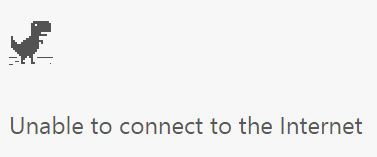
We've all been there. The bell just rang and you are frantically trying to pull up that engaging webpage or video that you scoured the web for in your free time at home the night before. All that you see on the screen is...


What do you do? Get the textbooks out and start reading aloud for the next 50 minutes? Throw your hands up in the air and abandon everything? Fret not, friends! There are a few things that you can do to smooth the bumps when the inevitable happens. It just takes a little planning ahead of time.

Setup Offline Docs in your Google Drive

If you are already using the "New" Google Drive, offline docs should already be turned on. Click here to get instructions on how to make sure that you will be able to view and edit files in your Google Drive when you are not connected to the internet. All changes that you make to your Google Docs while offline will be synced the next time you connect to the internet. You must be using the Google Chrome web browser to enable offline docs.

Download your online videos to your computer

Maybe you uploaded a great screencast or tutorial video for your students on YouTube. If the internet isn't working you won't be able to watch it, but there are ways to download your online videos to your computer. If you type "ss" at the beginning of your video link it will bring to to a service that will allow you to download your video. See the example below. 


www.ssyoutube.com/watch?v=TY4R2l-4xMI

After you type the "ss" at the beginning of the link and press enter you should see a screen like the one below. Wait for the download links to appear on the right side of the screen and click on the highest resolution possible for the best quality. The highest resolution this service offers is 720p. The video will then be downloaded to your computer for viewing offline. This will work with many video streaming websites including Vimeo!


Load an archived version of a webpage 

If you are using the Google Chrome web browser there is a way to get some basic functionality out of websites that you were using even after the internet goes down. Here's how to set that up.


  1. In Google Chrome, navigate to chrome://flags
  2. find "Enable Offline Stale Button"  (Ctrl + F will let you search for the words on any webpage. Search for "stale" to find this faster)
  3. Select "Enable" from the drop-down menu
  4. Click "Relaunch Now" to save changes


The next time that you are working on a page and the internet goes down you should be able to get back to the places on that site that you have already visited before the internet went down. Note that many of the features like animations or videos probably won't load but you will still be able to read text and see pictures.

Wednesday, January 7, 2015

Time Saving Tech Tips

Time Saving Chrome Browser Tips
Need to roll a dice? Type "roll a dice" into the Omnibox (address bar) of a Chrome browser.
save image
Need to flip a coin? Type "flip a coin" into the Omnibox of a Chrome browser.
Need a timer? Type "timer" into the Omnibox of a Chrome browser.
Need a calculator? Type "calculator" into the Omnibox of a Chrome browser.
Need a conversion calculator? Type "conversion calculator" into the Omnibox of a Chrome browser.
Need to check the status of a flight? Just type the flight number into the Omnibox of a Chrome browser.
Also check out https://www.google.com/flights/ to find the flights!

Need to define a word? Type "define (+ word you need to define)" (i.e. define chemistry) into the Omnibox of a Chrome browser.

Check out David Pogue's Ted Talk for some other great, simple, time saving technology tips.

Google Educator Certification
This week we are working on the Drive lessons and taking the exam. Click here to find the basic Drive lessons and here to find the advanced Drive lessons. You may find the training on Docs helpful as well. You can navigate to this training on the left side of the page. Remember that you will have to pay $15 to take the exam and will reimbursed for the cost of all of your exams upon completing the certification. If you need any help, please email Cassie or Matt!