Search This Blog

Showing posts with label Google Classroom. Show all posts

Monday, March 20, 2017

#GoogleEDU Tuesday Tips + Google Forms


You can plan events, make a survey or poll, give students a quiz, or collect other information in an easy, streamlined way with Google Forms. You can create a new form from Google Drive or edit one from a preexisting template. Here are three examples and tutorials of ways to use Google Forms in your classroom.

Self Assessment Tutorial & Example
When grouping students for differentiated instruction, use Google Forms to have your students complete a formative self-assessment. This same process could be used to report progress on a long-term project or evaluate their attitude towards learning. 

Election Ballot & Example 
Instead of collecting paper ballots, use Google Forms to tally votes in real time and foster the habit of voting in your classroom. This process could be used for any election, poster contests, or to simply showcase democratic choice.

Logic Branching & Example

Google Forms allows teachers to create sections so that all of the questions are not all on one screen. In some circumstances, the questions do not apply for every student. If you are using a Google Form as a formative assessment you can direct students to a page with instruction on the topic if they get the question wrong or go to the next question if they get the question correct.
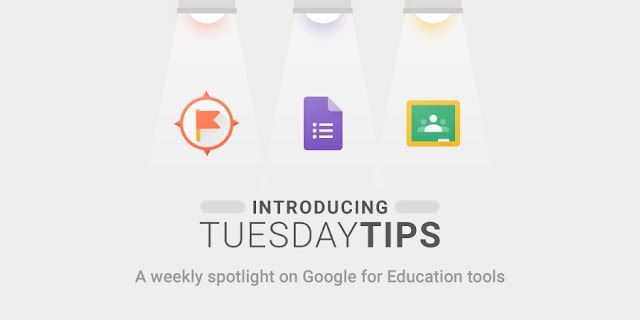


Google for Education has introduced, “Tuesday Tips,” a weekly spotlight on Google for Education tools. This is a fantastic new resource from Google for Education. These tips come in the form of a published Google Slide Deck (see links below). So far, they have released tips for Google Expeditions, Google Forms, and Google Classroom. 

Classroom Tips: https://goo.gl/WcJdpp

Expeditions Tips: https://goo.gl/sWtqWC 
Forms Tips: https://goo.gl/f36Hjz 

Tuesday, January 17, 2017

Google Classroom Updates!

NEW Google Classroom Updates:

FOR STUDENTS: Individualized Work for Differentiated Learning
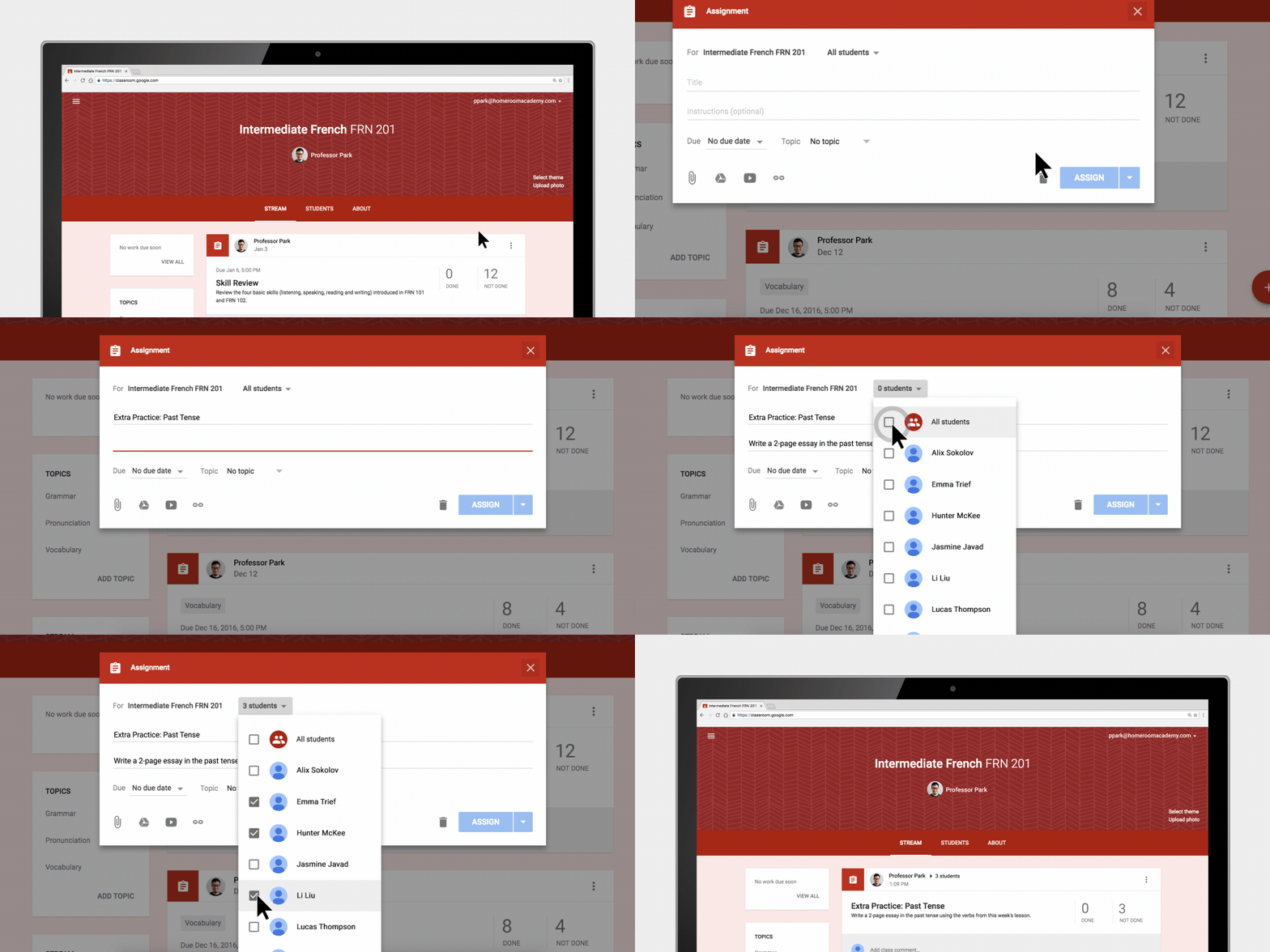
Classroom makes it a lot easier for teachers to assign work to individual students and groups based on their unique needs. As they’re creating an assignment, post or question, teachers can choose whether to share it with the entire class or just with a subset of students.

FOR TEACHERS: New Notifications to Manage Student Work
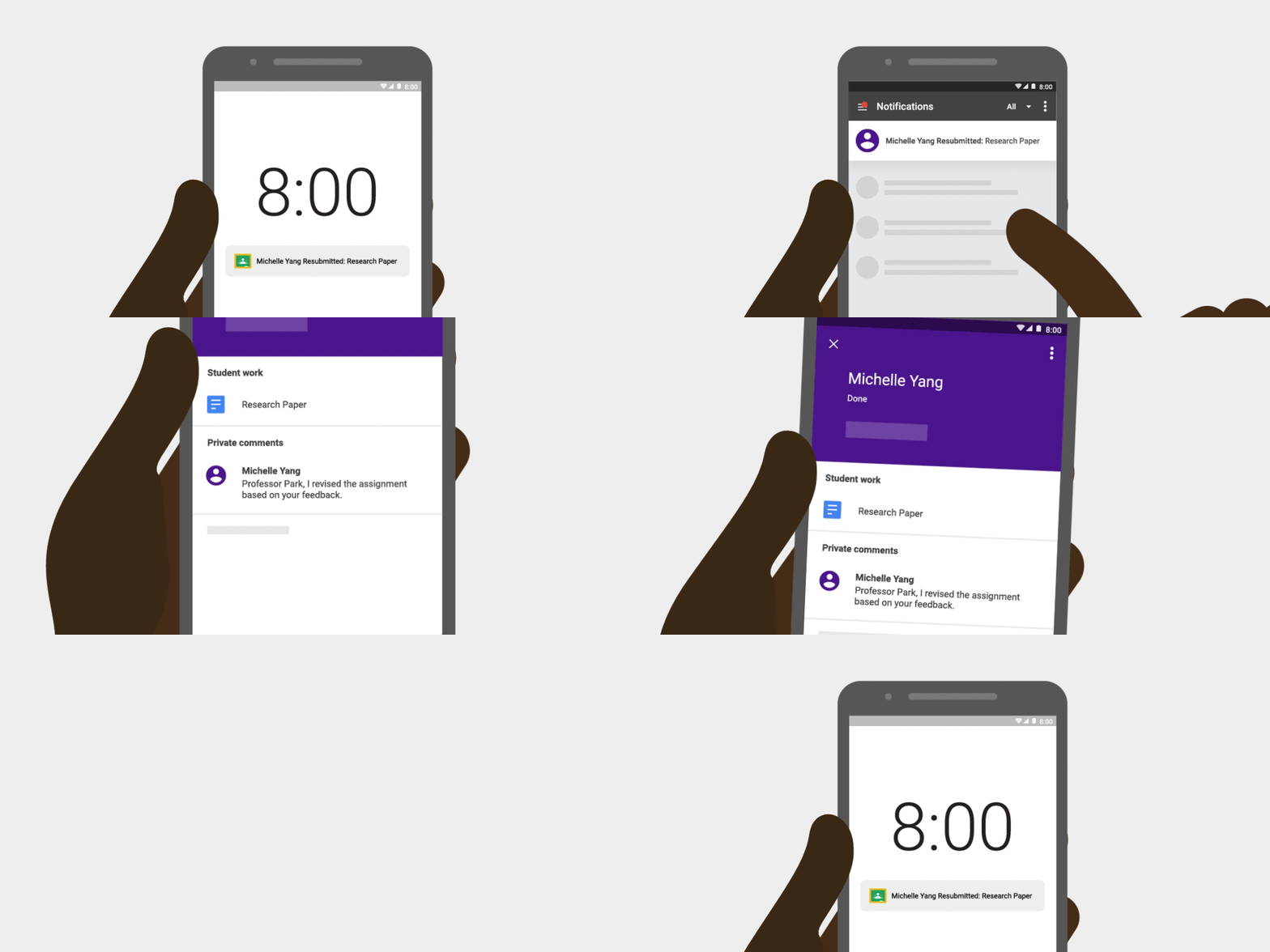
Teachers will now receive two new types of Classroom notifications—one when students submit work after the due date, and one for when students re-submit work!

You can read the full blog post here.

Google Classroom Extension: Get your class on the same (web)page, instantly!

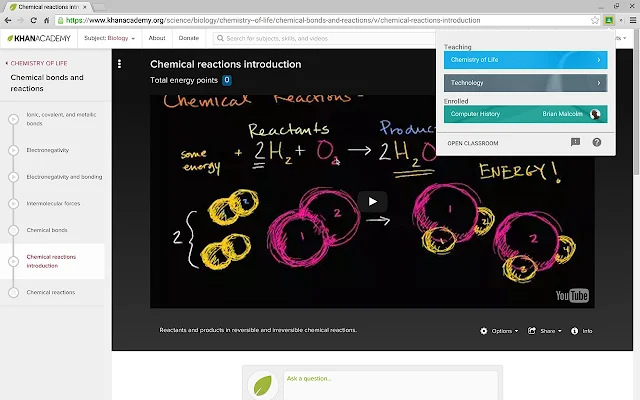
Save time and create a more interactive class with the Share to Classroom extension. The extension allows you to push webpages to any of your Classroom classes, so they open instantly on your students' computers. With this extension, you can get your students on the right page, quickly and reliably every time. You can also post announcements, create assignments, or save webpages to post to Classroom later. For more click here.

Tuesday, January 26, 2016

Street View Treks + Google Forms in Classroom


Google Street View Treks


I often dream of being able to fly my students all over the globe to experience my content firsthand. How engaging would it be to see, smell, hear and feel all of the things that we are talking about in class. Unfortunately, there are limitations to our field trip budget so for now I turn to tools like Google Street View Treks as a way to expose kids to the world outside of White Bear Lake. Treks are online experiences that use tools such as 360 degree panoramas, photos, audio narrations and videos to tell the story of a place. They have a growing collection of experiences for you and your students to explore including The Amazon Basin, Galàpagos Islands, Pyramids of Giza and The Great Barrier Reef.


Check out the list of available Street View Treks here and see if there is an experience that would be relevant to your classroom. Even if you can't find an overlap in your curriculum they are pretty cool to check out on your own.


Formative Assessment Forms in Google Classroom

Google Forms are great at doing one thing, collecting data. That's why many teachers are finding Forms to be a useful tool for formative assessment. There are a number of different question types that you can pose to your class to get a sense of where they are at with your content. Assigning these Forms through Google Classroom now allows you to see which students have completed the assessment and who still needs to finish. Follow these steps while assigning a Form in Classroom. 


  1. Create a new assignment in one of your classes and give it a title. 
  2. Click the Drive icon and search for the Form within your Drive.
  3. From the dropdown menu, select all of the classes that you wish to assign the Form to. 
  4. Click the 'Assign' button
  5. As soon as students get to the end of the Form and submit it, Classroom will automatically show that the student has finished that assignment.


Tuesday, September 29, 2015

Google Calendar Integration in Classroom + Google Expeditions + Adding People to Schoology Groups

Google Calendar Integration in Classroom 
With Google Classroom's new feature you can now see any assignment that you post to the Stream in a calendar view. Click here to get some directions on how to make sure your calendars are setup. If you already use a shared Google Calendar with your classes, you can learn how to transfer events from one calendar to another here.


The great thing about having your assignments sync to a Google Calendar is that the calendar can now be shared in other places like Schoology. This makes it easy for you to post assignments in Classroom for students and still be able to let parents see what is happening in your class within Schoology. Watch this video for instructions on how to embed your Classroom calendar on your Schoology page. 


Help Bring Virtual Reality Field Trips to White Bear

Google just announced it's new Expeditions program that will bring virtual reality (VR) field trips to schools free of charge. Their program facilitators come to schools with VR headsets and all of the other tools required for teachers to lead kids on over 100 immersive learning experiences. 


Unfortunately, Minnesota is not on their initial list of locations that the Expeditions team will be visiting but if we can create enough buzz about it here in White Bear we can get their attention. If you are interested in taking your students on a virtual field trip sign up here to get our district noticed. 

In the meantime, you can learn more about VR technology and do some exploring of your own with the relatively inexpensive Google Cardboard viewers and almost any smartphone.

Manually Adding People to Courses or Groups in Schoology
All of your Schoology courses sync rosters with your courses in Skyward so that you do not have to manually enter students if they join your class or delete them out if they leave. However, there may be times when you want to add someone to your class roster or invite them to be part of a group. 

When adding new members to a course or group you must first select the building that they are associated with before searching for their name. This will help ensure that you add the right person.


Join the Technology and Leadership Cohort
White Bear Lake Area Schools, in collaboration with Hamline University invite you to apply to join the 2015-2016 Technology & Leadership Cohort.

Starting October 27, 2015, ~30 teachers will begin White Bear’s third Cohort, focused on improving leadership and technology skills through four blended courses.  Teachers will also earn 15 inexpensive graduate credits and a Technology & Leadership Certificate through Hamline.

The focus of these classes will be to enhance practice of integrating technology into White Bear Lake’s curriculum as well as build leadership skills in teachers in the field of technology and learning.  The Cohort will give you the opportunity to collaborate with WBLAS colleagues from different grade levels and buildings.  The Cohort will be taught in a blended format with all face to face meetings being held Tuesday (one exception) afternoon/evenings once month (on average).

Tuesday, May 12, 2015

Year-end Technology Tips + Google Slides Improvements

Year-end Technology Tips 

If you've been counting, you'll know that we have less than 20 days of school left. As thoughts of sunny days at the lake and barbecues with friends start creeping into our minds, it can be easy to miss the little details. Today I want to share a few tips on how to wrap up your tech for the year so that you can make the easiest back-to-school transition possible after a summer of fun.

1. Move your Schoology class resources to a collection in your personal resources
If you have been posting files, links, quizzes and other items directly to your Schoology classes without saving them to resources first they will end up being harder to find next year. To avoid this create a new collection by clicking 'Resources' from the top of the main page and then 'Personal'. Create a new collection for each class that you teach by clicking the icon that has a file box with a little green plus sign on it. Think of these collections as your own digital filing cabinet in which you can put all of your class resources. Once resources are in collections you can pick and choose what to add to your classes in the future.


Once you have a collection created, navigate back to the 'Materials' section in one of the classes that you have resources that you would like to save. Next to each resource or folder of resources, click the gear icon and then 'Save to Resources'. Select the collection that you would like to save to.

The resources will now be easy to find in your collection next year as you start planning out the coursework for your students. In the fall, just find your collection, click the gear icon next to an item and select 'Add to Class'. You will then be able to check the boxes of all of the classes you want it to go to.


2. Share collections with other colleagues
Remember that you can share these resource collections with colleagues! Open one of your resource collections, click the share button and then type in the names of your colleagues that you wish to share with. Your collaborators can all add to the collection and still independently choose what to use with their own classes. This is great for dividing the workload or helping out a colleague that is new to the department.

3. Finding things in archived courses
So you've ignored my advice in the first tip and now want to find the resources that you added to an old class that has since "disappeared." Don't worry, there's still hope for you. Click on 'Courses' and then 'See All'. You will now see a list of your current course and there will be a little button that says 'Archived'. Click that to bring up a list of all of your courses from previous grading periods that no longer appear in your course list on the homepage. 

4. Archive Google Classroom courses
Google Classroom users may wish to clear up space on their main classroom page by archiving their courses at the end of the year. To do this, click on the three vertical dots in the top right corner of the course tile and then click 'Archive'. After doing this you and the students will no longer be able to interact with the course materials and it won't show up on your main Classroom page anymore. Clear out your old courses at the end of the year to make room for next year's. You can always view your archived courses from the main menu and choose to restore a course if you archived it prematurely. 


Animation Improvements in Google Slides

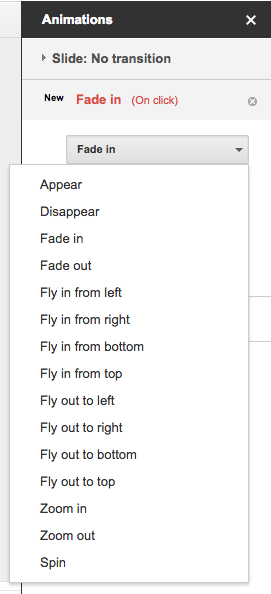
Animations are an easy way to make your presentations look more dynamic in Google Slides. You can now improve your Slides presentations with two new animations: Appear and Disappear. You can also now set the direction (to and from left, right, top, and bottom) of two previously existing animations: Fly in and Fly out.