Search This Blog

Showing posts with label Google Slides. Show all posts

Sunday, January 14, 2018

Increasing student engagement with Poll Everywhere + Upgrading your digital assignments by adding comments


Image result for poll everywhere

Audience response system

Poll Everywhere is an audience response system that fits seamlessly into the Google Slides presentations that you're already using. Audience submissions appear live in Google Slides, so teachers can check for understanding or gather data in the moment.

Great ways to use Poll Everywhere:
  • Use poll everywhere as a warm-up by asking a question like, "In three words or less, what is occupying your brain right now?"
  • Encourage collaboration and promote higher-level thinking with a crowdsourced Q&A that lets the students upvote the best entries to the top.
  • Add live audience engagement to your direct instruction and give all students equitable access to a response.
  • Gather the main ideas of a large audience with divergent solutions to complex problems by generating a word cloud response. 
  • Check for comprehension, gauge the temperature of the room, or host a real-time voting ballot. 

To see other ways to amplify the functionality of Google Slides, check out our previous post on recent slide updates, the Pear Deck add-on, and the Unsplash add-on.


Image result for g suite

Make a copy (with comments)

Google Docs has a new feature that, with a little tweaking, can give teachers new ways to provide support for students in their assignments. When you make a copy of a Google Doc, you are now able to also copy any comments that are in the document. This can be a creative way to proactively provide additional resources, links, and assistance to your students in their projects. Teachers may include comments with additional directions, hyperlinks to resources, voice recordings from the teacher, or a checklist of items for the student to resolve. 

For more details, including step by step directions, check out this blog post from Eric Curts


Monday, October 2, 2017

District Policy: Digital Presence/ Communication + Google Slides Updates


What is the district policy on your digital presence and communication?

Frequent, convenient and scheduled communication, along with a consistently updated calendar, remain the essential elements of our digital presence and communication. We will continue to collaboratively review digital presence standards as we evaluate the strengths of Google Classroom, Schoology, Skyward, email updates, and new tools such as Illuminate, Seesaw, and Flipgrid.


Google Slides Updates

Google has added a bunch of new features to Slides for G Suite customers like drag & drop integration between Keep and Slides, insert ready-made diagrams, link slides between slide decks to mirror updates, skip slides during your presentation without deleting them, and reorganize the order of your slides in grid view. The biggest update is the addition of add-ons, like Pear Deck and Unsplash, that allows users to build better presentations.


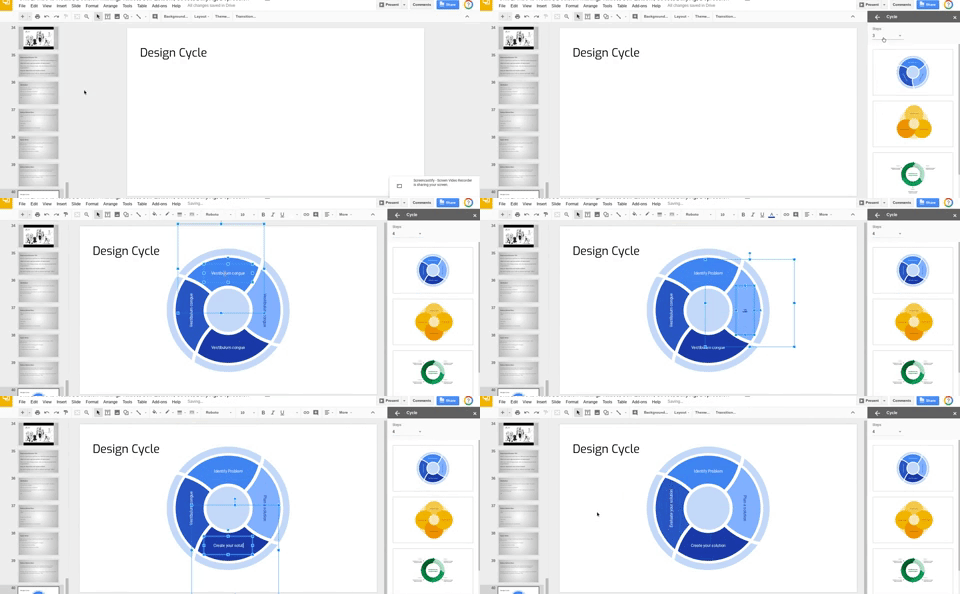
Insert Diagrams or ready-to-use visualizations. 

The diagram will get added to the slide and is ready to get edited to the needs of the user. This is great for when you need to effectively share timelines, processes or hierarchies. (Click here to read more)


Link Slides

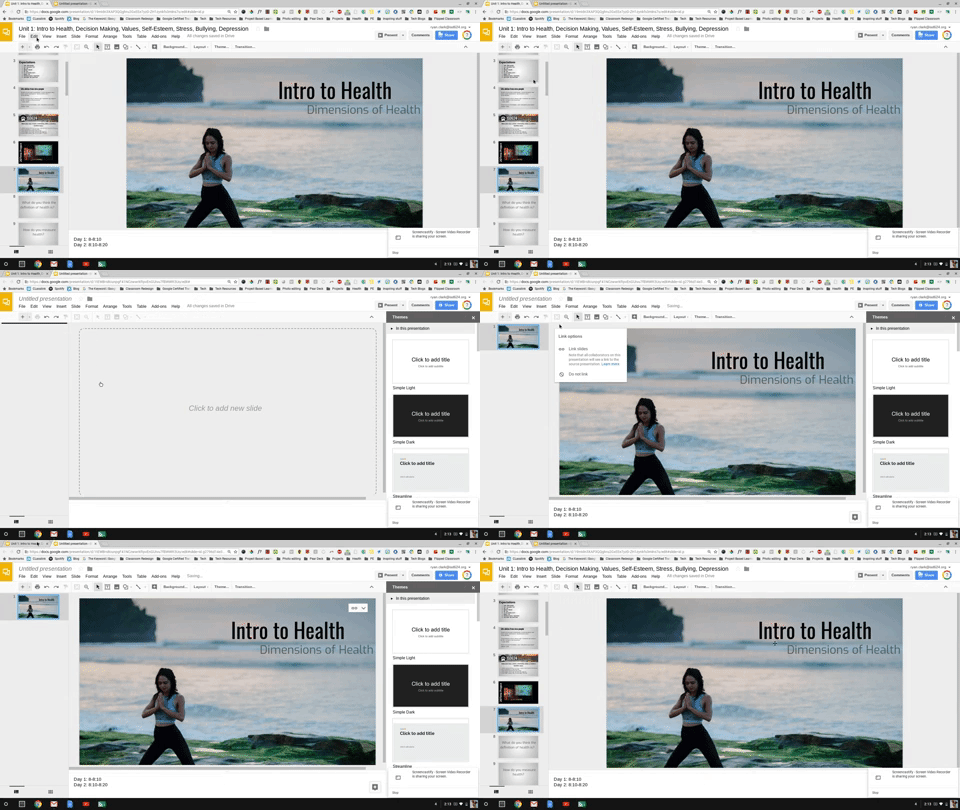
Making sure data is up to date, repeatedly copying slides from one presentation to another is a major time-sink. Now, you can link and sync slides from multiple presentations with a click. This way, you can maintain a single source of truth and easily update linked slides to match the source.

Skip Slides

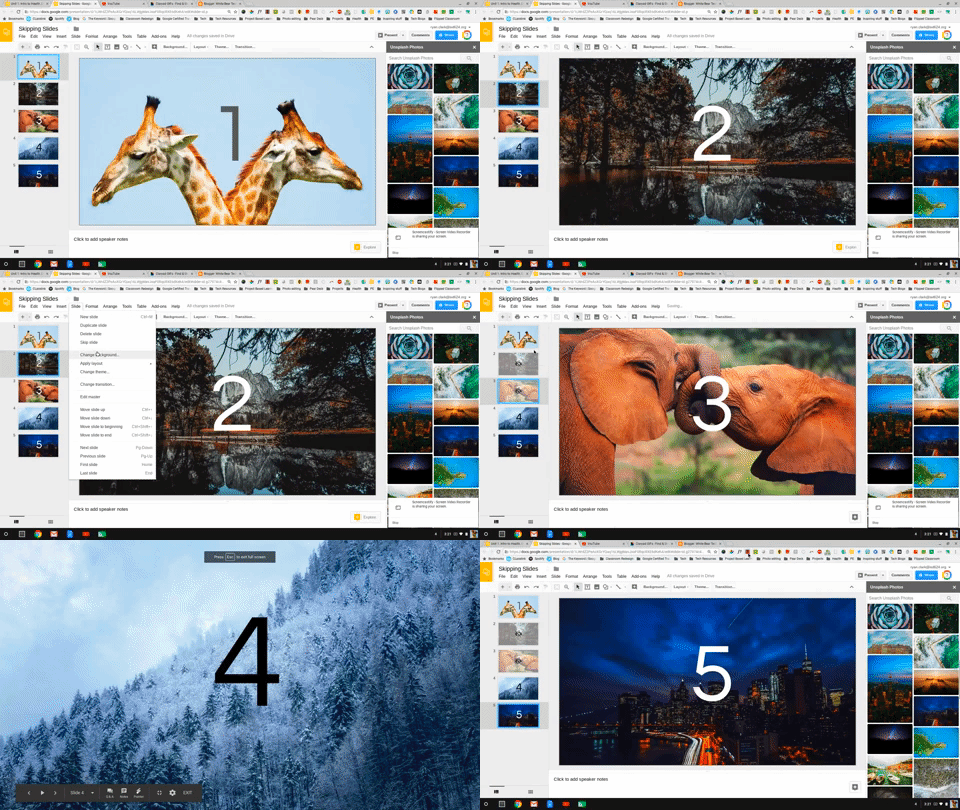
Tailor presentations to different audiences with the Skip slide feature. You can now choose to skip select slides without fully deleting them when you present from your phone or laptop.

Grid view

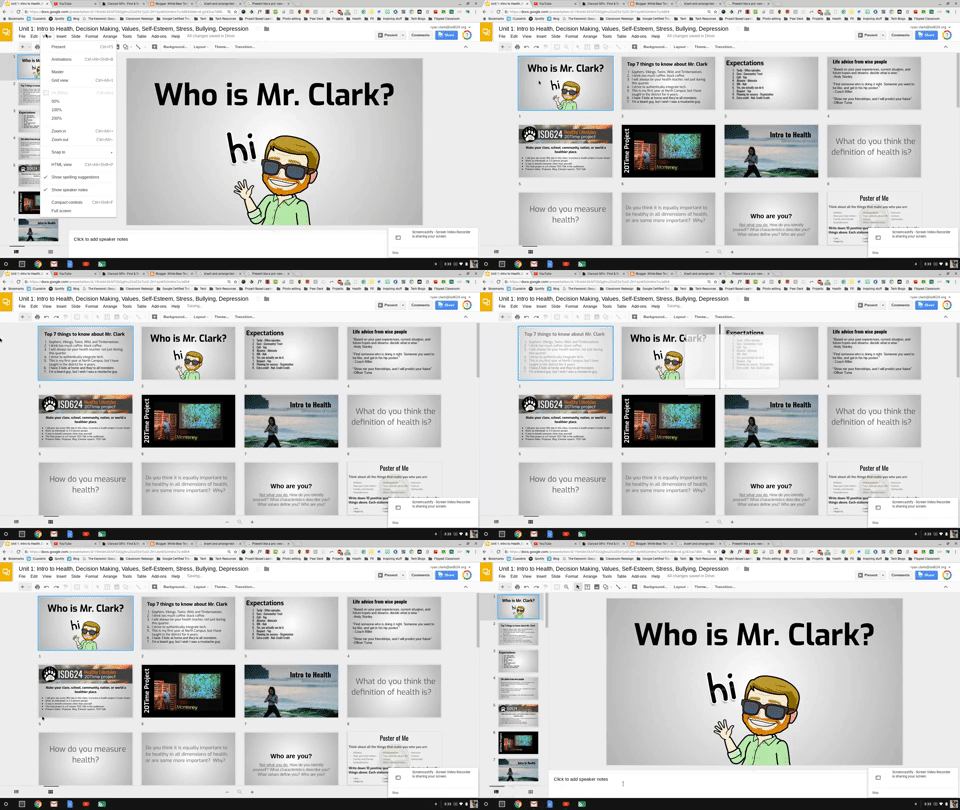
Select Grid view to view all your slides at once as thumbnails. This helps you easily reorder or change formats of multiple slides.


Drag-and-drop integration between Keep and Slides.

What this means is that you can now just drag notes from Google Keep into your presentation, so there’s no need to type in the data manually anymore. (Click here to read more)


Google Slides Supports Add-Ons.


Pear Deck + Google Slides

In the past, you hopped between Google Slides to design your presentation and Pear Deck to add the magic of interactive questions (Pear Deck, More information, How to). It worked, but it wasn’t optimal. The developer teams from Pear Deck and Google collaborated to create an add-on for Google Slides. You will love the 100% participation and student engagement you get with Pear Deck and the freedom to make your slides to look just so.

Image result for pear deck and google slides

Unsplash + Google Slides

Unsplash (link to add) is a vibrant community of creatives curating a resource of beautiful high-quality free images and photos you can download and use for any project. No attribution required. As of last week, the entire Unsplash library of high-resolution photos is now available directly in Google Slides for free use in your presentations.

Image result for unsplash google slides

Tuesday, May 10, 2016

Pear Deck Classroom Climate Feature + Inserting Special Characters

Pear Deck Classroom Climate
Classroom climate data provides you with a new layer of information to help you engage your students and teach to the whole person. Watch the video below to learn about Pear Deck's new Classroom Climate feature.
Click here for an overview of Pear Deck's Classroom Climate feature as well as step-by-step instructions for enabling it and using it. 

Click here for more information about using mood data in class.

Tips for Inserting Special Characters (Symbols) in Google Docs, Slides, and Drawings
Watch the video below for tips on inserting special characters into Google Docs, Slides, and Drawings. A new feature enables you to search for a special character by drawing it in your screen. 

Tuesday, October 27, 2015

Google Slides Templates + Student Gmail Groups + New Google Forms


Templates for Beautiful Google Slides Presentations


Creating a visually appealing Google Slides presentation can take quite awhile if you're starting from scratch. Now you don't have to. Slides Carnival is a website that has templates complete with background images, layouts, fonts, and re-sizable icons. The best part is that they are all free!

I've added all of their templates to this Google Drive folder for you to easily access. After opening the one that you would like to use just click "File" and then "Make a copy" to start crafting your own stunning presentation.

Here is their latest template for Halloween 2015. 

Student Gmail Groups Synced from Skyward

Groups of student email addresses are now automatically generated for every class that is in Skyward.  No more creating email lists for your students in each class.  These can be used to send emails to classes, to enroll students in you Google Classroom classes or push Android and Chrome apps to student accounts.


Here are the steps to finding those addresses (if you prefer a video see below):


  1. Click the "My Groups" button


  1. Click the "isd624.org" link (under the Red Create New Group button, last one on the right)


  1. Open the Group for the class you are looking for


  1. Click the "about" link on the right side


  1. You will see the address for that group.

100 second video shows all the steps.  https://goo.gl/xTs2zc


Pushing Android Apps

Pushing Chrome Apps


The New Google Forms


Have you seen the new Google Forms? They just made a few changes including a more simplified design, new themes, and a faster way to view the summary of responses.


You can learn more about the new features here.


Tuesday, May 12, 2015

Year-end Technology Tips + Google Slides Improvements

Year-end Technology Tips 

If you've been counting, you'll know that we have less than 20 days of school left. As thoughts of sunny days at the lake and barbecues with friends start creeping into our minds, it can be easy to miss the little details. Today I want to share a few tips on how to wrap up your tech for the year so that you can make the easiest back-to-school transition possible after a summer of fun.

1. Move your Schoology class resources to a collection in your personal resources
If you have been posting files, links, quizzes and other items directly to your Schoology classes without saving them to resources first they will end up being harder to find next year. To avoid this create a new collection by clicking 'Resources' from the top of the main page and then 'Personal'. Create a new collection for each class that you teach by clicking the icon that has a file box with a little green plus sign on it. Think of these collections as your own digital filing cabinet in which you can put all of your class resources. Once resources are in collections you can pick and choose what to add to your classes in the future.


Once you have a collection created, navigate back to the 'Materials' section in one of the classes that you have resources that you would like to save. Next to each resource or folder of resources, click the gear icon and then 'Save to Resources'. Select the collection that you would like to save to.

The resources will now be easy to find in your collection next year as you start planning out the coursework for your students. In the fall, just find your collection, click the gear icon next to an item and select 'Add to Class'. You will then be able to check the boxes of all of the classes you want it to go to.


2. Share collections with other colleagues
Remember that you can share these resource collections with colleagues! Open one of your resource collections, click the share button and then type in the names of your colleagues that you wish to share with. Your collaborators can all add to the collection and still independently choose what to use with their own classes. This is great for dividing the workload or helping out a colleague that is new to the department.

3. Finding things in archived courses
So you've ignored my advice in the first tip and now want to find the resources that you added to an old class that has since "disappeared." Don't worry, there's still hope for you. Click on 'Courses' and then 'See All'. You will now see a list of your current course and there will be a little button that says 'Archived'. Click that to bring up a list of all of your courses from previous grading periods that no longer appear in your course list on the homepage. 

4. Archive Google Classroom courses
Google Classroom users may wish to clear up space on their main classroom page by archiving their courses at the end of the year. To do this, click on the three vertical dots in the top right corner of the course tile and then click 'Archive'. After doing this you and the students will no longer be able to interact with the course materials and it won't show up on your main Classroom page anymore. Clear out your old courses at the end of the year to make room for next year's. You can always view your archived courses from the main menu and choose to restore a course if you archived it prematurely. 


Animation Improvements in Google Slides

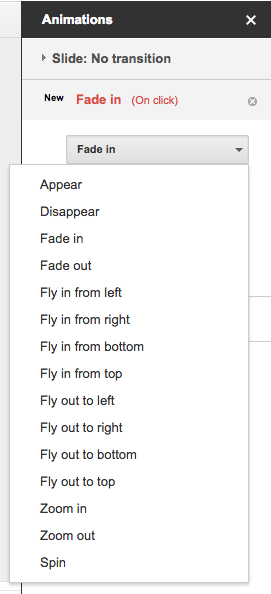
Animations are an easy way to make your presentations look more dynamic in Google Slides. You can now improve your Slides presentations with two new animations: Appear and Disappear. You can also now set the direction (to and from left, right, top, and bottom) of two previously existing animations: Fly in and Fly out.