Search This Blog

Tuesday, January 24, 2017

SMART Notebook Express, Google Expeditions, Where in the World is my DLS


SMART Notebook Express is a website that allows you to open SMART Notebook Files without having SMART Notebook installed on your device.  This also gives you the ability to save SMART files to your drive and still be able to open them.  You can open them at home, at the coffee shop or wherever you have an internet connection.  As many of you transition to using slides for presentations, you then have the ability to open and copy your SMART files as a PDF onto your presentation.  SMART Notebook Express link.


Image result for Google Expeditions
Google Expeditions gives students virtual reality field trips to many places in our world.  Mr. Guyard, French Teacher at Central Middle School, and Ms. Holman, Spanish Teacher at Central Middle School took their students to places around the world this week.  As often as possible, Google Expeditions comes with a DLS to co-teach with you the first time.  Google Expeditions are great learning experience for all grade levels. Here is a list of available Expeditions. If you would like more information please let your DLS know.


Where in the world is my DLS?  Your DLS may be leading a Google Expedition but they also may be co-teaching a lesson, explaining a digital tool, planning a project, planning a unit, researching new ways of differentiation, prepping for PD, leading a co-hort of learners, assisting you during your observation, integrating the 4 C's into your lessons, collaborating with you on setting digital learning goals, but most of all, we are your partner in doing what is best for our students.  We want to be wherever you are!  Let us know how we can assist you.

Tuesday, January 17, 2017

Google Classroom Updates!

NEW Google Classroom Updates:

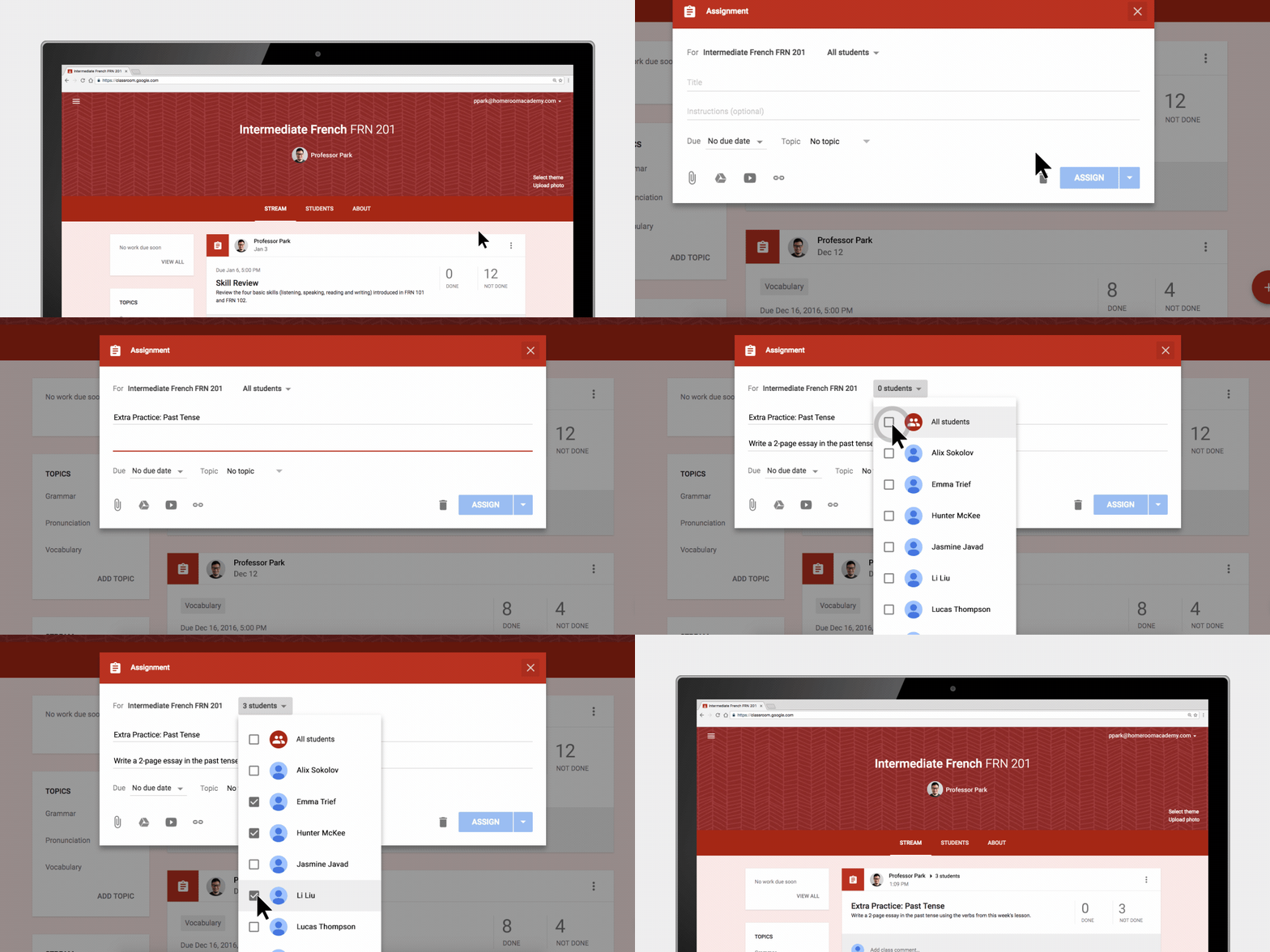
FOR STUDENTS: Individualized Work for Differentiated Learning
Classroom makes it a lot easier for teachers to assign work to individual students and groups based on their unique needs. As they’re creating an assignment, post or question, teachers can choose whether to share it with the entire class or just with a subset of students.

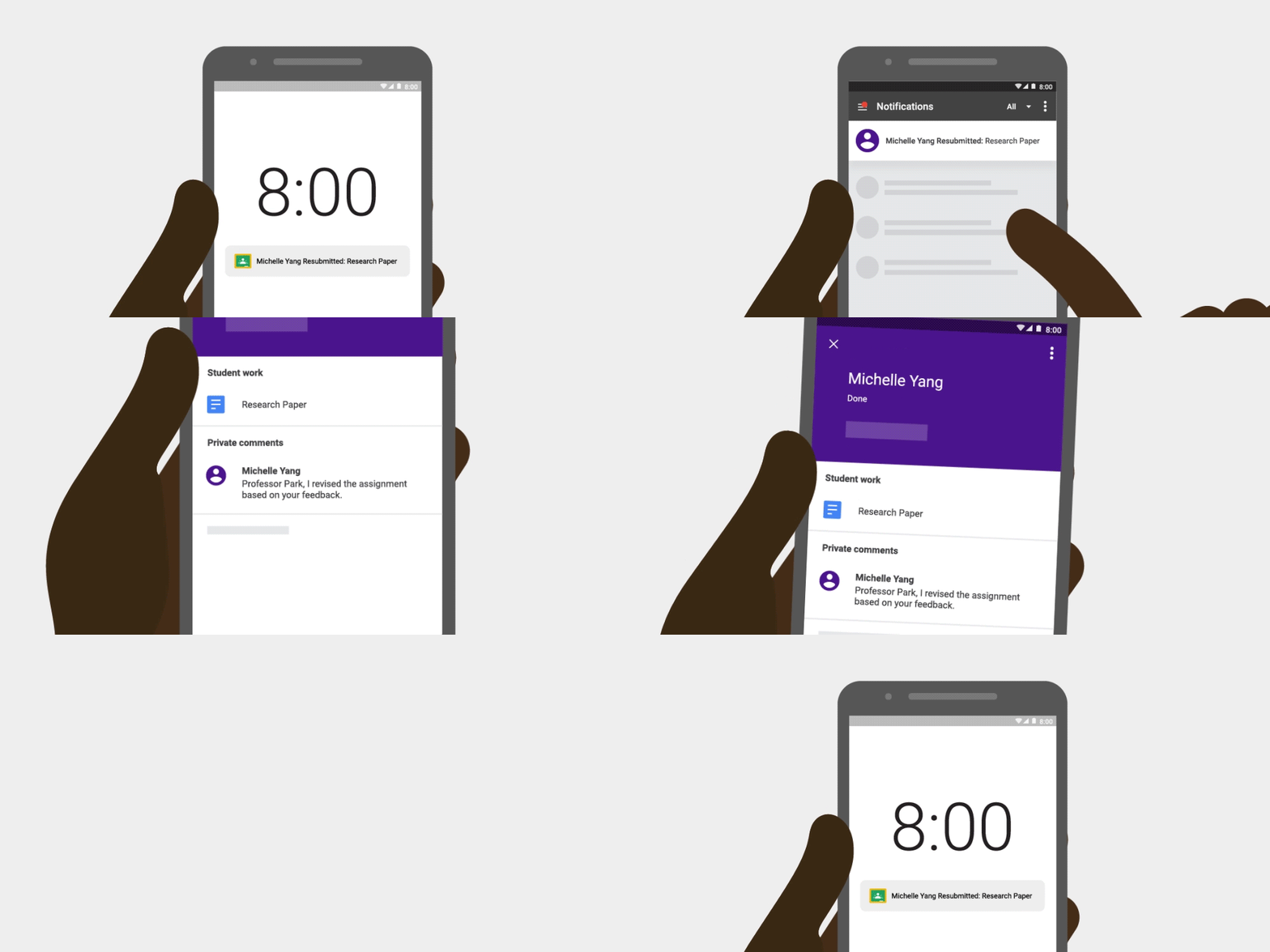
FOR TEACHERS: New Notifications to Manage Student Work
Teachers will now receive two new types of Classroom notifications—one when students submit work after the due date, and one for when students re-submit work!

You can read the full blog post here.

Google Classroom Extension: Get your class on the same (web)page, instantly!

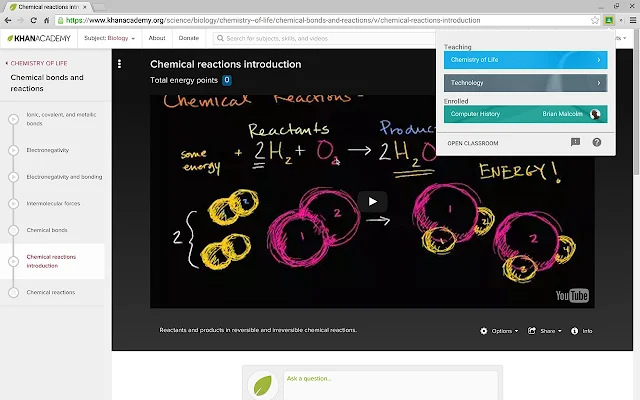
Save time and create a more interactive class with the Share to Classroom extension. The extension allows you to push webpages to any of your Classroom classes, so they open instantly on your students' computers. With this extension, you can get your students on the right page, quickly and reliably every time. You can also post announcements, create assignments, or save webpages to post to Classroom later. For more click here.

Tuesday, January 10, 2017

Form Publisher + Flipgrid One

Form Publisher

Google Forms is a powerful data collection tool, but it does have its limitations. As you may know, the responses to a Google Form are all recorded in a spreadsheet. Working within a spreadsheet is great when you need to do calculations with the data or if the information you are collecting is for a small audience and individual responses don't need to be shared. One of the questions that I am often asked is if there is a way to take the spreadsheet data and turn it into a more useable format. The answer is YES! With Form Publisher, you can create an individual Google Doc, Slides presentation or Google Sheets spreadsheet for each response to your Google Form. These merged documents can automatically be shared back with the respondent or sent to someone else via email.

Form Publisher is an add-on for Google Forms. See the image below to learn how to install add-ons within a Google Form. 


After Form Publisher is installed, click on the puzzle piece in the top right corner of your Form and select 'Form Publisher'. A menu will appear in the bottom right corner of your screen that will walk you through the process of creating your template document, slides presentation or spreadsheet. The video below has more detailed directions. 


FlipGrid One


Flipgrid is a tool that allows students to submit video responses to a question. This platform, developed by a professor and graduate students from the University of Minnesota, now has a basic free version for all educators.  Check it out here.


Click here to sign-up for your free account.


Sunday, January 1, 2017

Twitter for Pofessional Growth: Part 1 - Getting Started

Twitter: Twitter For Professional Development (Part 1)

Twitter can be an amazing resource when thought of as a Personal Learning Network (PLN). Teachers can use twitter to develop their own personalized “network” of fellow educators and resources designed to make them a better teacher. If you are not on Twitter yet ... get there. There are far too many great discussions happening for you to keep missing out. 

How To Sign Up For Twitter


Start Building Your PLN With ISD 624 Employees


To encourage teachers to build their PLN, promote collaboration across our district, and to expand the digital reach of our educators globally, we are creating a resource of twitter handles from ISD624 teachers to share across our district. This is an optional activity, but connecting with other great educators on twitter could be transformational to your teaching practices. Twitter handles collected from this form will be available to ISD624 employees via this blog and emails from your Digital Learning Specialist. Fill out this form if you are interested in sharing your twitter handle for other ISD 624 teachers to follow:


Twitter Best Practices 

  • The purpose of this twitter account you will create is for professional purposes - to make you a better educator.
  • Do not use Twitter like facebook - No pictures of food, posts about your family, or political rants.
  • No profile eggs.  Make sure you upload a picture of yourself for your twitter profile. It brings legitimacy to your profile. 
  • Unless you’re at an education event, do not say where you are at.
  • Do not be afraid to UNFOLLOW people.  If they are not making you a better educator, unfollow them. 
  • Your description is important, make sure you describe yourself as a teacher and other characteristics to get people who you want to be part of your PLN will want to follow you.

Identify Your #Hashtags 


Hashtags are a tool to make words searchable. Hashtags allow Twitter users to tap into a twitter-wide conversation. Discover the trending conversations, and decide which ones you want to be included in by clicking on a hashtag. This will help you connect with users who have similar interests. To create a hashtag, place # before a word or a combination of words without spaces. One very popular education hashtag is #edchat and our district technology hashtag is #isd624tech.


Find Some Educators To Follow


Tuesday, December 20, 2016

Digital Whiteboard + Word Clouds + The Kid Should See This

Aww Web Whiteboard and Google Classroom


Finding ways for students to easily collaborate is always something I am searching to find. Aww Web Whiteboard is a digital whiteboard space in which students can  annotate, draw, and share easily with Google Classroom integration.


The tool is easy for both teachers to set up, and students to use. Click here for a tutorial on how to get it up and running in your classroom.


Word Clouds
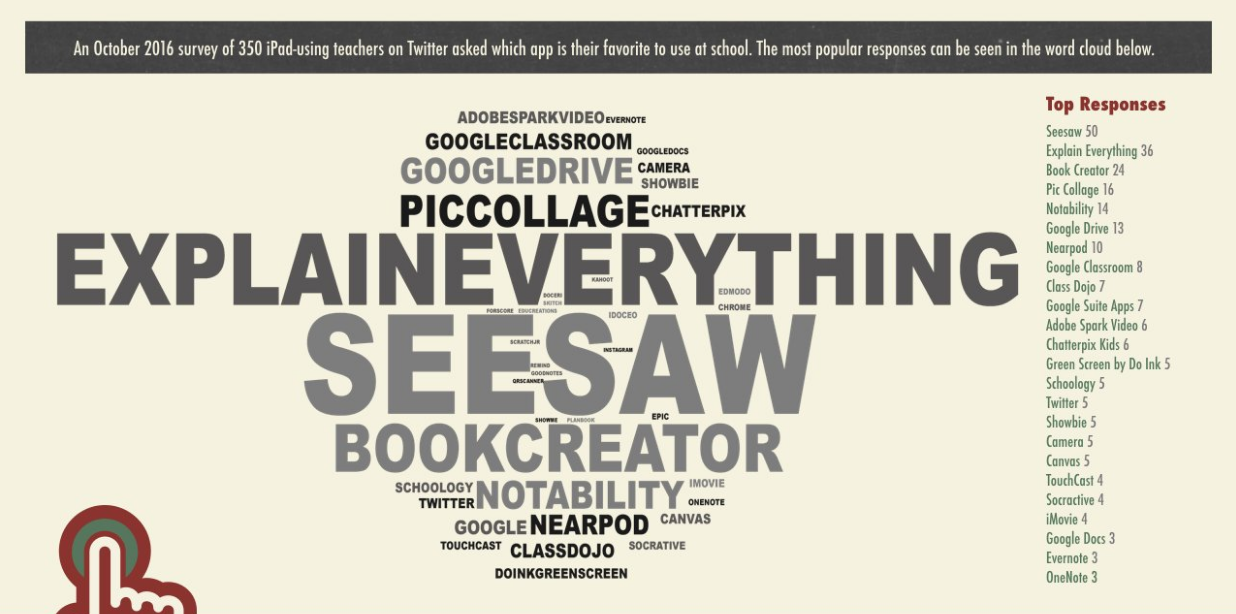
Word Cloud infographics are becoming a popular way to share information. They are visual, eye catching, and fun to create.


A word cloud is a graphical representation of word frequency in which the size of each word indicates its frequency of use or importance. The example above shows data from a Twitter survey from 350 teachers telling their favorite classroom technology app.


Click here for an article by Eric Curts showcasing the best Chromebook tools for create word clouds with your students.


Some ideas from the article for using word clouds could include...
  • Students can analyze their own writing to see which words they use often (perhaps too often).
  • Brainstormed ideas from the class can be collected to see which ideas rise to the top.
  • Text from famous speeches and writings can be displayed in a cloud to reveal keywords and themes.
  • Submissions from polls and votes can be imported to see the most popular responses.


The Kid Should See This is a great site that features tons of highly engaging short videos to spark curiosity. Categories include art, science, technology, food, and pretty much anything you can think of. It can easily be used to build background information on a topic, or to extend beyond. Great for all grades. Click here to check it out.


iPad Apps
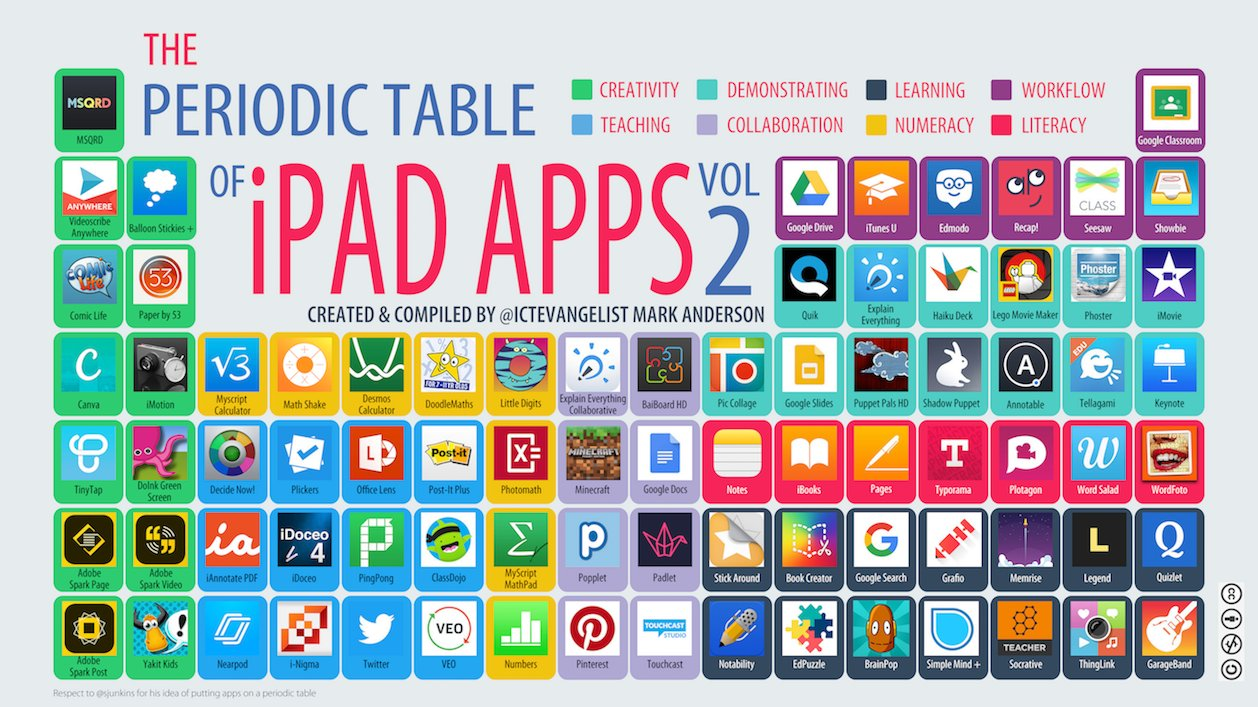
Here is fun graphic I came across the other day for iPad users. Click here for more information on it. Enjoy!


Please contact your Digital Learning Specialist if you would like additional information on these digital tools or any other digital learning tools.


Tuesday, December 13, 2016

Closed Captioning, Print Friendly Web Pages, Edulastic

Closed Captioning

Closed Captioning is an underutilized digital learning tool!  It is not only necessary for our students who have this in their student plans but it is a great literacy tool for all students.  Schools in Finland are mandated to use Closed Captioning for anything projected on a screen or for student viewing.  They believe their literacy rates improved because of this.  They do have the highest literacy rates in the world. Encourage parents to use closed captioning at home for ongoing literacy practice. If you need help learning how to use CC, please ask your Digital Learning Specialist.
Print Friendly

Print Friendly is a Chrome Extension that makes any web page print friendly.  Try it out and then add it to Chrome.  You will find this extension in the Chrome Web Store.


Edulastic
Edulastic is a great digital tool for assessment for all grade levels. It also gives teachers the option to create word sorts.


Favorite Digital Tool

Do you have a favorite digital tool you would like to share with us?  Please complete this form and we will share out!

Wednesday, December 7, 2016

EdTech Team Graduate Credit Opportunities + Desmos: Free online graphing calculator featuring Ryan Brown

EdTech Team Graduate Credit Opportunities
The EdTech Team offers professional development designed for educators to develop their technology efficacy. They offer several self-paced, online options including a 6 credit teacher leader certificate cohort, 1 credit book studies, and 1 credit courses.

Teacher Leader Certificate Cohort:

EdTechTeam Teacher Leader Certificate is an online cohort that will inspire and empower teachers to make a difference in their classroom and change their learning environment. A Teacher Leader is committed to the ideals of Courageous Leadership, Empowerment, Student Agency, Inspiring Spaces, and an Engaged Community.

This 12-week cohort will embrace emerging technology and current research and best practices to take an organic look at how teachers can successfully guide students to optimum success and learning. Teachers will spend 2 weeks on each of the 6 courses: Global Collaboration and Community, Project Based Learning, Flipped Learning, Visual Literacy, Assessment and Redesigning the Learning Space.

For each course, participants will be required to spend 2 hours reading and reflecting. They will spend 4 hours completing individual activities that will build on the learning outcomes for the course and 3 hours collaborating with either cohort members or in a live hangout with experts on each topic. Each course will end with a final project that teachers will be able to take back to their classroom and immediately implement. Upon completion of the Cohort, teachers will receive an EdTechTeam Teacher Leader Certificate and 6 Graduate Credits.

The next cohort runs January 9th, 2017 - April 3rd, 2017. The cost is $1099.

Book Studies:
Take a closer look at the books that are being published with EdTechTeam Press and then join the authors in an online course to dig deeper into the content.

The next book study, The HyperDoc Handbook, runs from January 9th, 2017-Febuary 6th, 2017. The cost is $149.00 for the book study and an addtional $65.00 for the graduate credit. 
One Credit Courses:
These 1 credit courses focus on particular topics and include 15 hours of deep learning, application, and authenticity. Each course will connect you to global experts on each topic and build you a valuable and supportive learning community. Topics currently include: Google Drive and Docs, YouTube in the Classroom, The NEW Google Sites, Math and GSuite, Assistive Technology and GSuite, and more.

Desmos
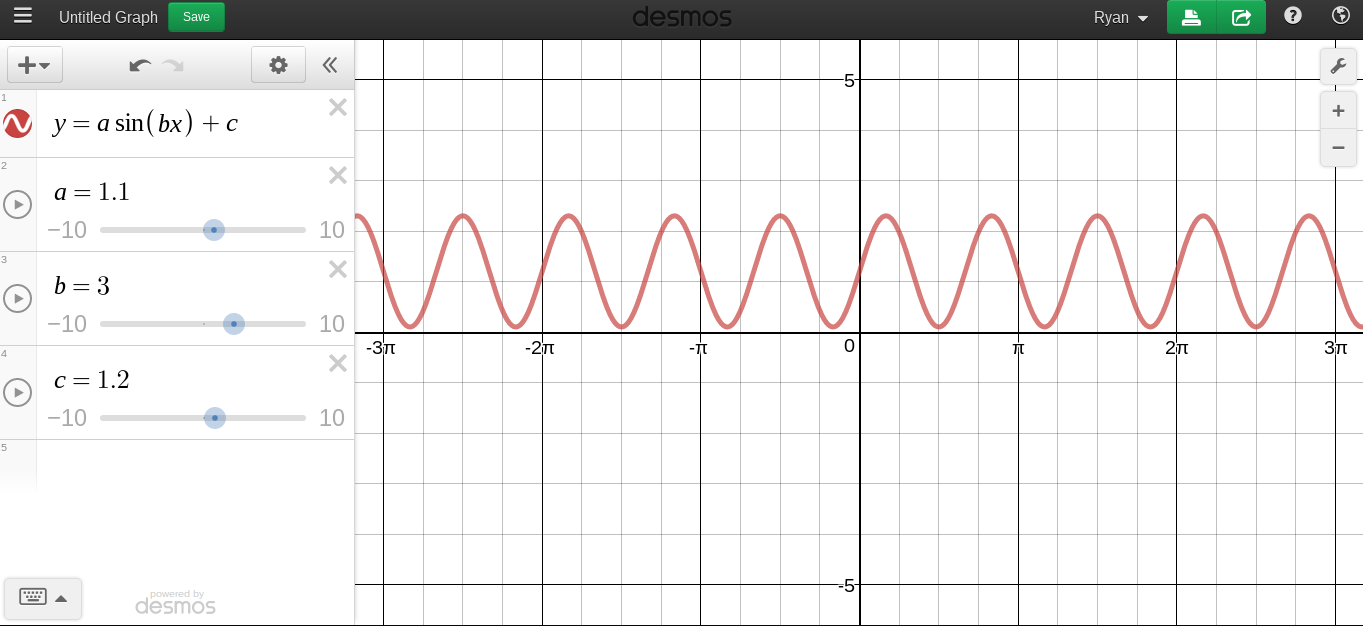
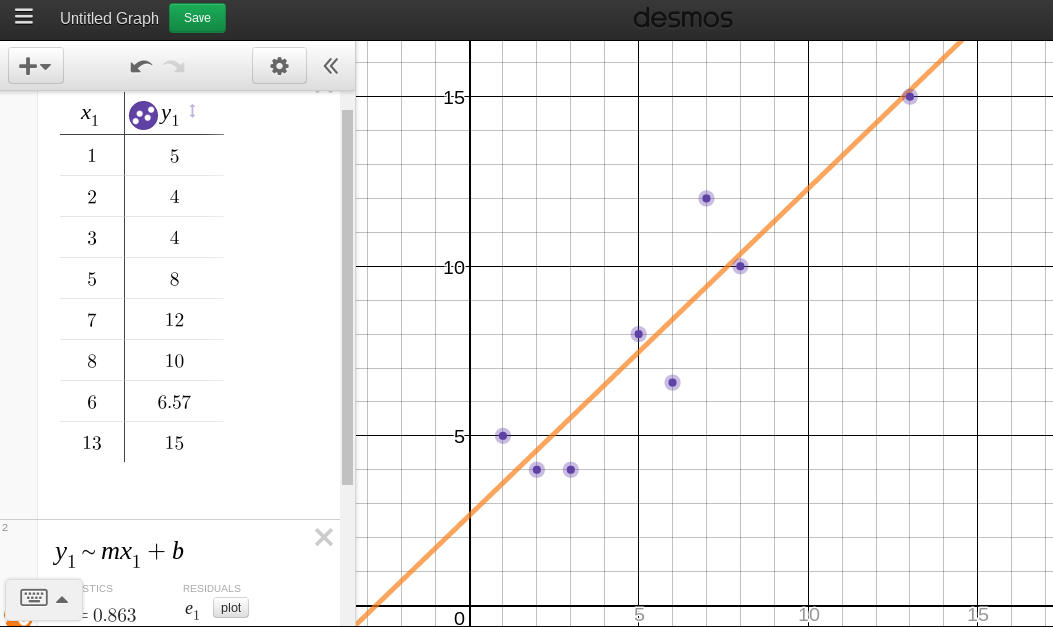
Desmos is a free online graphing calculator that allows students to explore math concepts with dynamic graphing software.

Compared to traditional graphing calculators, students can build a more intuitive sense of how graphs of functions work. Using Desmos, students and teachers can graph functions, find derivatives, plot data and model it with equations, and create animations with graphs. More information about how to get started can be found at learn.desmos.com


In addition, Desmos has also created a classroom lesson activity builder which is found at teacher.desmos.com. Here, teachers can choose from a wide variety of pre-made lesson activities that have been produced by the Desmos teaching faculty as well as other users around the world. Teachers can also build their own lessons through the Activity Builder using their Google account information.


Desmos activities run very similarly to a PearDeck or Nearpod activity, but with fully integrated Desmos graphing software. Using the teacher dashboard, teachers can efficiently moderate a classroom conversation about the learning that is taking place and highlight student work (anonymously if needed) for all to see. Teachers can also view the progress of each of their students as they work in order to provide personalized feedback. Teachers also have the ability to toggle between student/teacher paced or to pause the activity to direct the classroom conversation. The Desmos activity builder also features card sort activities as well as a graphing game called Marbleslides - each of these can be built from scratch in the activity builder template.

While Desmos and Activity Builder are clearly geared towards teachers of mathematics, the activity builder interface could be used in any content area. The graphing calculator also lends itself to other courses where data collection is used to make predictions.


Desmos tech tip written by Ryan Brown, Math teacher at North Campus