Search This Blog

Tuesday, May 16, 2017

Custom Homepages in Chrome + ClassroomScreen + WBL Badge Wall

Custom Homepages in Chrome

You may find yourself navigating to the same webpage every time that you log into your computer. To save time, you can set these pages to automatically open when you start Chrome. Some sites that you may want to open right away are Classlink and the district homepage.

Start by clicking on the three dots in the top right corner of Google Chrome. 

Select 'Settings' from the menu and then 'Show advanced settings' at the bottom of the window.

In the section titled 'On startup', select 'Open a specific set of pages' and then 'Set pages'.
Finally, copy and paste the URL of the webpage that you would like to open automatically when you start Chrome. You can add more than one. After you click 'OK', close Chrome and then open it again. The webpage you just saved should be the first thing that pops up!

ClassroomScreen

Teachers in the classroom rely on many different tools to facilitate learning. Unfortunately, many of these tools are spread out across many websites and devices. If you ever find yourself scrambling to remember the name of that one timer website or can't find the link to your favorite digital whiteboard, check out www.classroomscreen.com

ClassroomScreen is a blank canvas with many tools at your disposal. You can access any of these tools with the click of a button.


The windows can easily be rearranged. When you no longer need a tool, click on the red 'X' in the toolbar. It couldn't be more simple. Try it out!

Technology Badge Wall

A reminder that the cutoff for completing the Badge Wall is tomorrow, May 17th. People who have completed their wall will receive a certificate and sticker in the coming weeks. Of course, you can continue exploring and learning on your own if you haven't completed the challenge yet. Thank you for joining us on this adventure! Stay tuned for future challenges and events.

Tuesday, May 9, 2017

Bingo Baker makes it easy to create bingo cards. You can generate hundreds of random cards and print them using the printer-friendly PDF (with no ads or watermarks). You can also save paper by playing your bingo game online.

To get started just type in your words or paste your images into the grid. Or you can copy and paste a list of words where it says “paste in a list of words.” You can name your card and change the BINGO headings too.  After you generate your bingo card, you'll see a huge heading on the right side of the page that says "Play Online". Below the heading is a URL/link. That is the URL you can distribute to anyone on the planet. They can enter that URL in a web browser and see your bingo card to play along. Have fun playing bingo with your classes this spring!

If you want to manage your cards more easily, upload more images, or print more than 8 cards, you need to create an account.


Windows 10 Update

In order to maintain security and compatibility, we are upgrading all district PCs to Windows 10 this summer. We have done extensive Windows 10 testing throughout the district. Lincoln Elementary was upgraded over spring break. The transition has been smooth. Many of you are already using Windows 10 at home. For those of you who are new to Windows 10, The main differences between 10 and 7 are a different look to the desktop and an enhanced search feature.

What does this mean for you?
  • You will need to save any data on your computer to Google Drive or network folder. Please contact your Digital Learning Specialist or Tier 1 Tech for help saving data. Don't forget your iTunes Library!
  • Your computer will be completely re-imaged over the summer. You should never save data to your desktop. Make sure you are always saving to your Google or network drive.
  • Fill out this form for any special software you have loaded on your computer and we will make sure to re-install it.
  • Here is a Windows 10 - Getting Started Video Playlist for those of you who want to check out the new look.

If you use a laptop and you would like it updated over the summer, please turn it in (with the power cable) to your Tier 1 Tech before leaving. If you need it for work over the summer, it will be re-imaged in the fall.

If you are interested in leaving Windows altogether and using only a Chromebook and/or Chromebox, contact Steve Asper to set up a personalized plan.

Tuesday, May 2, 2017

#Fakenews, Print Friendly, + Badgewall update.


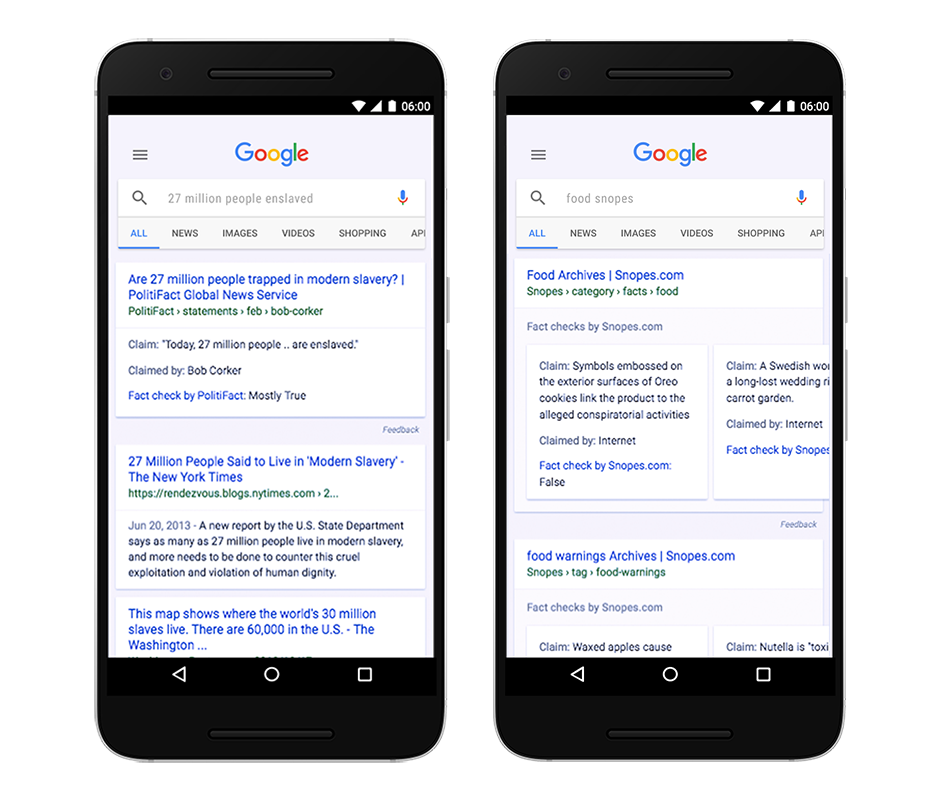
The 24 hours news cycle creates a seemingly insurmountable amount of content for students and teachers to navigate through.  Unfortunately, not all of it is factual or true, making it hard for readers to distinguish fact from fiction. To empower our students against #fakenews, Google has created Fact Check to supplement the already powerful Google Search.


FactCheck_Apr7.png
...when you conduct a search on Google that returns an authoritative result containing fact checks for one or more public claims, you will see that information clearly on the search results page. The snippet will display information on the claim, who made the claim, and the fact check of that particular claim.
Fact Check is not available for every search result. If a fact check made by a publisher meets certain requirements, Google automatically shows a summary of that fact check. In order for a search result to have a fact check, it requires: 
  1. The publisher of the fact check must be a trusted source of information (determined by an algorithm)
  2. The content must clearly tell you which claims are being checked, conclusions about the claims, how conclusions were reached & citations and primary sources of information
It is Google's position that even though differing conclusions may be presented, they still think it’s helpful for people to understand the degree of consensus around a particular claim and have clear information on which sources agree. As Google makes fact checks more visible within search results, they believe people will have an easier time reviewing and assessing the validity of the search results and making their own informed opinions. Keep in mind that Google does not endorse any of these fact checks.

To find out more about this new feature, visit the Help Center


Image result for print friendly

Print Friendly and PDF removes ads, navigation, and junk before your print. Optimize any webpage for the ultimate print or reading experience and save on paper and ink when you print with Print Friendly.

Print Friendly and PDF boast two primary features
  1. Edit Before Printing: Click-to-delete any content before printing, remove images or individual images, or change the text size from larger to smaller.
  2. Print or Save as PDF: Generate PDFs for archiving, sharing, or saving. PDFs include clickable links, and source URL so you can continue to interact with the content.
Click here for "Print Friendly & PDF": 


Our self-guided EdTech Badge Wall Challenge has been a tremendous success. Over 75 teachers from our district have invested time into building their G Suite Competency! The cut-off to earn up to 15 PD hours is May 17, but the actual Badge Wall will continue to be available going forward. For more information on the White Bear Lake Badge Wall Challange, see this blog post.

Tuesday, April 25, 2017

Introducing the New "Google Earth"

Introducing the New Google Earth

Google Earth is a tool that has been around for a while. If you are anything like me, then you have probably used it to search for your house, neighborhood, or the city in which you live. It has such potential for students to explore places around the globe. The trouble has been that it has been a program in which you have needed to download to your device in order to use. That's no longer the case! Google Earth is now completely web-based and ready to start using! This tech tip will take a look at some of the features included.


Explore
Search for any address or place you want to visit. Google Earth will take you there. Give students visual background on the places they are learning or reading about.


Bookmark places you visit for easy access later on. These bookmarks are saved in your "My Places" tab that can be shared out to create your own guided content tour.

Street View
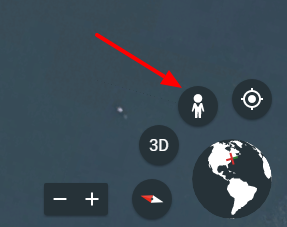
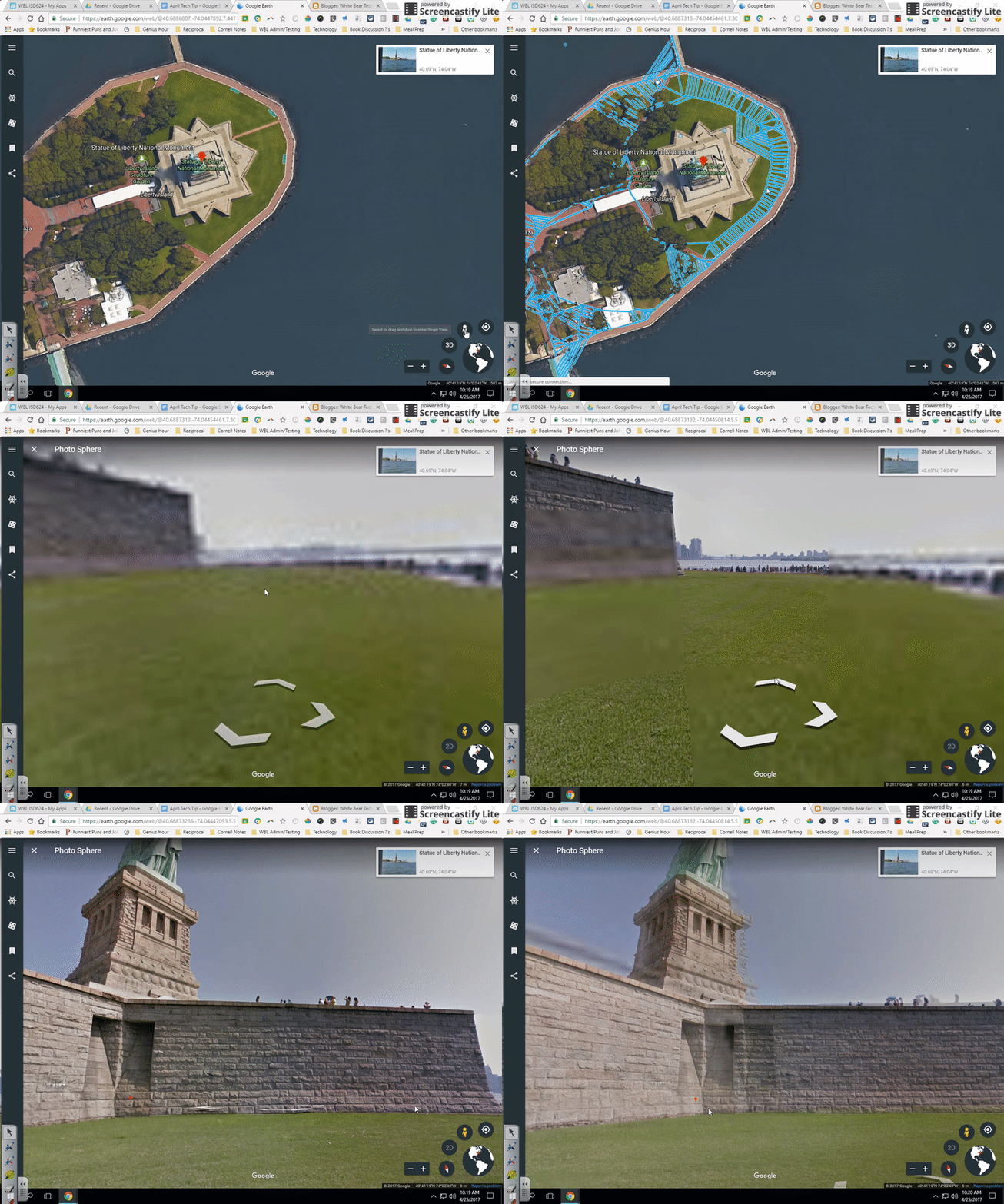
Once at a location, click in the bottom right corner to activate “street view” and gain the ability to walk around.


Drag the little person icon to anywhere highlighted blue on a location to start looking around. (Note: not every place has street view)


Voyager Tool
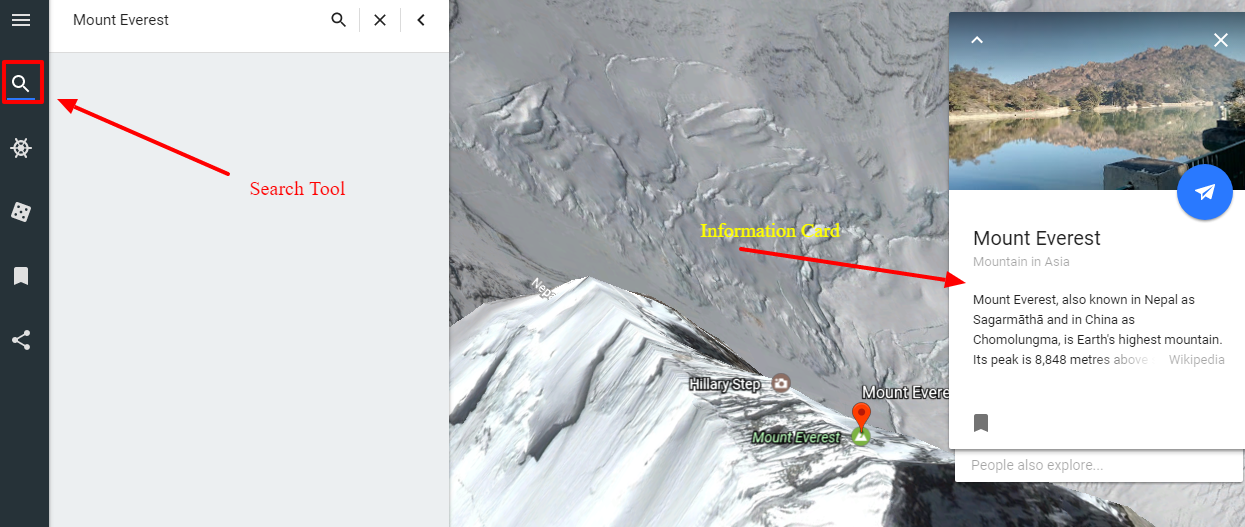
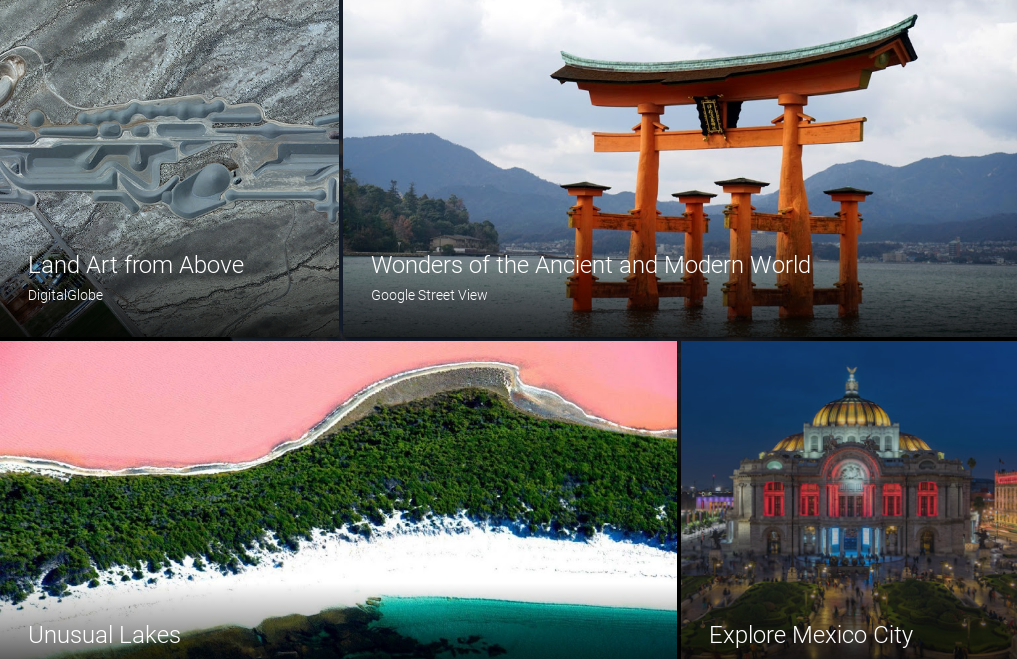
Google has joined with some of the world’s best scientists, storytellers, and non-profit organizations to create informational guided tours that are ready for your students to jump into.


These tours have multiple points of interest to visit and explore, each with an information card to go with it.


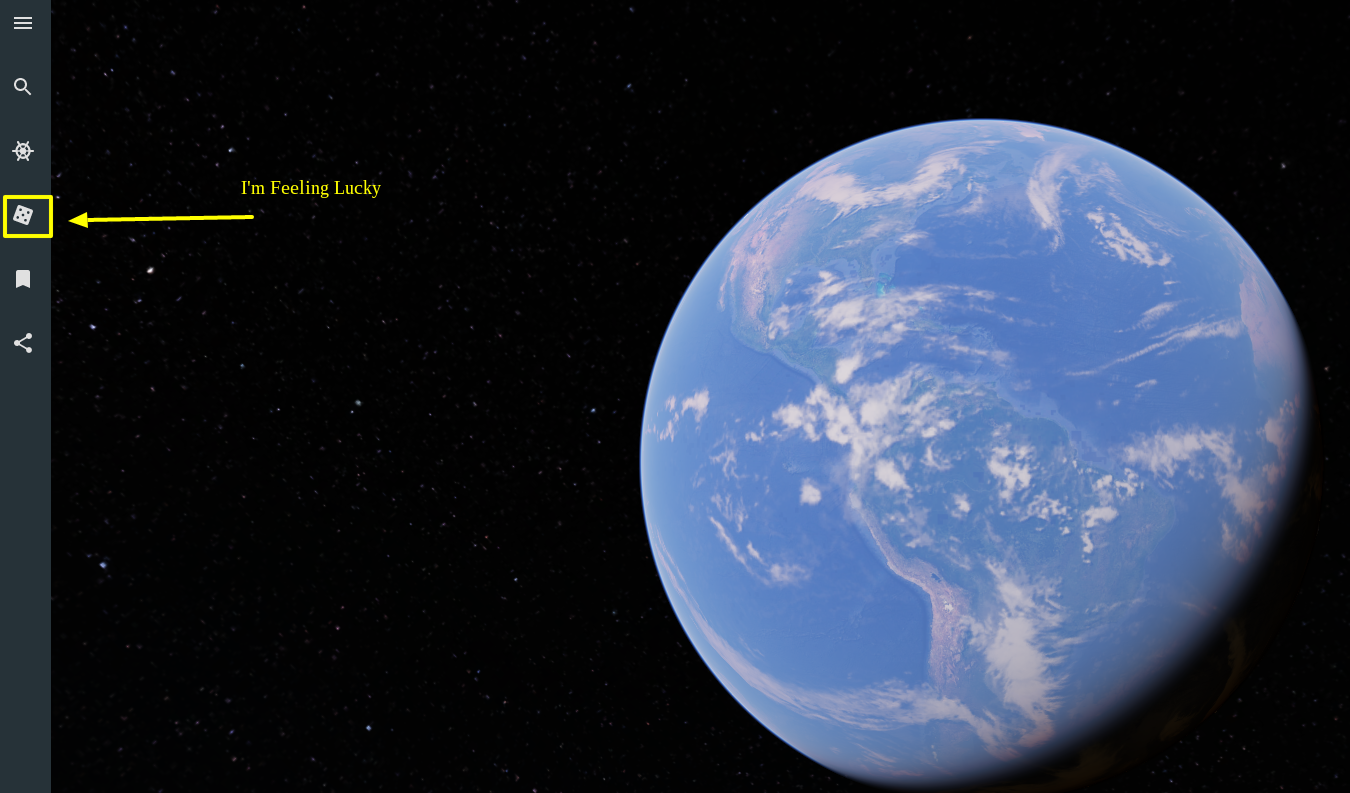
I’m Feeling Lucky
Click the dice icon for the “I’m Feeling Lucky” feature to uncover some fascinating new places around our world. When clicked, you will randomly get one of 20,000 different locations. Once you have landed on spot you can open up a knowledge card to learn more.


Google Lit Trips
Google Lit Trips are an idea that uses Google Earth to mark the journeys of characters inside different works of literature. Students can interact with the book they are reading as teachers add relevant media, thought-provoking discussion questions, and links to different placemarks. This creates an engaging literary experience that moves past just imagining the place in our mind.

Click here to learn more about Google Lit Trips and to explore some already created ones.

Please contact your Digital Learning Specialist if you would like additional information on anything mentioned above.


Monday, April 17, 2017

Class Link


Classlink

Classlink is a new single sign-on tool being introduced to the district. When fully implemented it will allow teachers, students, parents, and staff the ability to sign into the Classlink portal and have access to all district digital tools without having to use other usernames and passwords.

Sign in

Security
  • Change your Google password before using Classlink because if anyone has your current password they will have access to EVERYTHING on Classlink; including Skyward student & your employment data!  
  • Students- You must close your chromebook when you walk away.  If left open and unattended, others could get into all of your school apps..  Keep your information safe, never share your passwords with other students.  
  • Teachers- You must lock your desktop, laptop or Chromebook to sleep to initiate password security whenever you step away from your teaching device.  With the advantages of Classlink also comes the possibility of somebody being able to access ALL of your information in one spot. Be mindful of this whenever you leave a device unattended.
  • How to lock your devices
    • Desktop- Ctrl+Alt+Delete
    • Laptop - close cover
    • Chromebook- close cover

Timeline

  • April 18, 2017 - Classlink will be open to all  teachers
  • May 1, 2017 - All K-5 student Chromebooks will have Classlink set as the homepage
  • May 8 - Classlink available to all staff
  • Fall 2017 - Classlink will be available for all staff, students and for parents. All district student Chromebooks will have Classlink set as the homepage.

Tuesday, April 11, 2017

Choice Eliminator 2 Add-On + Expeditions Update

Choice Eliminator Google Form Add-On
Choice Eliminator 2 will eliminate options from multiple-choice, dropdown, or checkbox types of question in a Google Form. Choice Eliminator 2 is great for signing up for time slots or having students choose topics without doubling up. Watch the video below for a quick tutorial or contact your digital learning specialist for help.


The basic work flow:
  • Create your Google Form.
  • Add the Choice Eliminator 2 add-on.
  • Configure the Choice Eliminator 2 add-on to eliminate choices after a certain number of responses has been reached for a particular choice. 
  • Use the response spreadsheet to see response data.

Update on District Google Expeditions Kits

We are very excited about how many of you are integrating Google Expeditions into your 4 C's lessons. The calendar has become a challenge and so to make sure the kit is where it is supposed to be on the correct days and times, we are asking that you contact your DLS to set up times. You will notice that you can see the calendar but only a DLS can schedule your expedition. Don't let this deter you! Look at the calendar and find a time, let your DLS know what day and time you would like and we will schedule it. Thank you for partnering with us!

Tuesday, April 4, 2017

PDF Merging, Formating in Google Docs, Google Expeditions


PDF Mergy


Have you ever found yourself needing to print a large number of documents that were all separate files? Did the thought of opening each one, clicking print, adjusting the settings and then clicking print again make you want to scream?

If so, PDF Mergy has you covered! Use PDF Mergy to combine many PDF files into one large document. Files can be selected from your computer or from Google Drive. PDF Mergy will then turn all of the files that you selected into one PDF document. This service is web-based and completely free to use.


Become the master of those registration forms, student award certificates or research papers with PDF Mergy!


Power tip: The Google Sheets Add-on, AutoCrat, has the option to merge to PDF. An efficient workflow for creating personalized documents that need to be printed would be to collect information with a Google Form, use AutoCrat in the responses spreadsheet to generate a formatted PDF for each response and then aggregate all of the documents with PDF Mergy before printing.

For help with these tools or any others, contact your digital learning specialists.

Change Capitalization Formatting in Google Docs

In case you missed it, you now have the opportunity to quickly change the capitalization of text in Google Docs.
  • lowercase, to make all the letters in your selection lowercase.
  • UPPERCASE, to capitalize all the letters in your selection.
  • Title Case, to capitalize the first letter of each word in your selection.
You will find these options in the format menu.


Bring your class on a virtual field trip with Google Expeditions

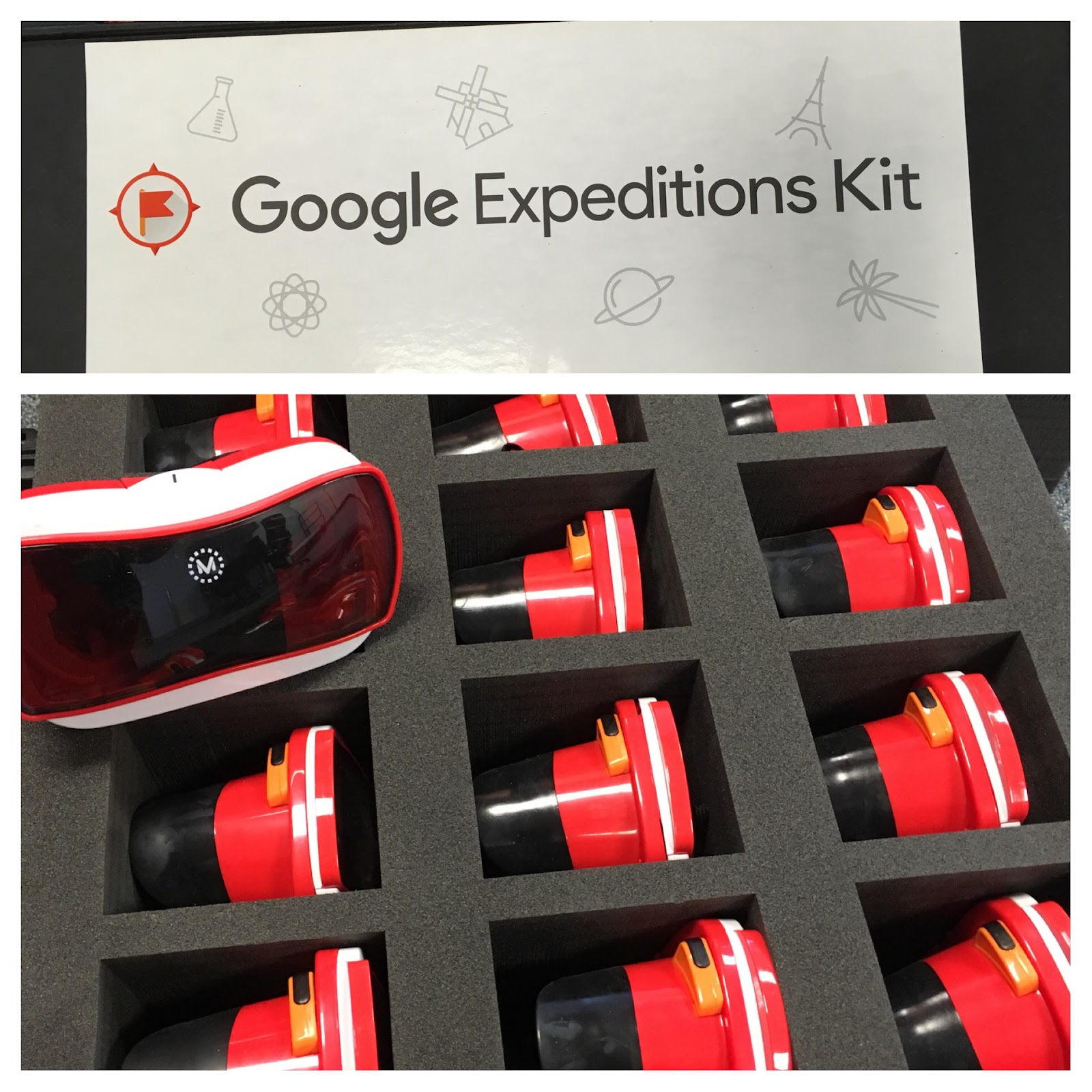
We have exciting news! Our district owns a classroom set of Google Expeditions that is now available to check out. This kit includes 36 viewers, 36 mobile devices, a router, and an Android tablet for the teacher to lead the Expedition.

Expeditions .jpeg


What is a Google Expedition? It is a virtual reality teaching tool that lets you lead immersive virtual trips all over the world — get up close with historical landmarks, dive underwater with sharks, even visit outer space! Click here to see the list of over 600 expeditions available.

A Google calendar has been shared with you to reserve the kit. Contact your digital learning specialist if you need assistance leading your first expedition.