Search This Blog

Tuesday, February 21, 2017

Better Design with Adobe Spark + White Bear Lake EdTech Badge Wall Reminder

Great design in seconds with Adobe Spark

Great design matters! The resources and materials that we create can have impact on our audience's mood and attitude towards the topic we are presenting. Often times formatting and design is overlooked because of how much extra time it can take. With Adobe Spark you can create great graphics, web stories and animated videos in a few simple steps. Use their style guide and image library to easily create communications for your students and parents. 


Trying using the 'Post' to create a simple poster for your classroom or office. This could also be used to design a nice looking images to be used in your next Google Slides presentation. 

'Pages' could be used to create a photo journal of your next big class project or to create digital portfolios of work. 

The 'videos' can be used in place of slides to create visually appealing presentations or lessons. 

Visit spark.adobe.com to get started

White Bear Lake EdTech Badge Wall 

It is great to see so many people signing up in Google Classroom and getting going with their learning! If you have started, tell others in your building about how it is going. You may even consider challenging them to a friendly competition.

We are providing this self-paced PD opportunity as a way to develop a baseline set of tech skills using the tools that are common in White Bear Lake schools. The Badge Wall is also designed to give credit to those who have already spent time developing their skills as you can check off items that you already know how to do. There are 15 total PD hours available. Follow the directions below to get started.

  1. Join Google Classroom using the code 27v8eib
  2. Click “Open” on the White Bear Lake EdTech Badge Wall assignment to get your own copy of the digital badge wall.
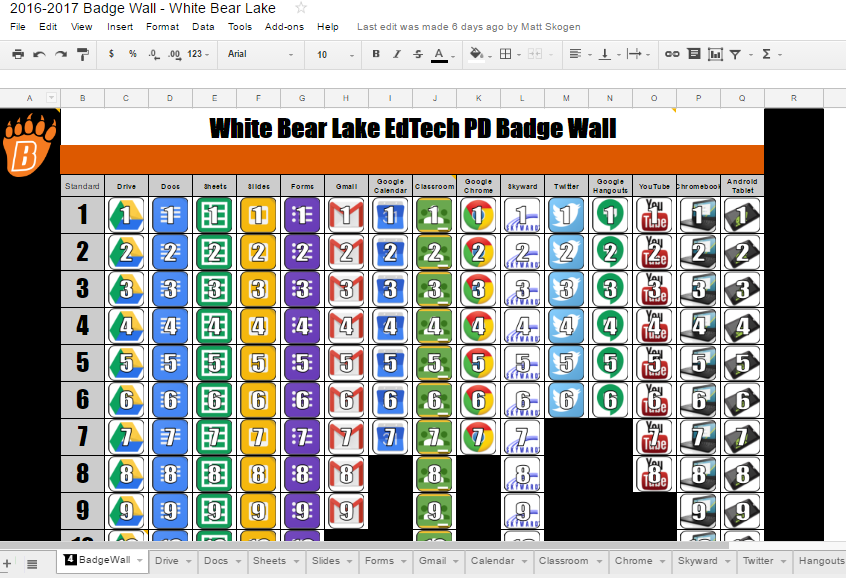
  1. Click on one of the tools along the bottom of the digital badge wall. Work through the challenges at your own pace. There are links to videos that will explain how to do each task. When you complete a task, put an “X” in the “Check off with an X” column to earn your badge. If you already know how to do a task, skip the tutorials and mark it with an “X”.
  2. Click the “Turn In” button when you have completed each challenge by Wednesday, May 17th, 2017.

WHAT IS YOUR WHY?

  • You will be able to impress your colleagues and your students with your tech skills.
  • PD hours will be available. One hour of PD will be given for each tool (column). You must register on PD express for each tool (column). You do not need to complete all 15 columns (15 hours) to earn hours for individual tools (columns).

  • You will receive a fantastic completion sticker and corresponding digital email signature badge when your whole wall is complete. You will also receive a digital certificate to display proudly in your classroom.

Monday, February 13, 2017

WHITE BEAR LAKE EDTECH BADGE WALL


This week teachers all across the district are starting a self-guided EdTech Badge Wall Challenge.


  1. Join Google Classroom using the code 27v8eib
  2. Click “Open” on the White Bear Lake EdTech Badge Wall assignment to get your own copy of the digital badge wall.
  1. Click on one of the tools along the bottom of the digital badge wall. Work through the challenges at your own pace. There are links to videos that will explain how to do each task. When you complete a task, put an “X” in the “Check off with an X” column to earn your badge. If you already know how to do a task, skip the tutorials and mark it with an “X”.
  2. Click the “Turn In” button when you have completed each challenge by Wednesday, May 17th, 2017.


WHAT IS YOUR WHY?

  • You will be able to impress your colleagues and your students with your tech skills.
  • PD hours will be available. One hour of PD will be given for each tool (column). You must register on PD express for each tool (column). You do not need to complete all 15 columns (15 hours) to earn hours for individual tools (columns).
  • You will receive a fantastic completion sticker and corresponding digital email signature badge when your whole wall is complete. You will also receive a digital certificate to display proudly in your classroom.

Tuesday, February 7, 2017

#BlackHistoryMonth + Templates in G Suite + ISD624 Twitter PLN


Black history month provides a tremendous opportunity to celebrate Black American culture and praise diversity and inclusion. Google Arts and Culture is one great resource available to us. Discover thousands of artworks, artifacts, and stories from cultural organizations across the United States. 
Want to connect globally with other educators doing the same thing? Follow and Engage with the twitter hashtag #BlackHistoryMonth

(Google Apps For Education has recently been renamed to G Suite.)

G Suite has recently enabled the ability to create templates. A template is a file that serves as a starting point for a new document. When you open a template, it is pre-formatted in a useful way. Here are some examples of why you would want to create templates:
  • Use a template in Google Docs, so AVID students could create a copy of a Cornell Notes template in one click. 
  • Use a template in Google Forms, to start every Google Form by asking first name, last name, and email. 
  • Use a template in Google Slides, so your students can work together to show mastery or create a resource by using a collaborative slide deck.

For step by step directions on G Suite templates click here

Here is how ISD 624 employees can access the templates specific to our domain.
 
Here is how you can add templates specific to our domain.

If you would like to go more in depth, from a comfortable source, check out what the Sync Sisters have to say about G Suite templates. 

To see more from the Sync Sisters youtube channel, click here


If you are interested in learning more about getting started with Twitter, check out our blog post from January

For those of you that have recently started your journey towards becoming a connected educator, here is a second chance to join the resource of twitter handles from ISD624 teachers to share across our district. Twitter handles collected from this form will be available to ISD624 employees via this blog and emails from your Digital Learning Specialist. Fill out this form if you are interested in sharing your twitter handle for other ISD 624 teachers to follow:

Tuesday, January 31, 2017

Connecting to Students' World: Learning with Emojis, GIFs, and Memes.

Whatever your feelings are on Social Media, the reality is most students will automatically be reeled in by anything that is similar to what they are used to seeing on their social networks. Why not harness that power to hook and engage students in fun ways that connects with their everyday world. This means emojis, animated GIFs and memes.


Emoji Learning
🤔

Emojis are fun images that students (and many adults) are probably very familiar with. Text messages are filled with these little pictures that can be used with any age level to grab student attention and make learning relatable to their lives.


The G Suite of Apps has a library of emojis that can be used easily by teachers and students. Emojis can be found within the “special characters” tab under the insert option on docs, drawings, slides, and sheets. (special note: you must create a text box first to access in drawings and slides)


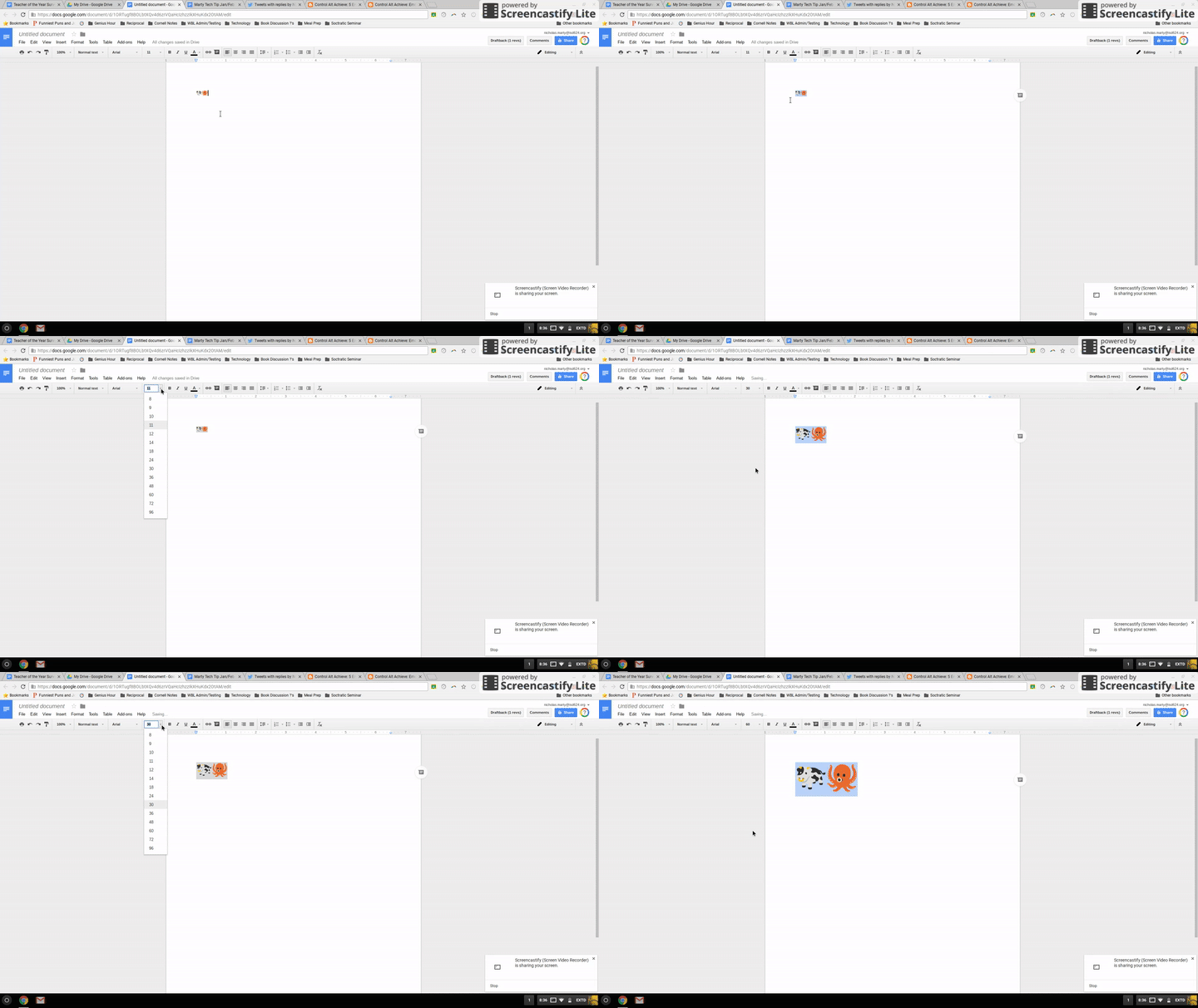
Resize emojis by highlighting and changing the font size. Each emoji acts like a letter of text.


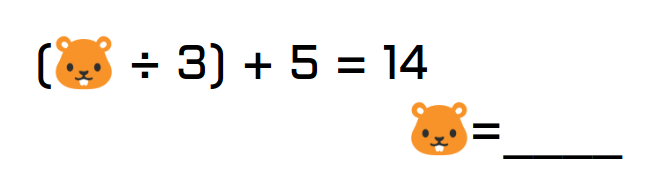
Use them to introduce variables in math. Before you get to x and y have students solve for an emoji. It is a fun, non intimidating way to transition to higher level algebra skills.


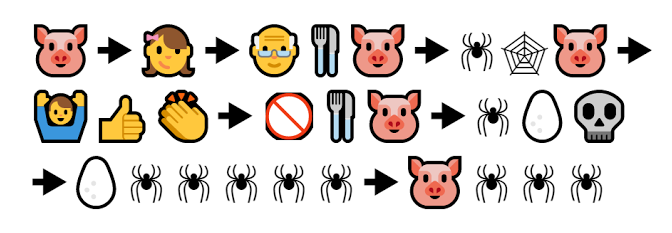
Or create book summaries out of them!


Charlotte’s Web
Click here and here for more creative ideas from Eric Curts (@ericcurts) on ways to bring emjois into your teaching.


Animated GIFs
GIFs are those little moving pictures that our world loves to share on social media sites and in text messages. They are a huge phenomenon right now, and very popular with students.


Using a tool like Make A GIF is a fun and easy way to create GIFs from pictures, YouTube videos, or video you have recorded yourself. There is also a webcam option to record quickly on your Chromebook/Laptop.


There are lots of ways to use GIFs in your classroom. A few include...

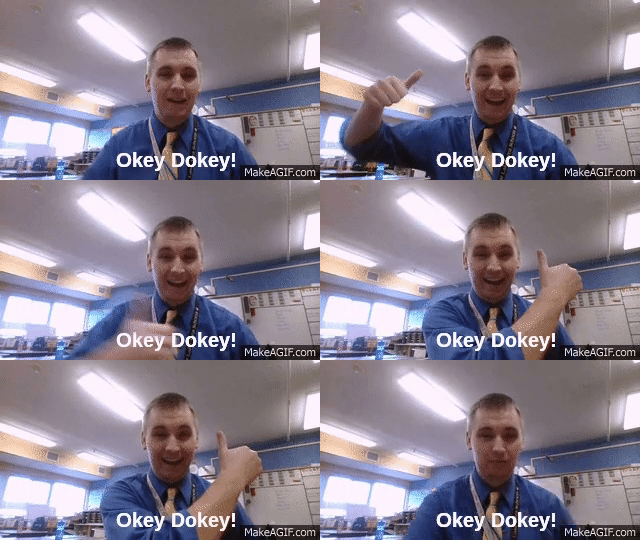
Visually calling attention to something important.


Or giving feedback to a student.


Once created, GIFs work like image files. They can be e-mailed, pasted into documents, added to websites, etc. You don’t need to do anything to activate the animation in them.

Click here to explore more ideas from Matt Miller (@jmattmiller), author of the book Ditch that Textbook.


Memes


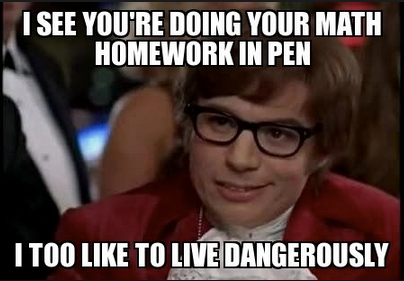
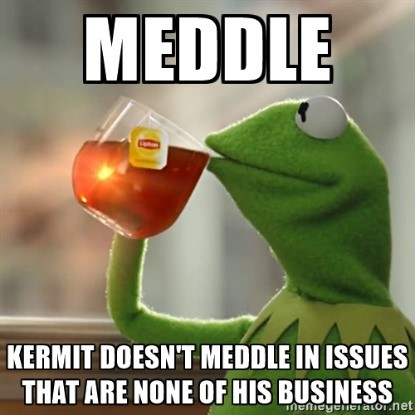
Memes are similar to GIFs, only they use a still picture with accompanying text. They are enjoyable and engaging for students. Often memes involve humor, and as Digital Learning Specialist Ryan Clark (@healthteacherRC) tweeted out last week, “If I get my students laughing, we’re halfway to learning.”


Use a tool like Imgur to create memes...
  • As an icebreaker or launch for a lesson


  • To create class rules


  • To learn new vocabulary words


  • To Emphasize a historical event.


Click here to watch a video on how to use Imgur to start creating memes for your own students.


Be careful and thoughtful if you have your students search for, or create their own GIFs/Memes on any of the sites above. Not all of them found on the internet are appropriate. Stress good digital citizenship.


Please contact your Digital Learning Specialist if you would like additional information on anything mentioned above.


Tuesday, January 24, 2017

SMART Notebook Express, Google Expeditions, Where in the World is my DLS


SMART Notebook Express is a website that allows you to open SMART Notebook Files without having SMART Notebook installed on your device.  This also gives you the ability to save SMART files to your drive and still be able to open them.  You can open them at home, at the coffee shop or wherever you have an internet connection.  As many of you transition to using slides for presentations, you then have the ability to open and copy your SMART files as a PDF onto your presentation.  SMART Notebook Express link.


Image result for Google Expeditions
Google Expeditions gives students virtual reality field trips to many places in our world.  Mr. Guyard, French Teacher at Central Middle School, and Ms. Holman, Spanish Teacher at Central Middle School took their students to places around the world this week.  As often as possible, Google Expeditions comes with a DLS to co-teach with you the first time.  Google Expeditions are great learning experience for all grade levels. Here is a list of available Expeditions. If you would like more information please let your DLS know.


Where in the world is my DLS?  Your DLS may be leading a Google Expedition but they also may be co-teaching a lesson, explaining a digital tool, planning a project, planning a unit, researching new ways of differentiation, prepping for PD, leading a co-hort of learners, assisting you during your observation, integrating the 4 C's into your lessons, collaborating with you on setting digital learning goals, but most of all, we are your partner in doing what is best for our students.  We want to be wherever you are!  Let us know how we can assist you.

Tuesday, January 17, 2017

Google Classroom Updates!

NEW Google Classroom Updates:

FOR STUDENTS: Individualized Work for Differentiated Learning
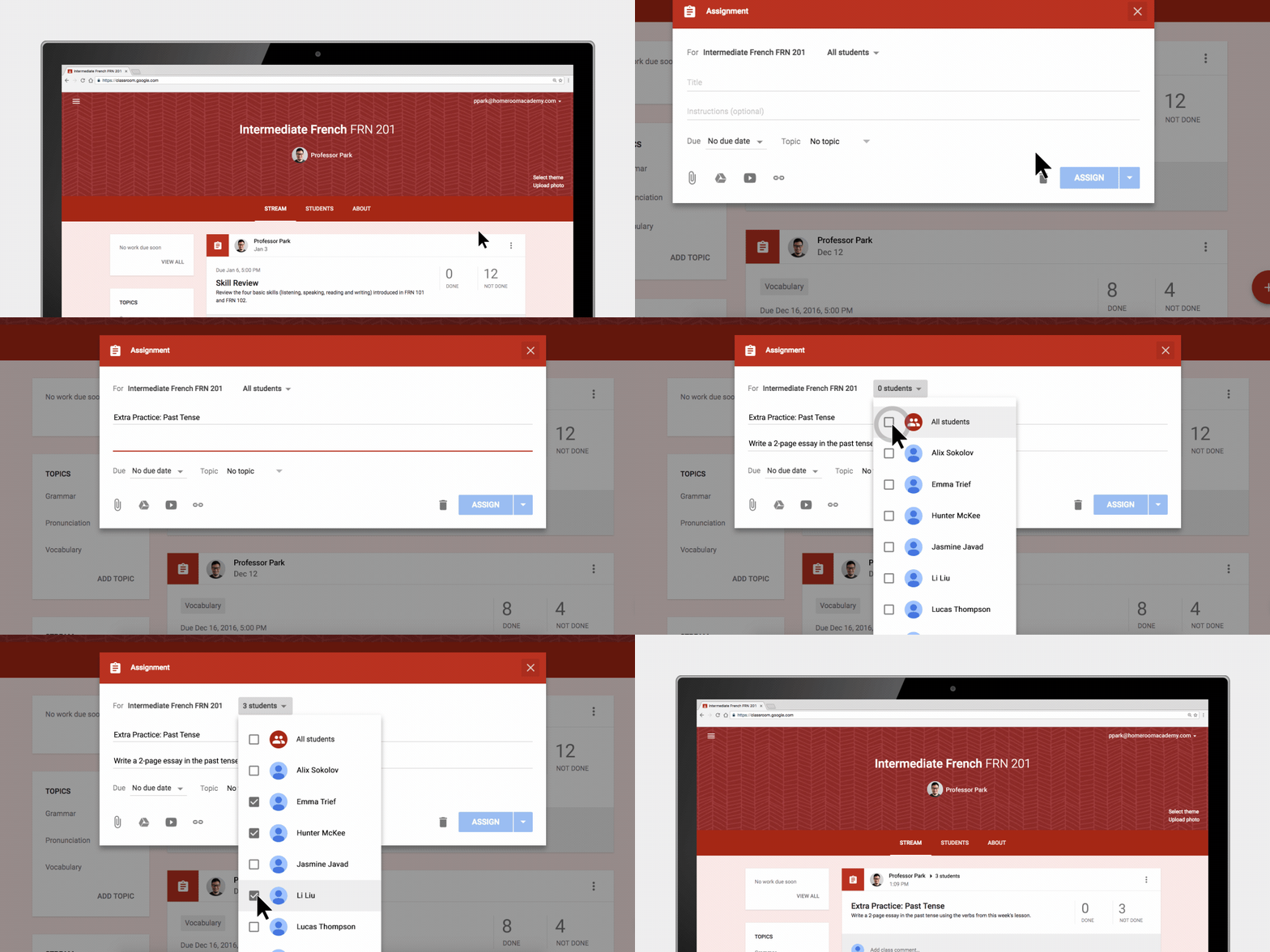
Classroom makes it a lot easier for teachers to assign work to individual students and groups based on their unique needs. As they’re creating an assignment, post or question, teachers can choose whether to share it with the entire class or just with a subset of students.

FOR TEACHERS: New Notifications to Manage Student Work
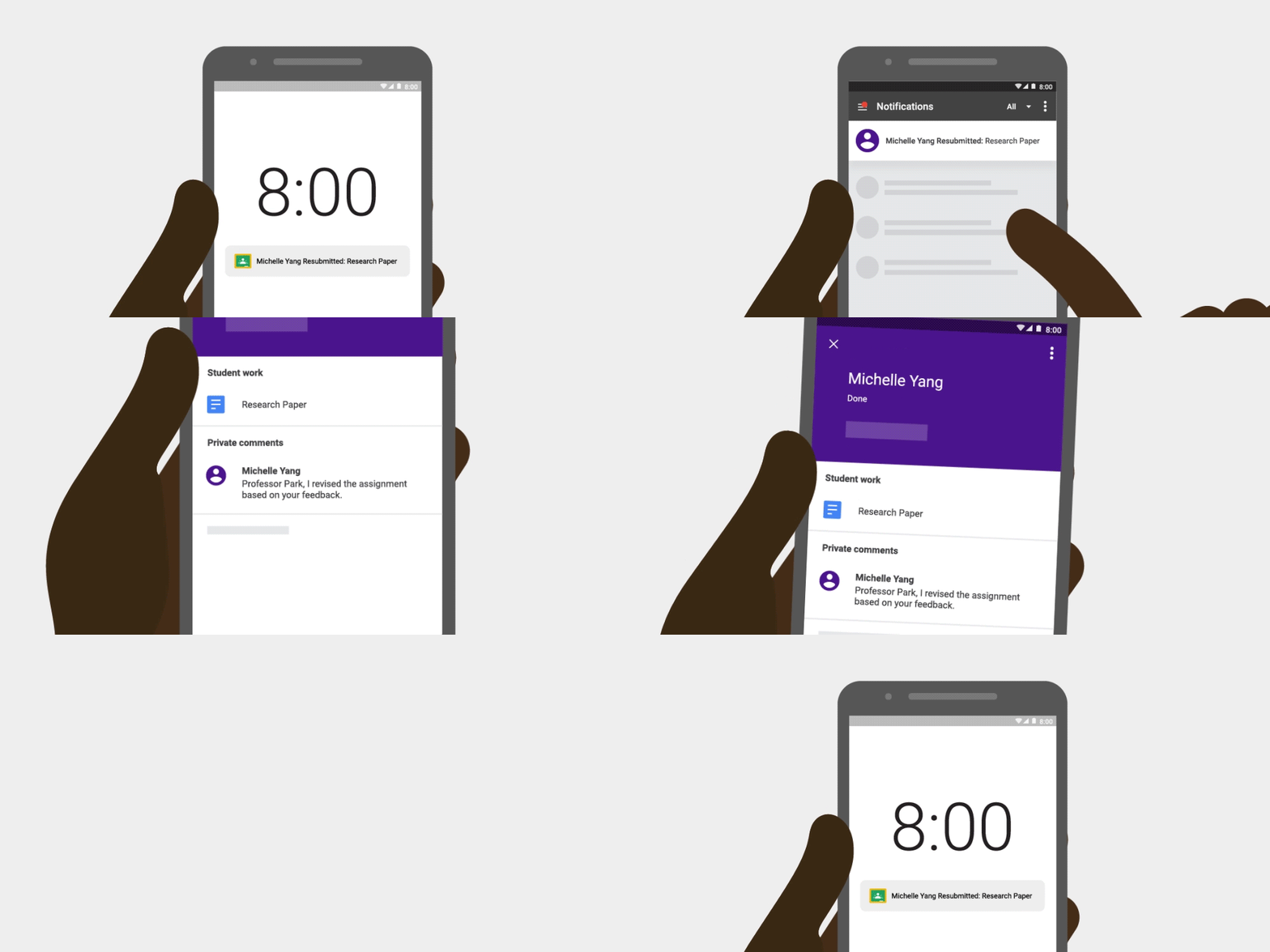
Teachers will now receive two new types of Classroom notifications—one when students submit work after the due date, and one for when students re-submit work!

You can read the full blog post here.

Google Classroom Extension: Get your class on the same (web)page, instantly!

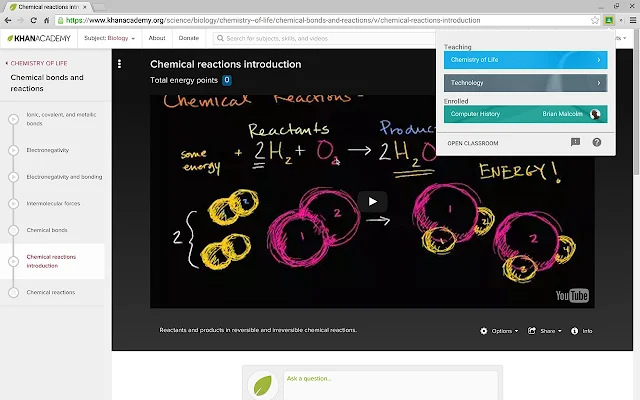
Save time and create a more interactive class with the Share to Classroom extension. The extension allows you to push webpages to any of your Classroom classes, so they open instantly on your students' computers. With this extension, you can get your students on the right page, quickly and reliably every time. You can also post announcements, create assignments, or save webpages to post to Classroom later. For more click here.

Tuesday, January 10, 2017

Form Publisher + Flipgrid One

Form Publisher

Google Forms is a powerful data collection tool, but it does have its limitations. As you may know, the responses to a Google Form are all recorded in a spreadsheet. Working within a spreadsheet is great when you need to do calculations with the data or if the information you are collecting is for a small audience and individual responses don't need to be shared. One of the questions that I am often asked is if there is a way to take the spreadsheet data and turn it into a more useable format. The answer is YES! With Form Publisher, you can create an individual Google Doc, Slides presentation or Google Sheets spreadsheet for each response to your Google Form. These merged documents can automatically be shared back with the respondent or sent to someone else via email.

Form Publisher is an add-on for Google Forms. See the image below to learn how to install add-ons within a Google Form. 


After Form Publisher is installed, click on the puzzle piece in the top right corner of your Form and select 'Form Publisher'. A menu will appear in the bottom right corner of your screen that will walk you through the process of creating your template document, slides presentation or spreadsheet. The video below has more detailed directions. 


FlipGrid One


Flipgrid is a tool that allows students to submit video responses to a question. This platform, developed by a professor and graduate students from the University of Minnesota, now has a basic free version for all educators.  Check it out here.


Click here to sign-up for your free account.