Search This Blog

Tuesday, September 15, 2015

Welcome Back Technology Tips

Welcome back colleagues!

This week's tech tips are very important for all teaching staff to read. We appreciate the time and consideration you are giving to these items:
Schoology and Skyward Grade Sync
You can now sync assignment grades recorded in your Schoology course to Skyward. Click here for instructions!

Google Drive: "Add to"
Be sure you are adding shared Drive folders to your drive by highlighting a folder and clicking ‘SHIFT+Z’ or right clicking the folder and clicking "Add to Drive."
Screenshot 2015-09-08 at 1.52.14 PM.png
If you receive the message: "others will no longer see this folder," realize that you are removing a document or a folder from a shared space and others who currently have access to that item will not if you proceed.

Schoology and the Remind App
If you have tried to use the Remind app in Schoology this year you have likely noticed that it does not load. Remind updated their website and it is currently incompatible within Schoology. Schoology has reached out to Remind, but Remind has not yet provided Schoology with a timeline for the fix. ​For now you can access Remind through their website (remind.com).

Schoology and the Drive App
The Drive app in Schoology is also experiencing some issues. A temporary work around for this is to add Drive files with their link.


Schoology and Google Document Share Settings
When you add Google documents to Schoology make sure that the share settings are set to "Anyone with the link" can view as opposed to "Anyone at ISD624 with the link" can view to ensure that parents can view these items as well as students.

Join the Technology and Leadership Cohort
White Bear Lake Area Schools, in collaboration with Hamline University invite you to apply to join the 2015-2016 Technology & Leadership Cohort.

Starting October 27, 2015, ~30 teachers will begin White Bear’s third Cohort, focused on improving leadership and technology skills through four blended courses.  Teachers will also earn 15 inexpensive graduate credits and a Technology & Leadership Certificate through Hamline.

The focus of these classes will be to enhance practice of integrating technology into White Bear Lake’s curriculum as well as build leadership skills in teachers in the field of technology and learning.  The Cohort will give you the opportunity to collaborate with WBLAS colleagues from different grade levels and buildings.  The Cohort will be taught in a blended format with all face to face meetings being heldTuesday (one exception) afternoon/evenings once month (on average).

Optional Item: Dell Deals
If you are looking to purchase a personal device for home use, consider the following deals exclusive to White Bear Lake employees:
  • Awesome electronics. Exclusive savings. Members: Buy a PC $699.99+, get a FREE 32" LG TV*.
  • Inspiron 17 5000 Series + Free 32" TV $799.99. Search Order Code: DNDNU2409BSO. Accomplish every task with this adaptable laptop featuring the newest processor, Windows 8.1 and beautiful display. 5th gen Intel(r) Core(tm) i7 processor - Windows 8.1 - 8GB memory & 1TB hard drive - 17.3" HD+ display. Offer Valid 9/1-9/15 8 a.m. EST.
  • Inspiron Desktop + Free 32" TV $699.99. Search Order Code: FDCWRP207BW10SO. 4th gen Intel(r) Core(tm) i3 processor - Windows 10 Home - 8GB memory & 1TB hard drive - 3 Years Premium Support and - 3 Years Accidental Damage included. Offer Valid 9/1-9/15 8 a.m. EST.
  • Xbox One Gears of War: Ultimate Edition Bundle plus Rare Replay and additional controller $379.99. Search SKU: A8502871. Apply coupon code 3C8W9CBQPQW09B in cart. Limited quantity available. Offer begins 9/1 at 8 a.m. EST.
  • Get 5% back in rewards with Dell Advantage. Plus free second business day shipping. Join for free at checkout.
Shop at: www.dell.com/mpp/ISD624
Or call: 1-800-695-8133
Member ID: US138833471

Tuesday, May 12, 2015

Year-end Technology Tips + Google Slides Improvements

Year-end Technology Tips 

If you've been counting, you'll know that we have less than 20 days of school left. As thoughts of sunny days at the lake and barbecues with friends start creeping into our minds, it can be easy to miss the little details. Today I want to share a few tips on how to wrap up your tech for the year so that you can make the easiest back-to-school transition possible after a summer of fun.

1. Move your Schoology class resources to a collection in your personal resources
If you have been posting files, links, quizzes and other items directly to your Schoology classes without saving them to resources first they will end up being harder to find next year. To avoid this create a new collection by clicking 'Resources' from the top of the main page and then 'Personal'. Create a new collection for each class that you teach by clicking the icon that has a file box with a little green plus sign on it. Think of these collections as your own digital filing cabinet in which you can put all of your class resources. Once resources are in collections you can pick and choose what to add to your classes in the future.


Once you have a collection created, navigate back to the 'Materials' section in one of the classes that you have resources that you would like to save. Next to each resource or folder of resources, click the gear icon and then 'Save to Resources'. Select the collection that you would like to save to.

The resources will now be easy to find in your collection next year as you start planning out the coursework for your students. In the fall, just find your collection, click the gear icon next to an item and select 'Add to Class'. You will then be able to check the boxes of all of the classes you want it to go to.


2. Share collections with other colleagues
Remember that you can share these resource collections with colleagues! Open one of your resource collections, click the share button and then type in the names of your colleagues that you wish to share with. Your collaborators can all add to the collection and still independently choose what to use with their own classes. This is great for dividing the workload or helping out a colleague that is new to the department.

3. Finding things in archived courses
So you've ignored my advice in the first tip and now want to find the resources that you added to an old class that has since "disappeared." Don't worry, there's still hope for you. Click on 'Courses' and then 'See All'. You will now see a list of your current course and there will be a little button that says 'Archived'. Click that to bring up a list of all of your courses from previous grading periods that no longer appear in your course list on the homepage. 

4. Archive Google Classroom courses
Google Classroom users may wish to clear up space on their main classroom page by archiving their courses at the end of the year. To do this, click on the three vertical dots in the top right corner of the course tile and then click 'Archive'. After doing this you and the students will no longer be able to interact with the course materials and it won't show up on your main Classroom page anymore. Clear out your old courses at the end of the year to make room for next year's. You can always view your archived courses from the main menu and choose to restore a course if you archived it prematurely. 


Animation Improvements in Google Slides

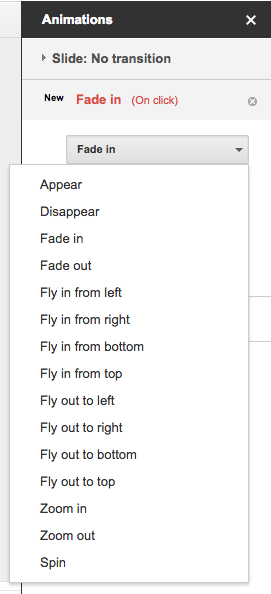
Animations are an easy way to make your presentations look more dynamic in Google Slides. You can now improve your Slides presentations with two new animations: Appear and Disappear. You can also now set the direction (to and from left, right, top, and bottom) of two previously existing animations: Fly in and Fly out.

Tuesday, April 28, 2015

Google Education on Air + Make Belief Comix

Google Education on Air

Last month Google announced Education on Air—the free online conference for educators May 8-9. As of this week you can now check out the
full schedule of sessions.

Day 1- Leading for the future: From 10 a.m. to 3 p.m. ET hear from speakers who will challenge us to innovate and improve education. In the kickoff session, panelists will tackle the question “What are the skills of the future?”. Keynote speakers include actor and Reading Rainbow host LeVar Burton, Google Vice President Laszlo Bock, Google Science Fair 2012 winner Brittany Wenger, and education experts Sir Michael Barber and Michel Fullan, OC. There are educator panels on "transforming learning with technology" and "empowering students."

Day 2- Shaping the classroom today: From 7 a.m. to 9:30 p.m. ET there are over 100 sessions led by educators from 12 countries and 29 U.S. states. Sessions have been designed to offer practical advice and examples. Find ones you like and add them to your calendar. Sessions include:
Register today on the website or learn more in the blog post. You can help spread the word about this free event by sharing the announcement Google+ post and tweet.

Featured 4C's Mini Lesson: Make Belief Comix

Our graduates from the Technology and Leadership Cohort have been building short lessons that highlight different ways to incorporate the 4C's and technology in the classroom. Today's featured lesson is on how students can use Make Belief Comix to create comic strips to demonstrate understanding in a creative way. Click here to view the lesson.

Find this lesson and all of the other 4C's lessons on our new website. bit.ly/4CsWBL

Wednesday, April 15, 2015

PowToon + Dell Deals for ISD624 Employees

Featured 4C's Mini Lesson: PowToon

Our graduates from the Technology and Leadership Cohort have been building short lessons that highlight different ways to incorporate the 4C's and technology in the classroom. Today's featured lesson is on how students can use an animation creation website called PowToon to demonstrate understanding in a creative way. Click here to view the lesson.

Find this lesson and all of the other 4C's lessons on our new website. bit.ly/4CsWBL

Get your own mentor to work with you while incorporating the 4C's and technology. Check out this video for more information on the program and then click here to sign up. 


Spring Deals From Dell

Check out these spring deals from Dell to find special savings on desktops, monitors and 2-in-1 computers. These deals are for employees of ISD624 and are limited time only. See the flyer for details.

Wednesday, April 1, 2015

White Bear Lake 4C's Website + PhotoMath

White Bear Lake 4C's Website:
Screenshot 2015-03-19 at 11.05.01 AM.png
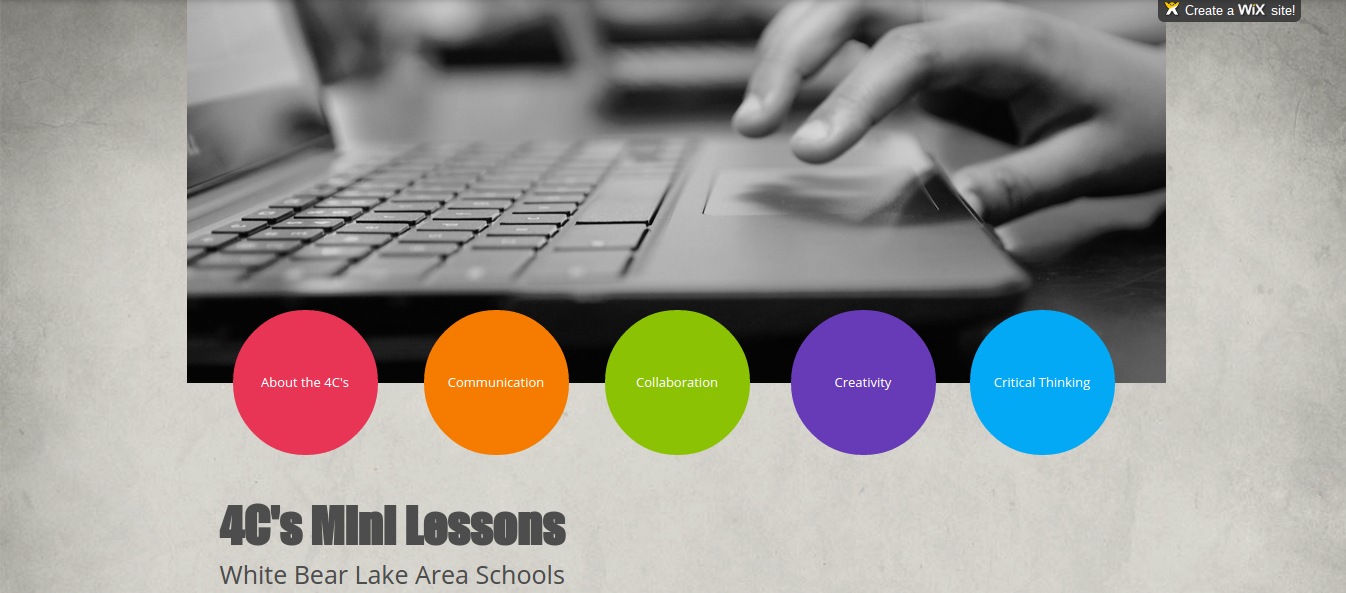
The White Bear Lake 4C's website is now live at bit.ly/4CsWBL! As access to devices increases at your school, you may find the 4C's website helpful to learn about a variety of tools that can be used to incorporate the 4C's in your classroom!

PhotoMath:
PhotoMath in class is a tool for students to self-assess their own learning. PhotoMath allows students to take a picture of an equation and then will show students the answer with the solving steps. It is a free App for both iOS and Android devices.
This PhotoMath tech tip was written by Seth Salenger.


Tuesday, March 17, 2015

Turn your tablet or Chromebook into an interactive whiteboard

Turn your tablet or Chromebook into an interactive whiteboard

Many teachers create lessons for their students with their SMART Boards. Some even record these lessons so that students can review them at their own pace. Here are some alternative tools that you can use with a tablet or Chromebook to pull together sketches, pictures, video and audio to create a stellar lesson. Both of these have similar features to the SMART Notebook software, but with the added benefit of being more portable on tablets.

Lensoo Create
Chromebook, Android, iOS

"Lensoo Create turns your iPad or Android tablet into a virtual whiteboard with voice recording and smooth digital writing. Using Lensoo Create you can quickly share your ideas through email, Facebook, Twitter or LinkedIn from virtually anywhere. Whether you are a teacher looking to instill knowledge, a student wishing to present your ideas or simply a person with an impressive skill to share, Lensoo Create is for you."

They also have a collection of recordings made by other people that is sorted by subject and is available on their website or within the apps. A big benefit to this tool is that it is available for Chromebooks in the Chrome Web Store so students and teachers can use it on the approximately 3400 Chromebooks in circulation within our district.

Explain Everything
Android, iOS

Explain Everything is a unique interactive whiteboard and screencasting tool used by over a million students and educators. Teachers can use this tool to create engaging presentations with many elements. Students can also use this tool to creatively demonstrate understanding. This app is a paid app and will cost you $2.99 on either platform.

"Create slides, draw in any color, add shapes, add text, and use a laser pointer. Rotate, move, scale, copy, paste, clone, and lock any object added to the stage.

Add photos, videos, shapes, import PDF documents from local storage, Google Drive, Dropbox or insert a fully functioning web browser window. Export MP4 movies, YouTube videos or save Explain Everything projects locally, to Google Drive and to Dropbox.

No account is necessary to use Explain Everything and share creations."


Tuesday, March 3, 2015

Piktochart, Easelly, and Google Drawings

Piktochart and Easelly
Teachers and students can create beautifully visual informational graphics, posters, summaries, and more from a variety of templates with Piktochart. Click here to watch a short video! 
These items could also be created with Easelly. Click here to watch a short video.

Google Drawings as Collaborative Space for Students
Use Google Drawings as a collaborative space for concept mapping or brainstorming . Simply create a new drawing in your Drive and share it with students allowing them access to edit.