Search This Blog

Tuesday, October 13, 2015

Lucidpress and Lucidchart Add-ons, Google Voice Typing, and Computer Timers

Lucidpress and Lucidcharts
You and your students can create stunning visual displays with Lucidpress and concepts maps or flow charts with Lucidcharts. Lucidpress and Lucidcharts are add-ons available to you and your students in your Google Drive making them easy to access and share.

To access Lucidpress and Lucidcharts...
1. Go to your Google Drive
2. Select "NEW"
3. Select "More"
4. Select Lucidpress or Lucidchart from the menu - You may need to connect these apps by clicking "Connect more apps" and searching for them.

Click here for a video on Lucidpress and click here for a video on Lucidcharts.

Google Voice Typing
You and your students can type with your voice using Google Voice Typing. Click here for more information. Click here for a video on Google Voice Typing. This could be a great option for students who struggle with typing when typing is not the focus of the writing activity.

Computer Timers
This tech-tip comes from Otter Lake Elementary teacher, Luanne Oklobzija! You can set music timers on your computer to cue students. You might consider using this to schedule brain breaks or a time when student may begin packing up their things. Click here for instructions to set up computer timers.

Tuesday, September 29, 2015

Google Calendar Integration in Classroom + Google Expeditions + Adding People to Schoology Groups

Google Calendar Integration in Classroom 
With Google Classroom's new feature you can now see any assignment that you post to the Stream in a calendar view. Click here to get some directions on how to make sure your calendars are setup. If you already use a shared Google Calendar with your classes, you can learn how to transfer events from one calendar to another here.


The great thing about having your assignments sync to a Google Calendar is that the calendar can now be shared in other places like Schoology. This makes it easy for you to post assignments in Classroom for students and still be able to let parents see what is happening in your class within Schoology. Watch this video for instructions on how to embed your Classroom calendar on your Schoology page. 


Help Bring Virtual Reality Field Trips to White Bear

Google just announced it's new Expeditions program that will bring virtual reality (VR) field trips to schools free of charge. Their program facilitators come to schools with VR headsets and all of the other tools required for teachers to lead kids on over 100 immersive learning experiences. 


Unfortunately, Minnesota is not on their initial list of locations that the Expeditions team will be visiting but if we can create enough buzz about it here in White Bear we can get their attention. If you are interested in taking your students on a virtual field trip sign up here to get our district noticed. 

In the meantime, you can learn more about VR technology and do some exploring of your own with the relatively inexpensive Google Cardboard viewers and almost any smartphone.

Manually Adding People to Courses or Groups in Schoology
All of your Schoology courses sync rosters with your courses in Skyward so that you do not have to manually enter students if they join your class or delete them out if they leave. However, there may be times when you want to add someone to your class roster or invite them to be part of a group. 

When adding new members to a course or group you must first select the building that they are associated with before searching for their name. This will help ensure that you add the right person.


Join the Technology and Leadership Cohort
White Bear Lake Area Schools, in collaboration with Hamline University invite you to apply to join the 2015-2016 Technology & Leadership Cohort.

Starting October 27, 2015, ~30 teachers will begin White Bear’s third Cohort, focused on improving leadership and technology skills through four blended courses.  Teachers will also earn 15 inexpensive graduate credits and a Technology & Leadership Certificate through Hamline.

The focus of these classes will be to enhance practice of integrating technology into White Bear Lake’s curriculum as well as build leadership skills in teachers in the field of technology and learning.  The Cohort will give you the opportunity to collaborate with WBLAS colleagues from different grade levels and buildings.  The Cohort will be taught in a blended format with all face to face meetings being held Tuesday (one exception) afternoon/evenings once month (on average).

Tuesday, September 15, 2015

Welcome Back Technology Tips

Welcome back colleagues!

This week's tech tips are very important for all teaching staff to read. We appreciate the time and consideration you are giving to these items:
Schoology and Skyward Grade Sync
You can now sync assignment grades recorded in your Schoology course to Skyward. Click here for instructions!

Google Drive: "Add to"
Be sure you are adding shared Drive folders to your drive by highlighting a folder and clicking ‘SHIFT+Z’ or right clicking the folder and clicking "Add to Drive."
Screenshot 2015-09-08 at 1.52.14 PM.png
If you receive the message: "others will no longer see this folder," realize that you are removing a document or a folder from a shared space and others who currently have access to that item will not if you proceed.

Schoology and the Remind App
If you have tried to use the Remind app in Schoology this year you have likely noticed that it does not load. Remind updated their website and it is currently incompatible within Schoology. Schoology has reached out to Remind, but Remind has not yet provided Schoology with a timeline for the fix. ​For now you can access Remind through their website (remind.com).

Schoology and the Drive App
The Drive app in Schoology is also experiencing some issues. A temporary work around for this is to add Drive files with their link.


Schoology and Google Document Share Settings
When you add Google documents to Schoology make sure that the share settings are set to "Anyone with the link" can view as opposed to "Anyone at ISD624 with the link" can view to ensure that parents can view these items as well as students.

Join the Technology and Leadership Cohort
White Bear Lake Area Schools, in collaboration with Hamline University invite you to apply to join the 2015-2016 Technology & Leadership Cohort.

Starting October 27, 2015, ~30 teachers will begin White Bear’s third Cohort, focused on improving leadership and technology skills through four blended courses.  Teachers will also earn 15 inexpensive graduate credits and a Technology & Leadership Certificate through Hamline.

The focus of these classes will be to enhance practice of integrating technology into White Bear Lake’s curriculum as well as build leadership skills in teachers in the field of technology and learning.  The Cohort will give you the opportunity to collaborate with WBLAS colleagues from different grade levels and buildings.  The Cohort will be taught in a blended format with all face to face meetings being heldTuesday (one exception) afternoon/evenings once month (on average).

Optional Item: Dell Deals
If you are looking to purchase a personal device for home use, consider the following deals exclusive to White Bear Lake employees:
  • Awesome electronics. Exclusive savings. Members: Buy a PC $699.99+, get a FREE 32" LG TV*.
  • Inspiron 17 5000 Series + Free 32" TV $799.99. Search Order Code: DNDNU2409BSO. Accomplish every task with this adaptable laptop featuring the newest processor, Windows 8.1 and beautiful display. 5th gen Intel(r) Core(tm) i7 processor - Windows 8.1 - 8GB memory & 1TB hard drive - 17.3" HD+ display. Offer Valid 9/1-9/15 8 a.m. EST.
  • Inspiron Desktop + Free 32" TV $699.99. Search Order Code: FDCWRP207BW10SO. 4th gen Intel(r) Core(tm) i3 processor - Windows 10 Home - 8GB memory & 1TB hard drive - 3 Years Premium Support and - 3 Years Accidental Damage included. Offer Valid 9/1-9/15 8 a.m. EST.
  • Xbox One Gears of War: Ultimate Edition Bundle plus Rare Replay and additional controller $379.99. Search SKU: A8502871. Apply coupon code 3C8W9CBQPQW09B in cart. Limited quantity available. Offer begins 9/1 at 8 a.m. EST.
  • Get 5% back in rewards with Dell Advantage. Plus free second business day shipping. Join for free at checkout.
Shop at: www.dell.com/mpp/ISD624
Or call: 1-800-695-8133
Member ID: US138833471

Tuesday, May 12, 2015

Year-end Technology Tips + Google Slides Improvements

Year-end Technology Tips 

If you've been counting, you'll know that we have less than 20 days of school left. As thoughts of sunny days at the lake and barbecues with friends start creeping into our minds, it can be easy to miss the little details. Today I want to share a few tips on how to wrap up your tech for the year so that you can make the easiest back-to-school transition possible after a summer of fun.

1. Move your Schoology class resources to a collection in your personal resources
If you have been posting files, links, quizzes and other items directly to your Schoology classes without saving them to resources first they will end up being harder to find next year. To avoid this create a new collection by clicking 'Resources' from the top of the main page and then 'Personal'. Create a new collection for each class that you teach by clicking the icon that has a file box with a little green plus sign on it. Think of these collections as your own digital filing cabinet in which you can put all of your class resources. Once resources are in collections you can pick and choose what to add to your classes in the future.


Once you have a collection created, navigate back to the 'Materials' section in one of the classes that you have resources that you would like to save. Next to each resource or folder of resources, click the gear icon and then 'Save to Resources'. Select the collection that you would like to save to.

The resources will now be easy to find in your collection next year as you start planning out the coursework for your students. In the fall, just find your collection, click the gear icon next to an item and select 'Add to Class'. You will then be able to check the boxes of all of the classes you want it to go to.


2. Share collections with other colleagues
Remember that you can share these resource collections with colleagues! Open one of your resource collections, click the share button and then type in the names of your colleagues that you wish to share with. Your collaborators can all add to the collection and still independently choose what to use with their own classes. This is great for dividing the workload or helping out a colleague that is new to the department.

3. Finding things in archived courses
So you've ignored my advice in the first tip and now want to find the resources that you added to an old class that has since "disappeared." Don't worry, there's still hope for you. Click on 'Courses' and then 'See All'. You will now see a list of your current course and there will be a little button that says 'Archived'. Click that to bring up a list of all of your courses from previous grading periods that no longer appear in your course list on the homepage. 

4. Archive Google Classroom courses
Google Classroom users may wish to clear up space on their main classroom page by archiving their courses at the end of the year. To do this, click on the three vertical dots in the top right corner of the course tile and then click 'Archive'. After doing this you and the students will no longer be able to interact with the course materials and it won't show up on your main Classroom page anymore. Clear out your old courses at the end of the year to make room for next year's. You can always view your archived courses from the main menu and choose to restore a course if you archived it prematurely. 


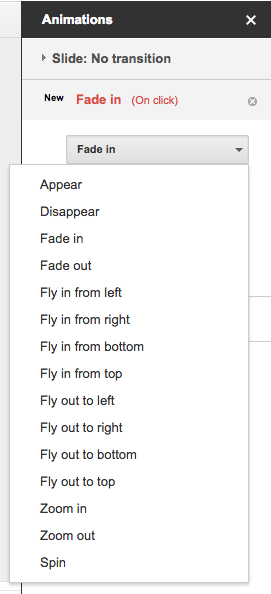
Animation Improvements in Google Slides

Animations are an easy way to make your presentations look more dynamic in Google Slides. You can now improve your Slides presentations with two new animations: Appear and Disappear. You can also now set the direction (to and from left, right, top, and bottom) of two previously existing animations: Fly in and Fly out.