Search This Blog

Thursday, February 5, 2015

Turn a Google Document into a Google Form

Turn your Google document...

into a Google Form...

Have a paper test, quiz, or survey that you would like to make into a Google form? GFormIt is a Google document add-on that will allow you to take questions and answers and translate them into a Google form with the first submission of the form being an answer key for grading using another add-on like Flubaroo. Check out this video on GFormIt. 

To use GFormIt...
  1. Install GFormIt as an add-on in your Google document.
  2. Create questions and answers as with the same format as shown in the video.
  3. Run the GFormIt add-on. A link to the form and the form responses will be emailed to you. GFormIt will take your answers as the first submission to create a key for grading with another add-on like Flubaroo.
  4. You can edit the form after it is created to change the theme or questions.
Google Educator Certification
This week is the last week of the certification process. This week we are working on the elective lessons and taking the exam. Click here for training page. Remember that you will have to pay $15 to take the exam and will reimbursed for the cost of all of your exams upon completing the certification. If you need any help, please email Cassie or Matt!

Upon completion of the certification click here to submit for reimbursement. You will need to provide links to your receipts and links to your exam certificates. If you choose to do two electives you will be reimbursed $90.00. If you choose to do one elective you will be reimbursed $75.00. 

Wednesday, January 21, 2015

3 things you can do to keep on trucking when the internet is down + A simple notepad for any web browser


a5.gg - A simple notepad for any web browser

I often find myself needing a space where I can type a quick note but don't have a simple way of doing so. Recently I discovered that typing a5.gg into any web browser will bring up a very simple notepad that you can use to record that note or brainstorm ideas with students.


What can you do when the internet is down?

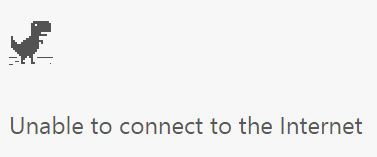
We've all been there. The bell just rang and you are frantically trying to pull up that engaging webpage or video that you scoured the web for in your free time at home the night before. All that you see on the screen is...


What do you do? Get the textbooks out and start reading aloud for the next 50 minutes? Throw your hands up in the air and abandon everything? Fret not, friends! There are a few things that you can do to smooth the bumps when the inevitable happens. It just takes a little planning ahead of time.

Setup Offline Docs in your Google Drive

If you are already using the "New" Google Drive, offline docs should already be turned on. Click here to get instructions on how to make sure that you will be able to view and edit files in your Google Drive when you are not connected to the internet. All changes that you make to your Google Docs while offline will be synced the next time you connect to the internet. You must be using the Google Chrome web browser to enable offline docs.

Download your online videos to your computer

Maybe you uploaded a great screencast or tutorial video for your students on YouTube. If the internet isn't working you won't be able to watch it, but there are ways to download your online videos to your computer. If you type "ss" at the beginning of your video link it will bring to to a service that will allow you to download your video. See the example below. 


www.ssyoutube.com/watch?v=TY4R2l-4xMI

After you type the "ss" at the beginning of the link and press enter you should see a screen like the one below. Wait for the download links to appear on the right side of the screen and click on the highest resolution possible for the best quality. The highest resolution this service offers is 720p. The video will then be downloaded to your computer for viewing offline. This will work with many video streaming websites including Vimeo!


Load an archived version of a webpage 

If you are using the Google Chrome web browser there is a way to get some basic functionality out of websites that you were using even after the internet goes down. Here's how to set that up.


  1. In Google Chrome, navigate to chrome://flags
  2. find "Enable Offline Stale Button"  (Ctrl + F will let you search for the words on any webpage. Search for "stale" to find this faster)
  3. Select "Enable" from the drop-down menu
  4. Click "Relaunch Now" to save changes


The next time that you are working on a page and the internet goes down you should be able to get back to the places on that site that you have already visited before the internet went down. Note that many of the features like animations or videos probably won't load but you will still be able to read text and see pictures.