Search This Blog

Tuesday, May 16, 2017

Custom Homepages in Chrome + ClassroomScreen + WBL Badge Wall

Custom Homepages in Chrome

You may find yourself navigating to the same webpage every time that you log into your computer. To save time, you can set these pages to automatically open when you start Chrome. Some sites that you may want to open right away are Classlink and the district homepage.

Start by clicking on the three dots in the top right corner of Google Chrome. 

Select 'Settings' from the menu and then 'Show advanced settings' at the bottom of the window.

In the section titled 'On startup', select 'Open a specific set of pages' and then 'Set pages'.
Finally, copy and paste the URL of the webpage that you would like to open automatically when you start Chrome. You can add more than one. After you click 'OK', close Chrome and then open it again. The webpage you just saved should be the first thing that pops up!

ClassroomScreen

Teachers in the classroom rely on many different tools to facilitate learning. Unfortunately, many of these tools are spread out across many websites and devices. If you ever find yourself scrambling to remember the name of that one timer website or can't find the link to your favorite digital whiteboard, check out www.classroomscreen.com

ClassroomScreen is a blank canvas with many tools at your disposal. You can access any of these tools with the click of a button.


The windows can easily be rearranged. When you no longer need a tool, click on the red 'X' in the toolbar. It couldn't be more simple. Try it out!

Technology Badge Wall

A reminder that the cutoff for completing the Badge Wall is tomorrow, May 17th. People who have completed their wall will receive a certificate and sticker in the coming weeks. Of course, you can continue exploring and learning on your own if you haven't completed the challenge yet. Thank you for joining us on this adventure! Stay tuned for future challenges and events.

Tuesday, May 9, 2017

Bingo Baker makes it easy to create bingo cards. You can generate hundreds of random cards and print them using the printer-friendly PDF (with no ads or watermarks). You can also save paper by playing your bingo game online.

To get started just type in your words or paste your images into the grid. Or you can copy and paste a list of words where it says “paste in a list of words.” You can name your card and change the BINGO headings too.  After you generate your bingo card, you'll see a huge heading on the right side of the page that says "Play Online". Below the heading is a URL/link. That is the URL you can distribute to anyone on the planet. They can enter that URL in a web browser and see your bingo card to play along. Have fun playing bingo with your classes this spring!

If you want to manage your cards more easily, upload more images, or print more than 8 cards, you need to create an account.


Windows 10 Update

In order to maintain security and compatibility, we are upgrading all district PCs to Windows 10 this summer. We have done extensive Windows 10 testing throughout the district. Lincoln Elementary was upgraded over spring break. The transition has been smooth. Many of you are already using Windows 10 at home. For those of you who are new to Windows 10, The main differences between 10 and 7 are a different look to the desktop and an enhanced search feature.

What does this mean for you?
  • You will need to save any data on your computer to Google Drive or network folder. Please contact your Digital Learning Specialist or Tier 1 Tech for help saving data. Don't forget your iTunes Library!​
  • Your computer will be completely re-imaged over the summer. You should never save data to your desktop. Make sure you are always saving to your Google or network drive.
  • Fill out this form for any special software you have loaded on your computer and we will make sure to re-install it.
  • Here is a Windows 10 - Getting Started Video Playlist for those of you who want to check out the new look.

If you use a laptop and you would like it updated over the summer, please turn it in (with the power cable) to your Tier 1 Tech before leaving. If you need it for work over the summer, it will be re-imaged in the fall.

If you are interested in leaving Windows altogether and using only a Chromebook and/or Chromebox, contact Steve Asper to set up a personalized plan.

Tuesday, May 2, 2017

#Fakenews, Print Friendly, + Badgewall update.


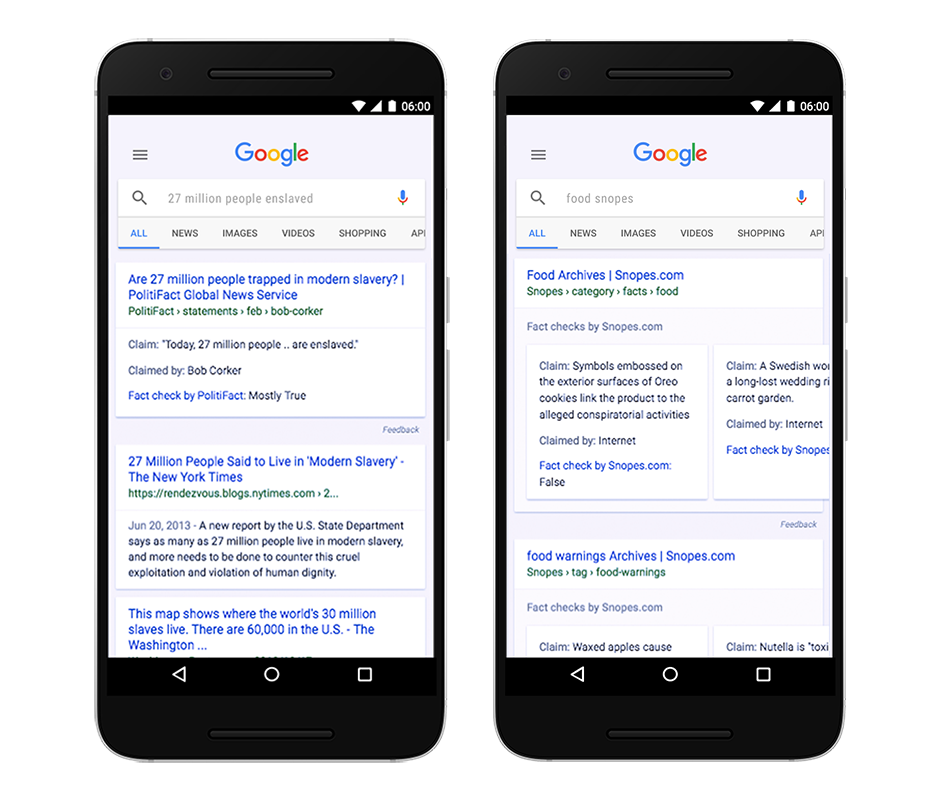
The 24 hours news cycle creates a seemingly insurmountable amount of content for students and teachers to navigate through.  Unfortunately, not all of it is factual or true, making it hard for readers to distinguish fact from fiction. To empower our students against #fakenews, Google has created Fact Check to supplement the already powerful Google Search.


FactCheck_Apr7.png
...when you conduct a search on Google that returns an authoritative result containing fact checks for one or more public claims, you will see that information clearly on the search results page. The snippet will display information on the claim, who made the claim, and the fact check of that particular claim.
Fact Check is not available for every search result. If a fact check made by a publisher meets certain requirements, Google automatically shows a summary of that fact check. In order for a search result to have a fact check, it requires: 
  1. The publisher of the fact check must be a trusted source of information (determined by an algorithm)
  2. The content must clearly tell you which claims are being checked, conclusions about the claims, how conclusions were reached & citations and primary sources of information
It is Google's position that even though differing conclusions may be presented, they still think it’s helpful for people to understand the degree of consensus around a particular claim and have clear information on which sources agree. As Google makes fact checks more visible within search results, they believe people will have an easier time reviewing and assessing the validity of the search results and making their own informed opinions. Keep in mind that Google does not endorse any of these fact checks.

To find out more about this new feature, visit the Help Center. 


Image result for print friendly

Print Friendly and PDF removes ads, navigation, and junk before your print. Optimize any webpage for the ultimate print or reading experience and save on paper and ink when you print with Print Friendly.

Print Friendly and PDF boast two primary features
  1. Edit Before Printing: Click-to-delete any content before printing, remove images or individual images, or change the text size from larger to smaller.
  2. Print or Save as PDF: Generate PDFs for archiving, sharing, or saving. PDFs include clickable links, and source URL so you can continue to interact with the content.
Click here for "Print Friendly & PDF": 


Our self-guided EdTech Badge Wall Challenge has been a tremendous success. Over 75 teachers from our district have invested time into building their G Suite Competency! The cut-off to earn up to 15 PD hours is May 17, but the actual Badge Wall will continue to be available going forward. For more information on the White Bear Lake Badge Wall Challange, see this blog post.