Search This Blog

Tuesday, November 28, 2017

Google Drive File Stream and Organizing your Google Drive Using Images

Google Drive File Stream
We’re pleased to announce access to Drive File Stream. It is a new application for your Mac or PC that gives you access to all your Google Drive files from your computer while using less disk space and decreasing sync time. Smart Notebook files and all other files can be launched and accessed through Drive File Stream.
How does it work?
With Drive File Stream, you can:
  • Quickly see all your Google Drive files in Finder/Explorer.
  • Browse and organize Google Drive files without downloading all of them to your computer.
  • Choose which files or folders you would like to make available offline.
  • Open files in common apps like Microsoft Office and Adobe Photoshop.
  • Click here for step-by-step directions to start using Drive File Stream.

Organizing your Google Drive Using Images

As your Google Drive starts to fill up, a fun and effective way to get organized is to use images and colors. Here are directions to add images to your folder names.
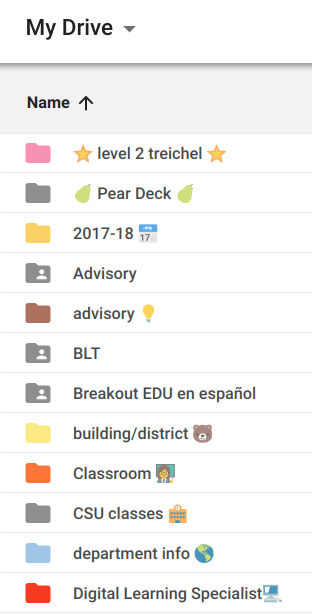

Step 1: Open one of these emoji sites.

Step 2: Find an emoji that will help you easily identify your folder. Copy that image.
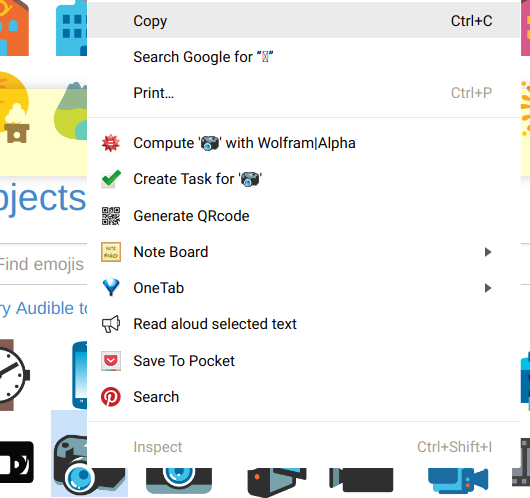

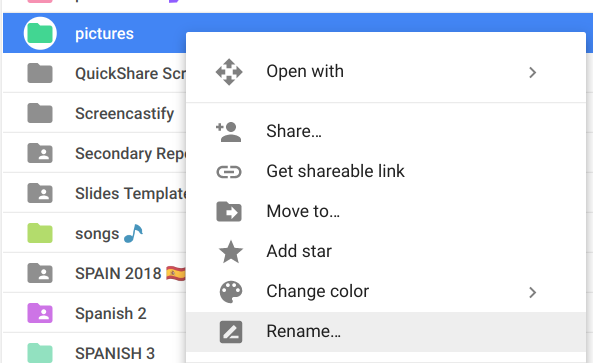
Step 3: Open your Google Drive. Right-click the folder and choose “rename”.

*This is the also the spot where you can change the color of your folder.
*A shortcut to rename folders is typing an N when you have the folder highlighted.

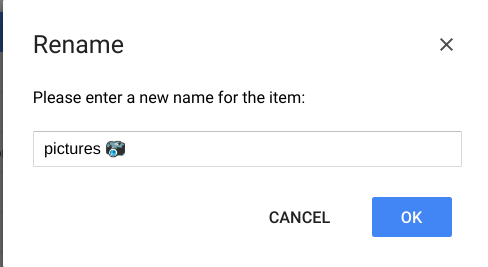
Step 4: Paste the saved image into the folder’s title.

A few notes about organization...
*adding an emoji at the beginning of a title will have an impact while sorting, but adding an emoji to the end will not
*if you have frequently accessed folders you could put the emoji in the front
*if you want to keep everything alphabetical then put the emoji in the back
*use colors to sort themes, chapters, teaching levels, etc.


Tuesday, November 7, 2017

2 Great Slides Add-Ons for Beautiful Presentations

We are often tasked with creating engaging displays of information or sets of instructions that can be followed visually. These Google Slides add-ons can help you do just that!


Noun Project Add-On
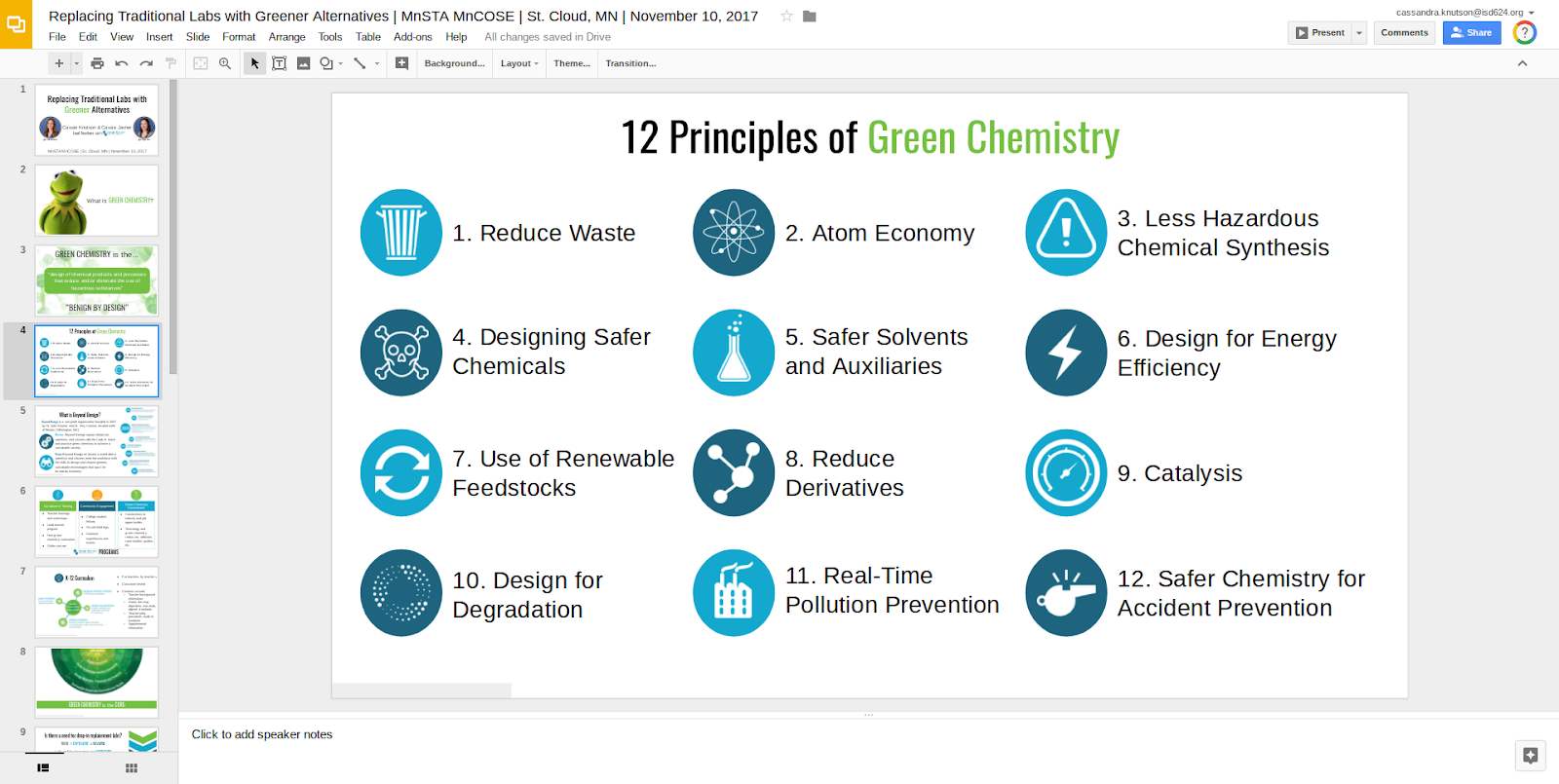
The Noun Project gives access to 100 free icons that can be integrated into your slides.


Example:
save image


Directions:
1. Add the add-on by clicking "Add-ons" and selecting "Get add-ons"
save image
2. Search for the "Noun Project" and install the add-on.
save image
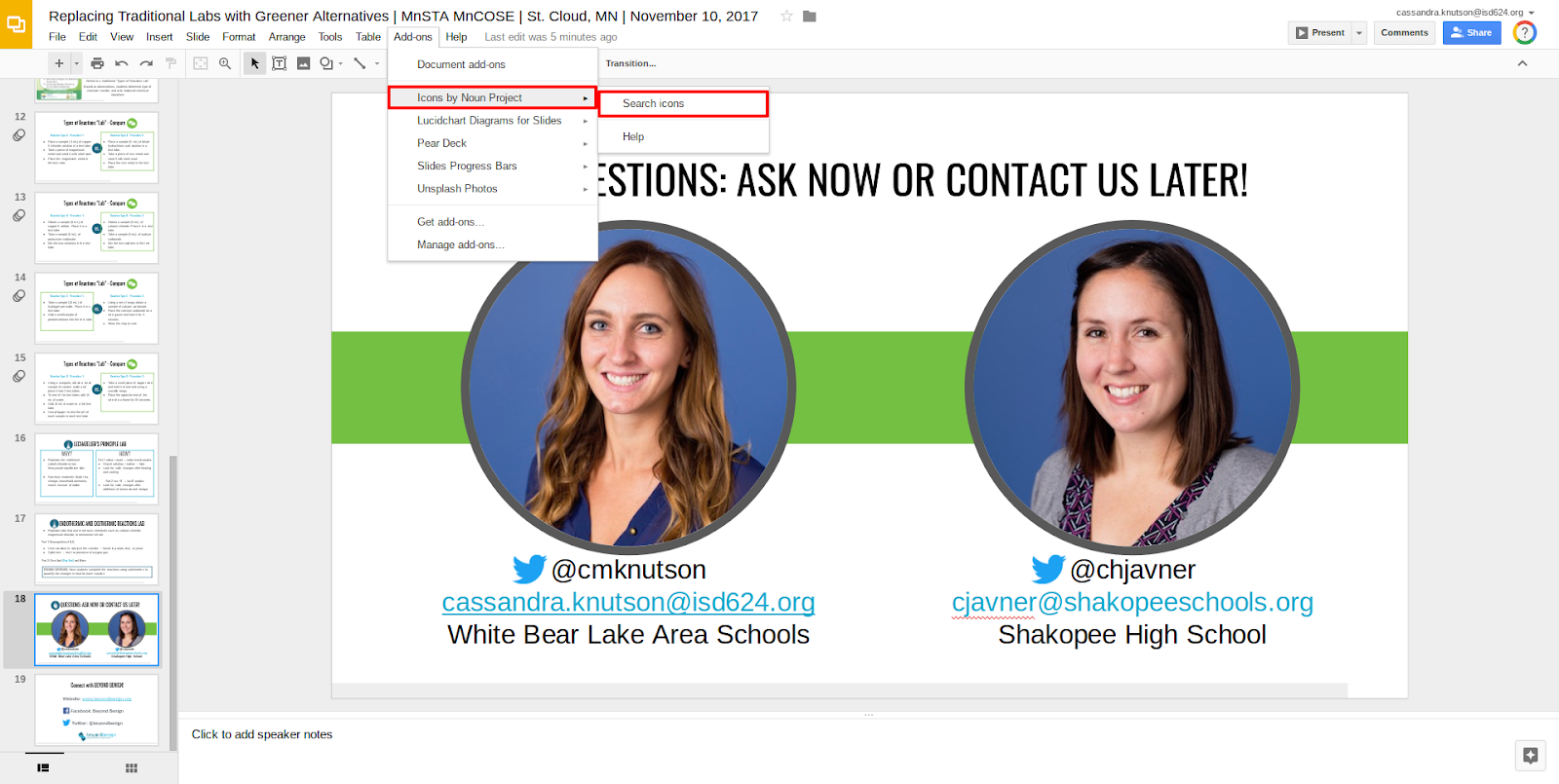
3. Open the add-on by clicking "Add-ons" and selecting "Icons by Noun Project" and "Search Icons."
save image
4. The icons displayed when the add-on opens are the free icons. Choose an icon and a color and click "Insert Icon" to add the icon to your presentation.

Unsplash Photos
Unsplash Photos gives access to beautiful background photos to integrate into your presentations.


Directions:
1. Install the add-on as done in the example above.


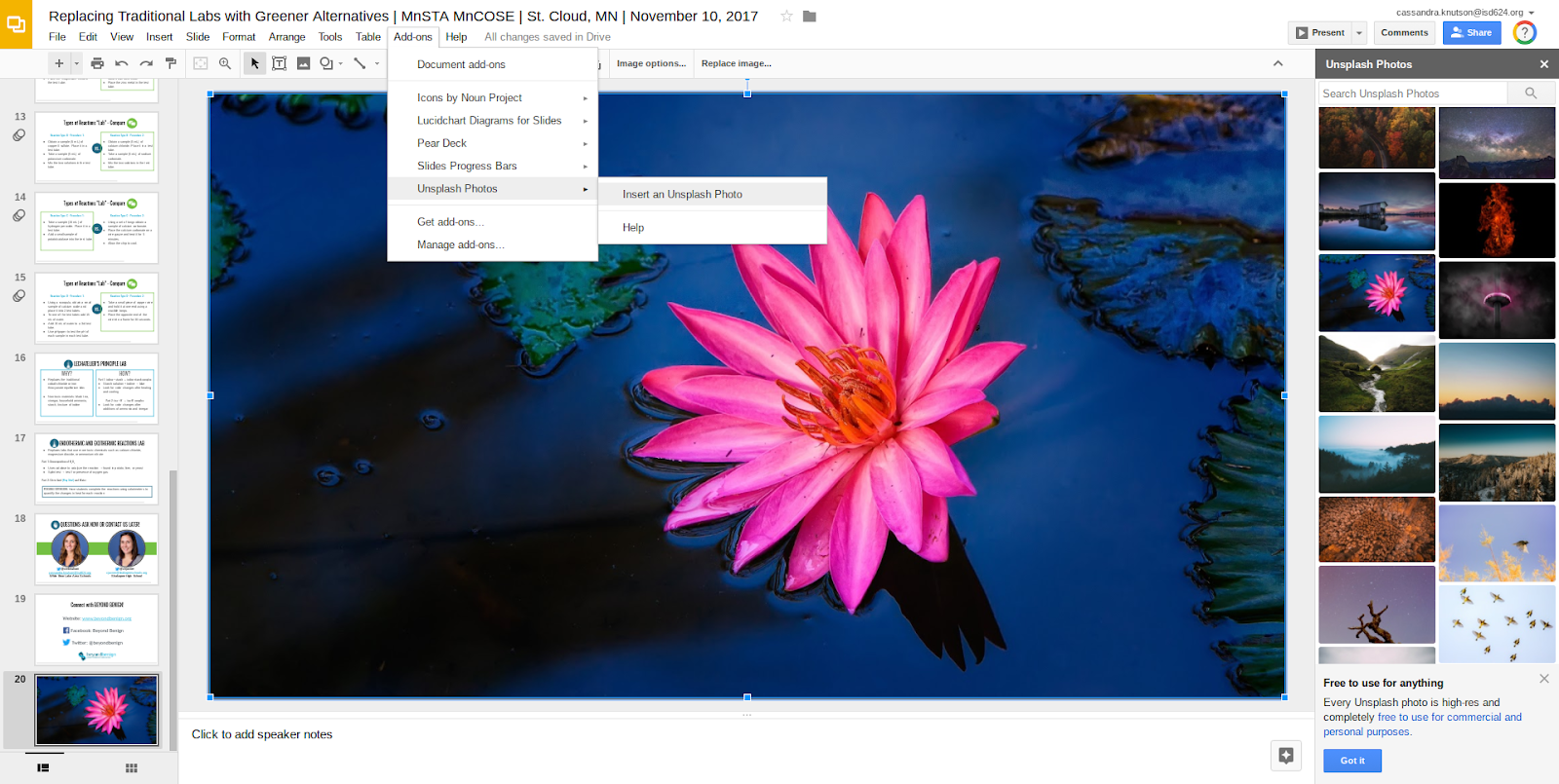
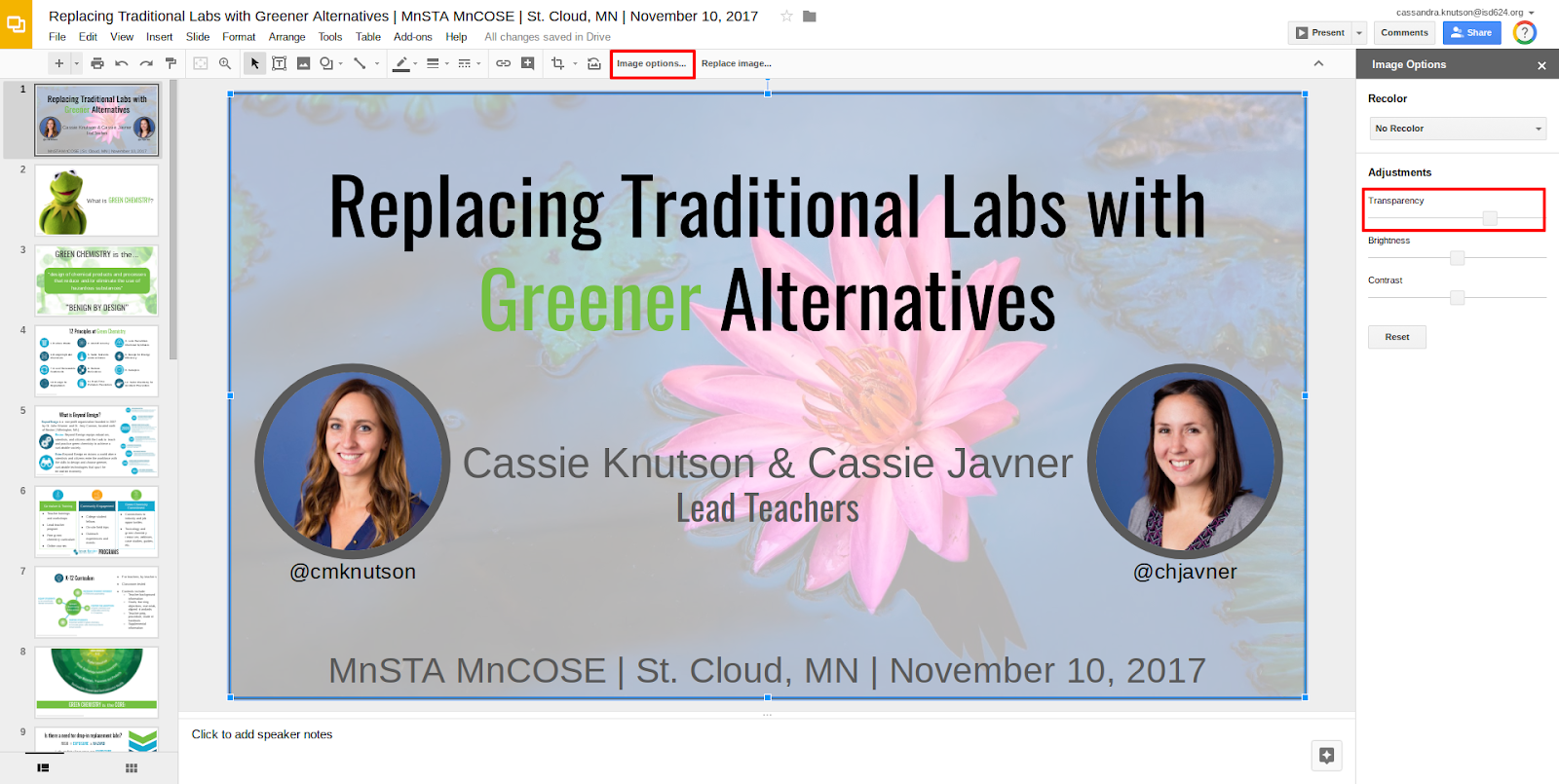
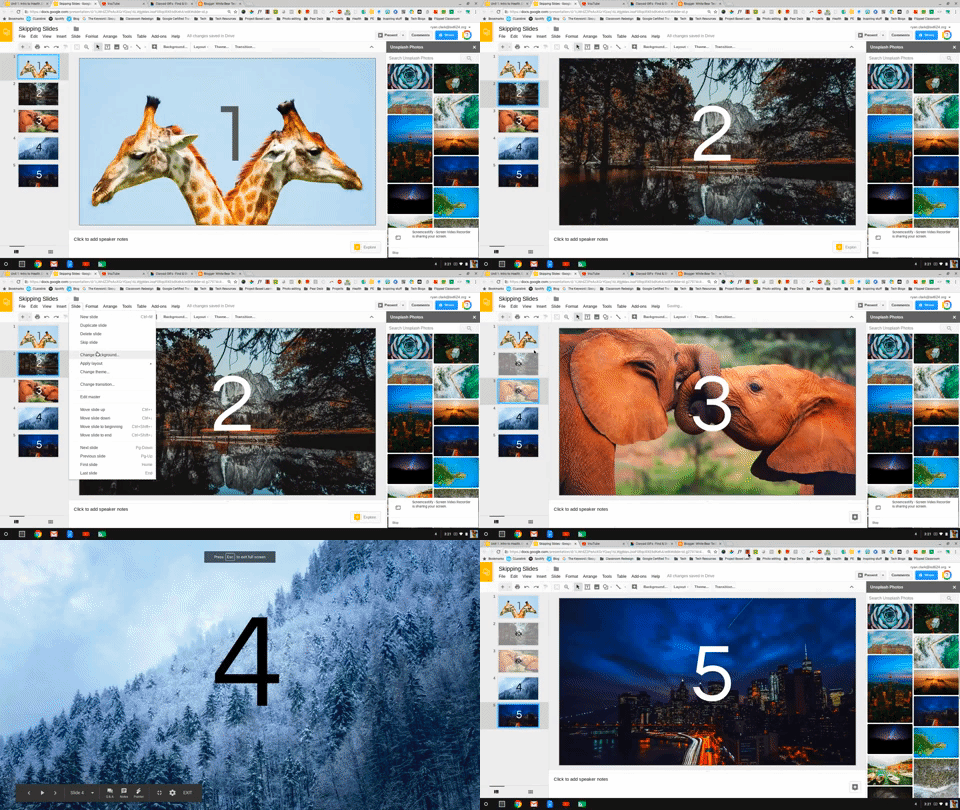
2. Open the add-on by clicking "Add-ons" and selecting "Unsplash Photos" and "Insert an Unsplash Photos." Select a photo to add it as your background.
save image


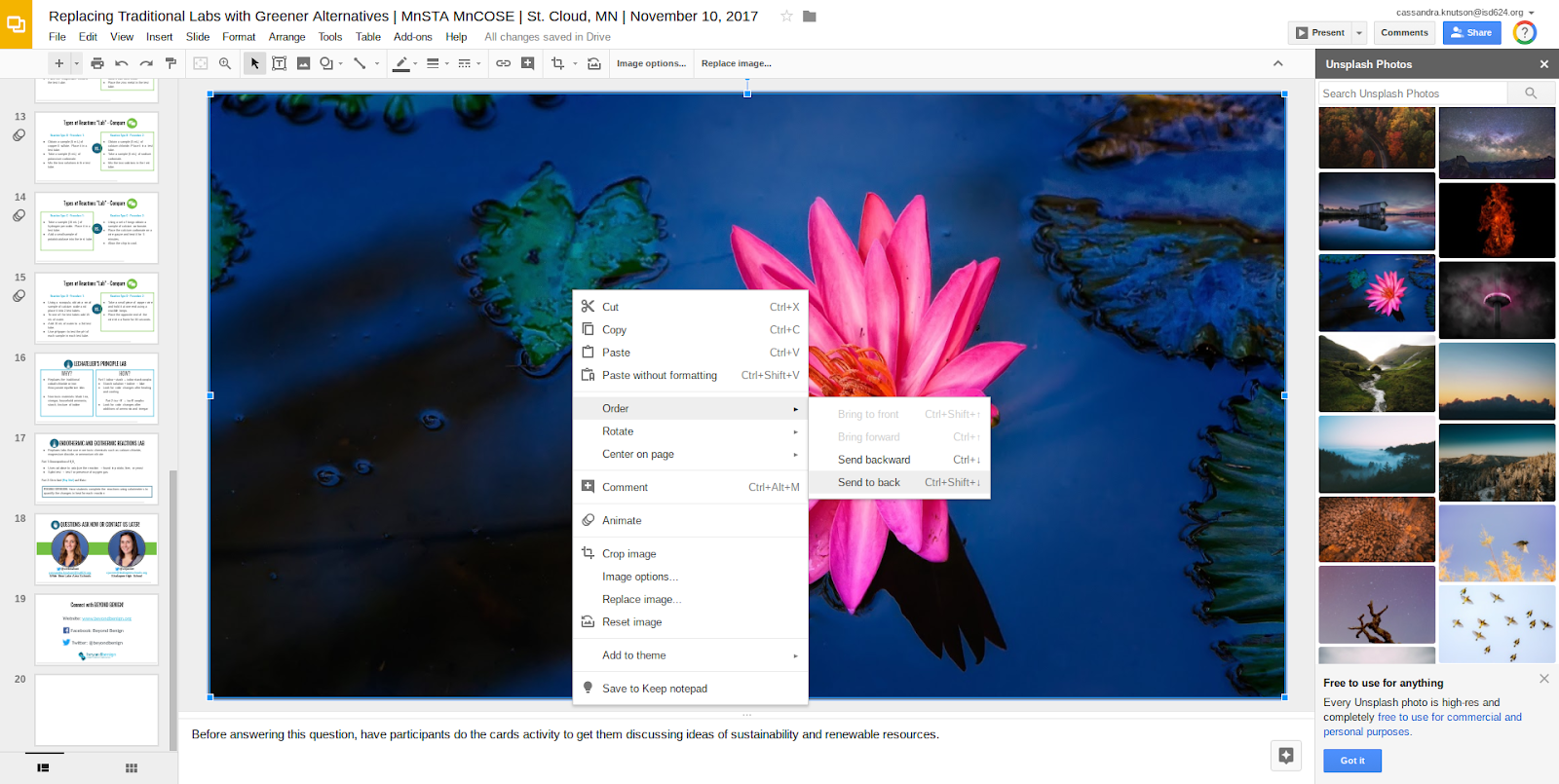
3. Right click the photo and order the photo to the back of slide.
4. You can use the image options to make the image more transparent.
Replacing Traditional Labs with Greener Alternatives   MnSTA MnCOSE   St. Cloud  MN   November 10  2017   Google Slides.png


Sunday, October 29, 2017

Be Internet Awesome by Teaching Digital Citizenship

Be Internet Awesome


The internet is a part of daily life. We need to make sure our students have the knowledge to stay safe and make good choices whenever they use this powerful tool.

Google has created a curriculum called “Be Internet Awesome” to help teachers teach Digital Citizenship. Click here to check out the fundamental ideas and explore the site.

The curriculum comes with downloadable posters, certificates, badges, and a fun online game called Interland to help teach core principles. Check out the video below to get a glimpse of Interland.


Another great digital citizenship resource that has been around for a little while is Common Sense Education. It is a full K-12 curriculum to help you tackle a variety of topics such as internet safety, self-image/identity, and cyberbullying.

Check it out by clicking here.


Please contact your Digital Learning Specialist if you would like additional information on anything mentioned above.


Tuesday, October 24, 2017

Google Classroom Updates, SeeSaw Activities, Digital Tools for ELA


Google Classroom Training:  Are you using Google Classroom and want to expand   your Google  Classroom chops? The Google Classroom Training Center has added new lessons with some great ideas on how educators can share assignments more easily and collect them effortlessly. It is worth checking out!  
SeeSaw Update!
Introducing Activities
Now you can easily create and share activities for your students to complete in Seesaw!  This video is a great introduction to using  activities in your classroom.


Google Maps icon
Reading a novel? Have students map the plot or imagine different story paths using If/Then Adventure Stories. Check out this example.
Google Maps icon
Showcase learners’ writing at a poetry slam or storytelling competition. Students can collaborate and organize it within Google Calendar.

Google Maps icon
Use Create an Editing Tool with Programming to check for common writing mistakes and overused words.

Tuesday, October 17, 2017

3 Valuable Robots That Will Make Your Classroom Awesome

As a White Bear Lake Area Schools teacher, you have access to a few powerful pieces of technology you can use to help you reach more students and reflect on your practice. They are the Double Robot and the Swivl.

Double Robot

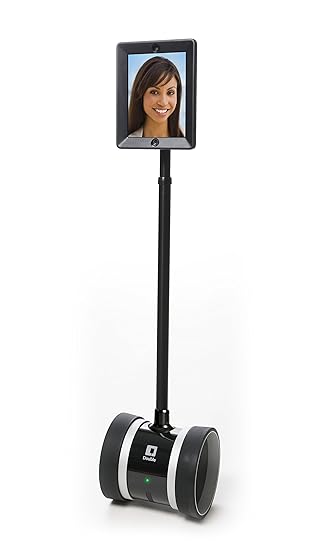
The Double Robot is a device you can check out from the District Center Technology Department. It is essentially an iPad on wheels that you or a student can control remotely from another location. You can use it to enable a guest expert to speak to your class, maneuvering from table to table to speak with students. Homebound students can continue to attend classes. You can even take an educational trip and stay connected with your students while you show them your exciting adventures!

The Double Robot comes with an iPad, can be controlled remotely via Google Chrome, and the battery lasts about eight hours on a single charge.

If you'd like to learn more about how it's used, you can contact your DLS. If you'd like to book it, you can sign up for full-day sessions here.

Swivl

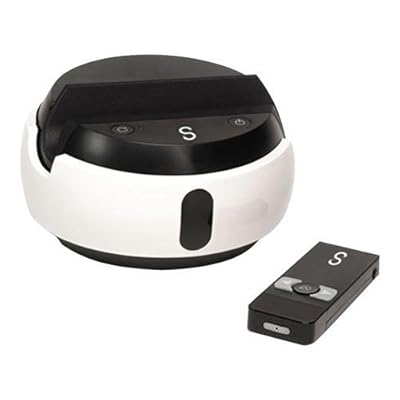
The Swivl is an observation assistance tool that enables teachers to record themselves in their classrooms from a variety of perspectives. You can set up a Swivl to automatically track you throughout your classroom, recording your voice and your actions for later review. You can even use this tool in conjunction with your peer coach or administrator observations to get a more holistic view of your classroom environment.

The Swivl automatically moves to record you in your classroom, tracking a device and microphone you keep on your person. This allows you to review the words you use, student interactions you have, and your proximity in the classroom. It's an incredibly powerful tool for increasing intelligent self-reflection and helping you gather data on the goals you've set for yourself.

If you'd like to learn more about the Swivl, make an appointment with your DLS. You can book full-day appointments with the Swivl here.

LightBot


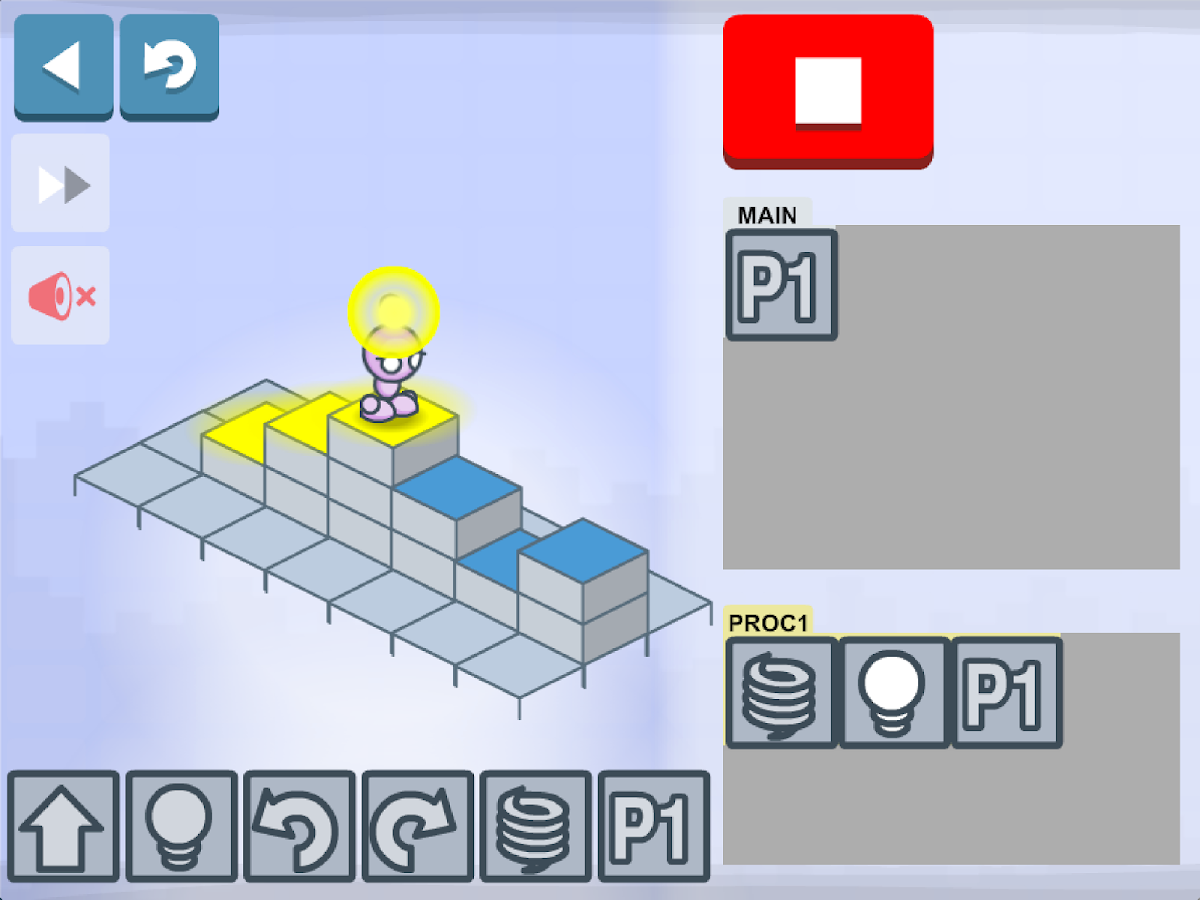
If you're looking for a friendly, accessible way to get your students to think like a programmer, LightBot is a great introductory tool. LightBot has an app version, but there's a limited browser edition put together by the folks behind Hour of Code. LightBot introduces students to concepts like functions, programs (groups of functions), and automation. No coding experience required for you or your students! Students can even print an Hour of Code certificate that they can take home and proudly display.

Tuesday, October 10, 2017

Google Certified Educators of White Bear Lake


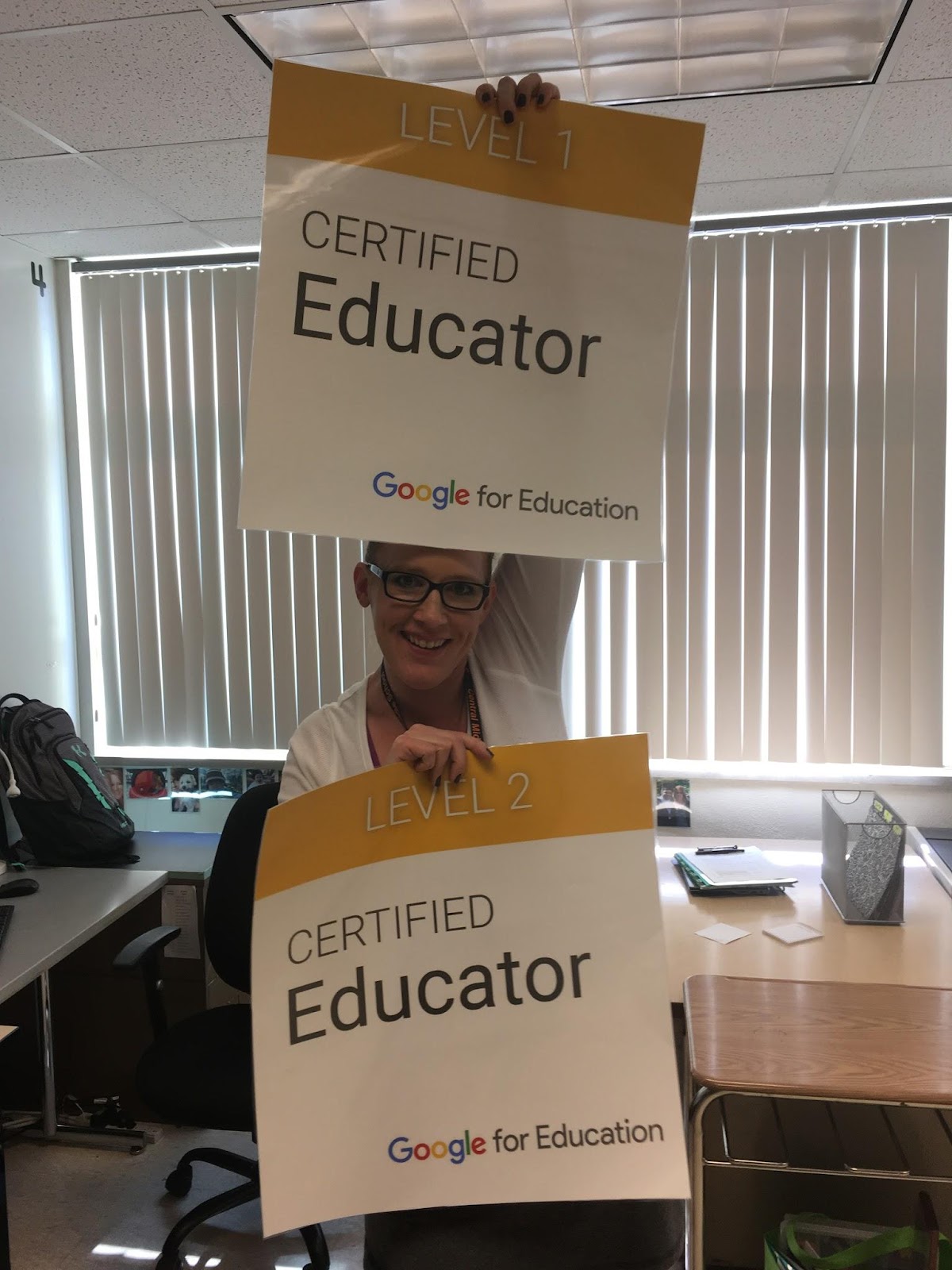
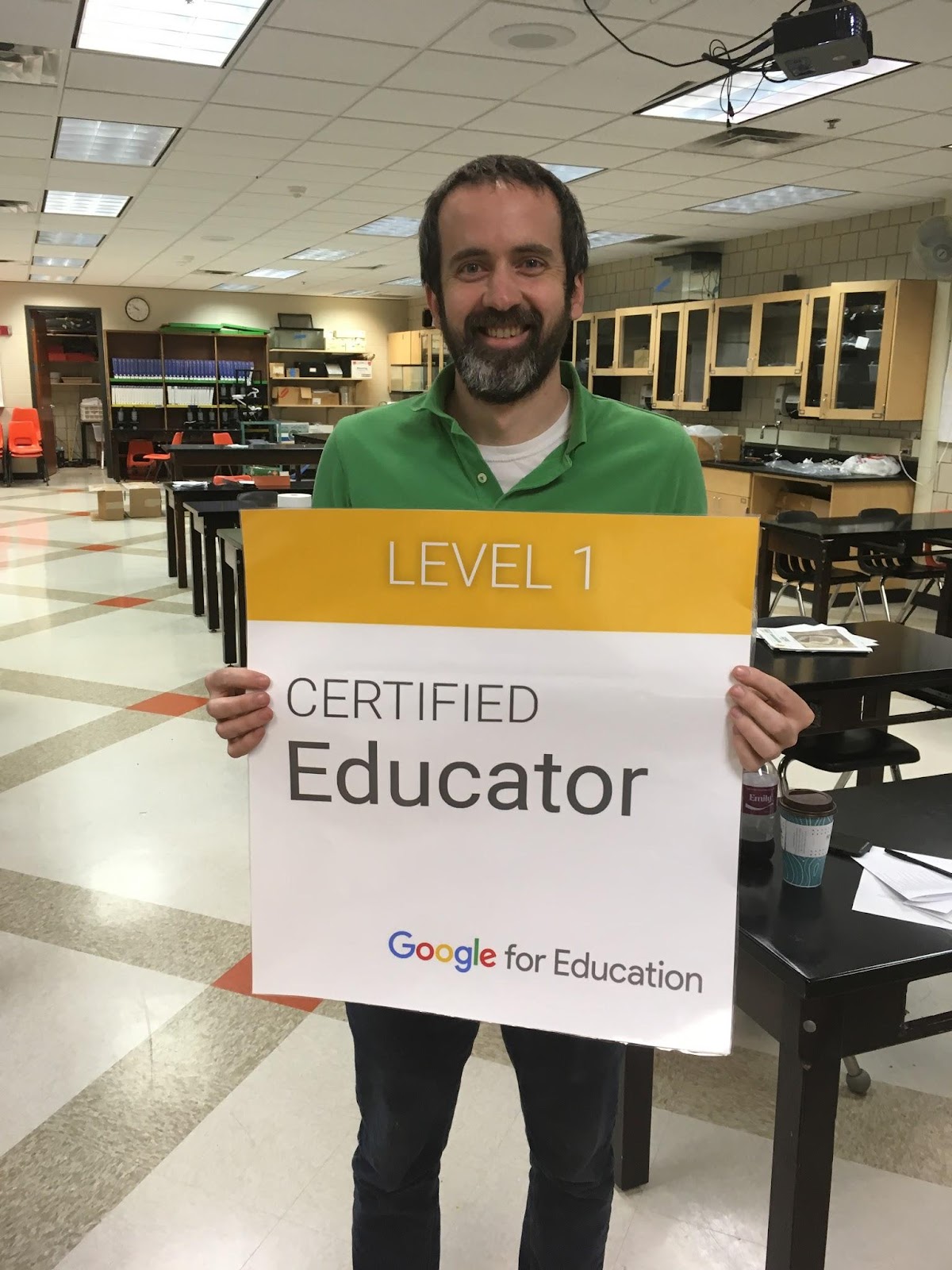
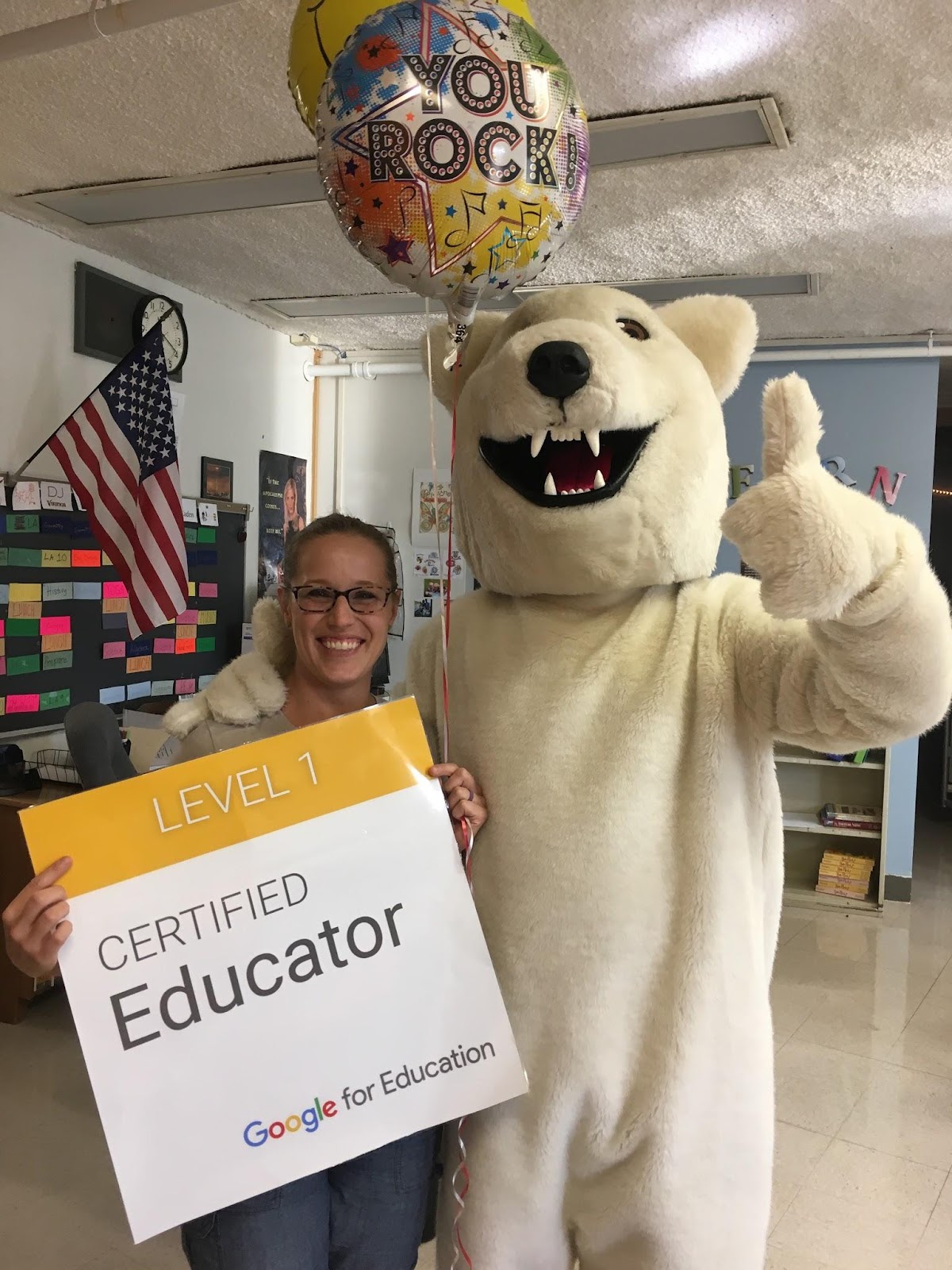
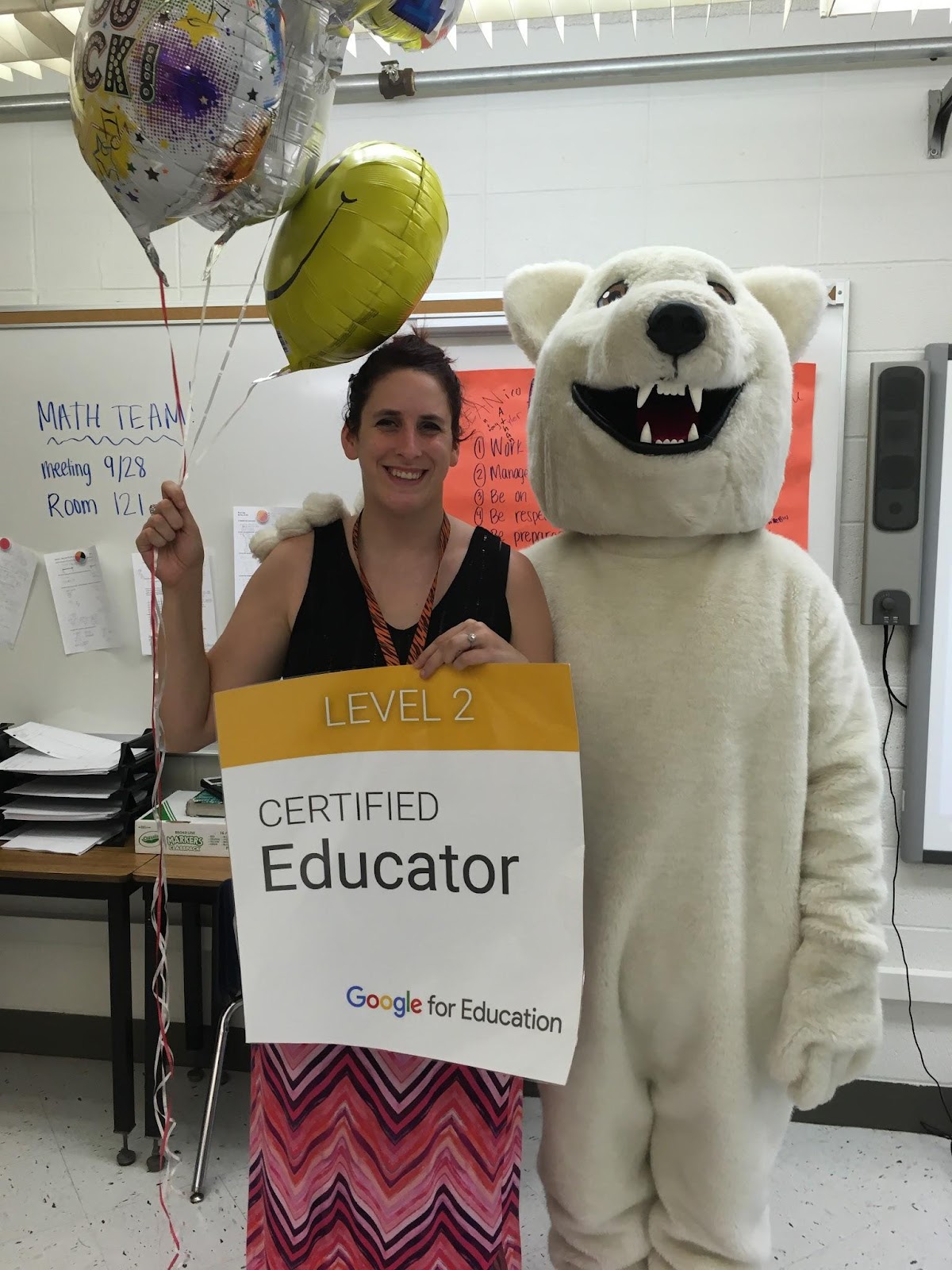
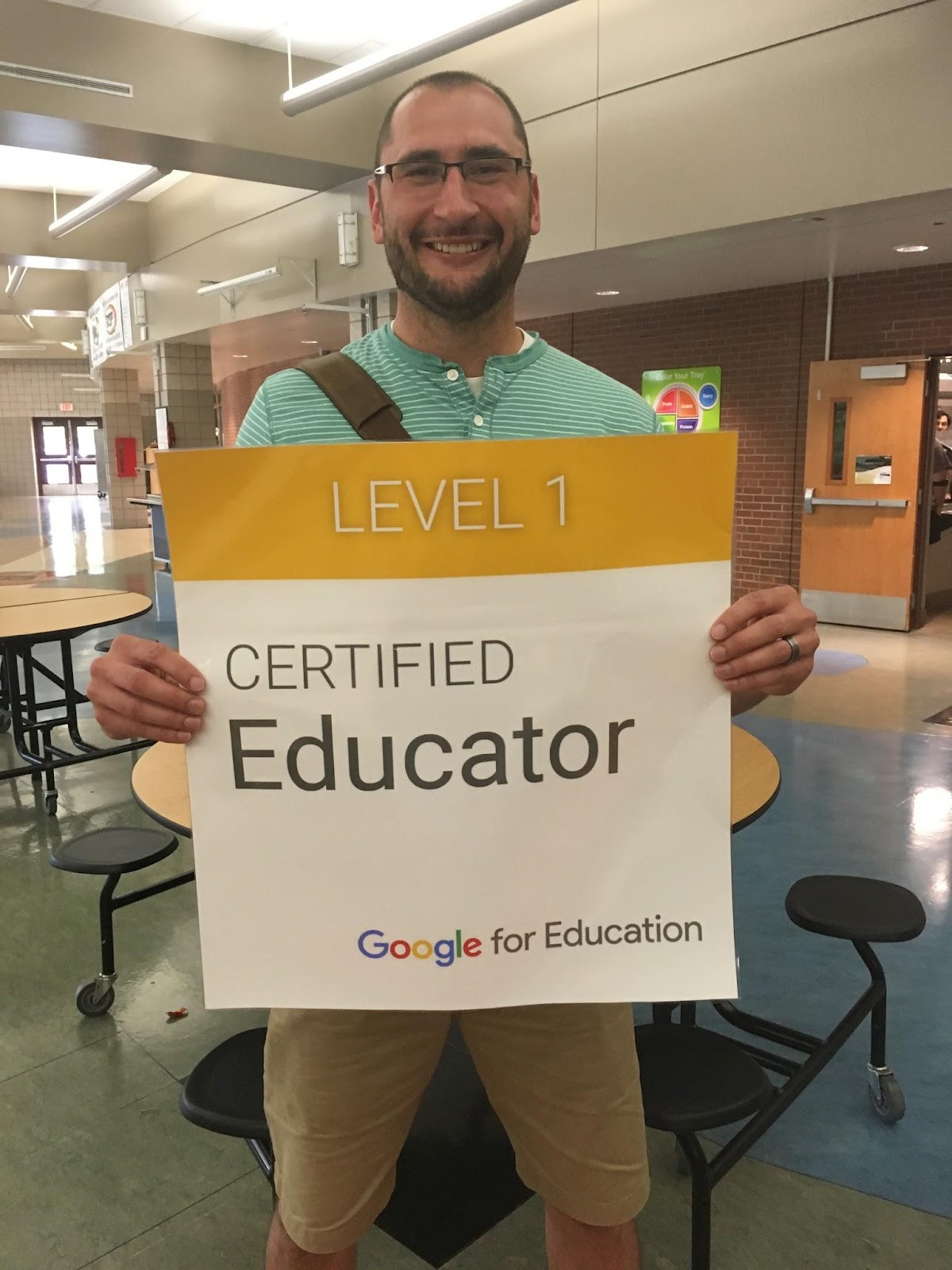
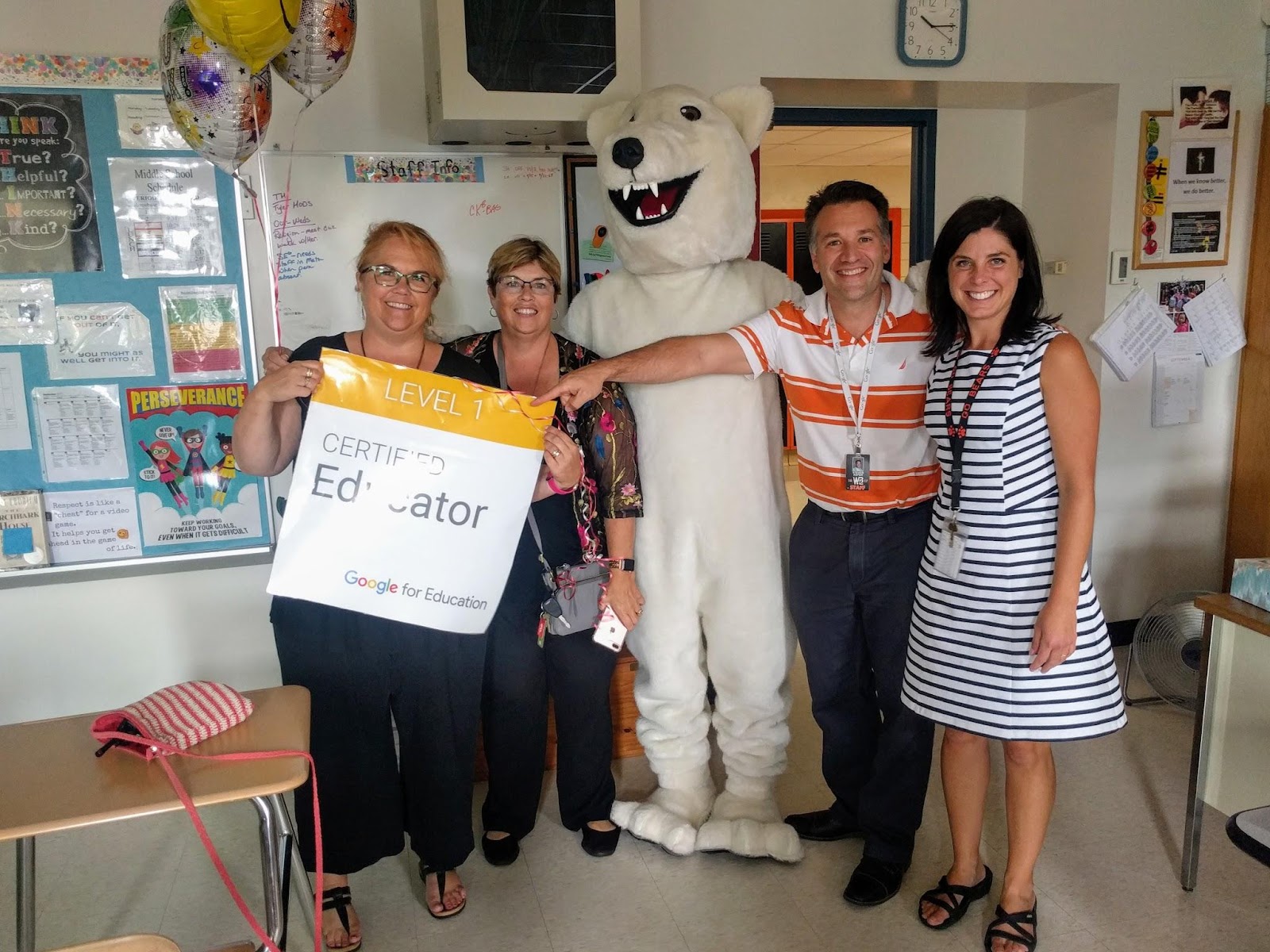
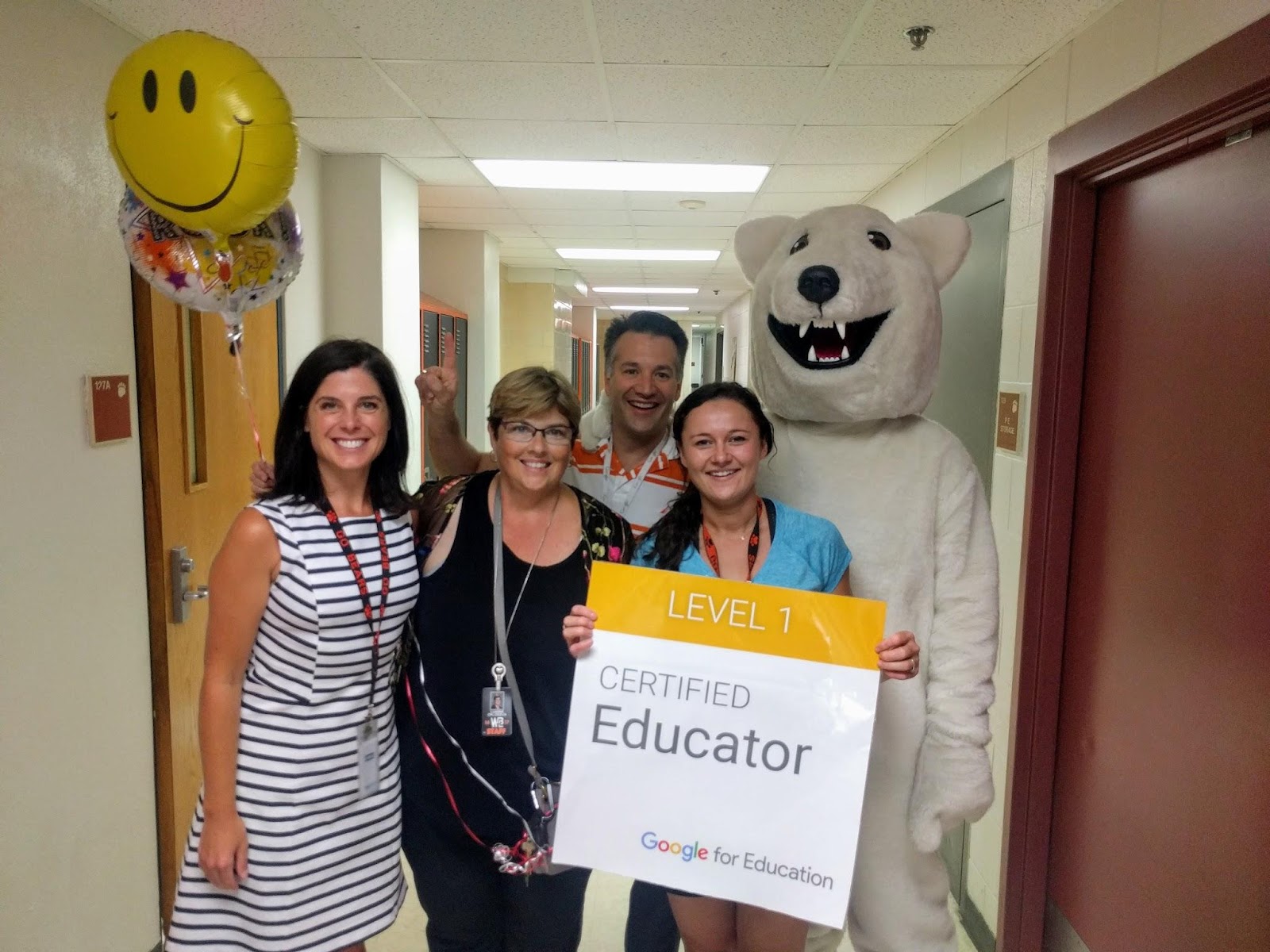
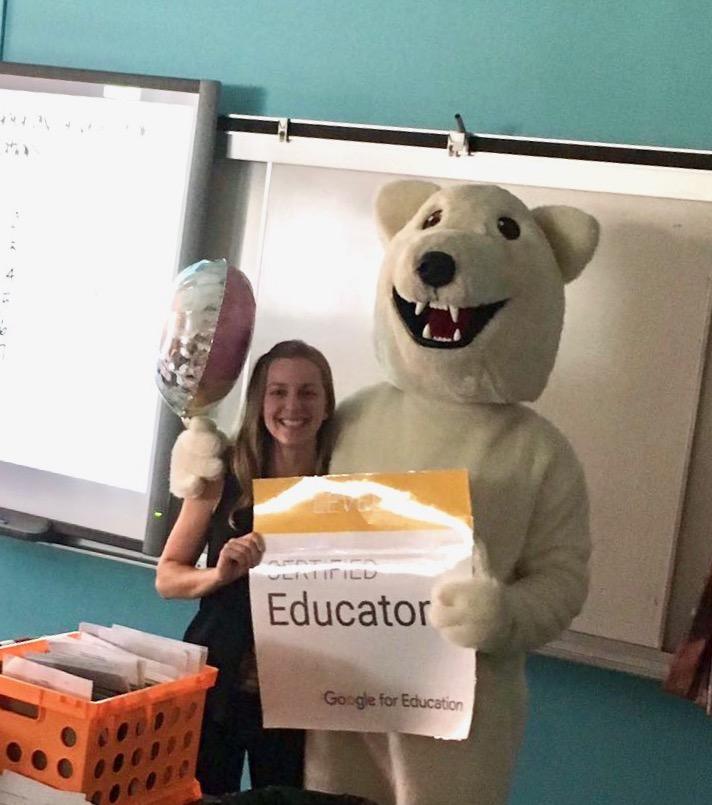
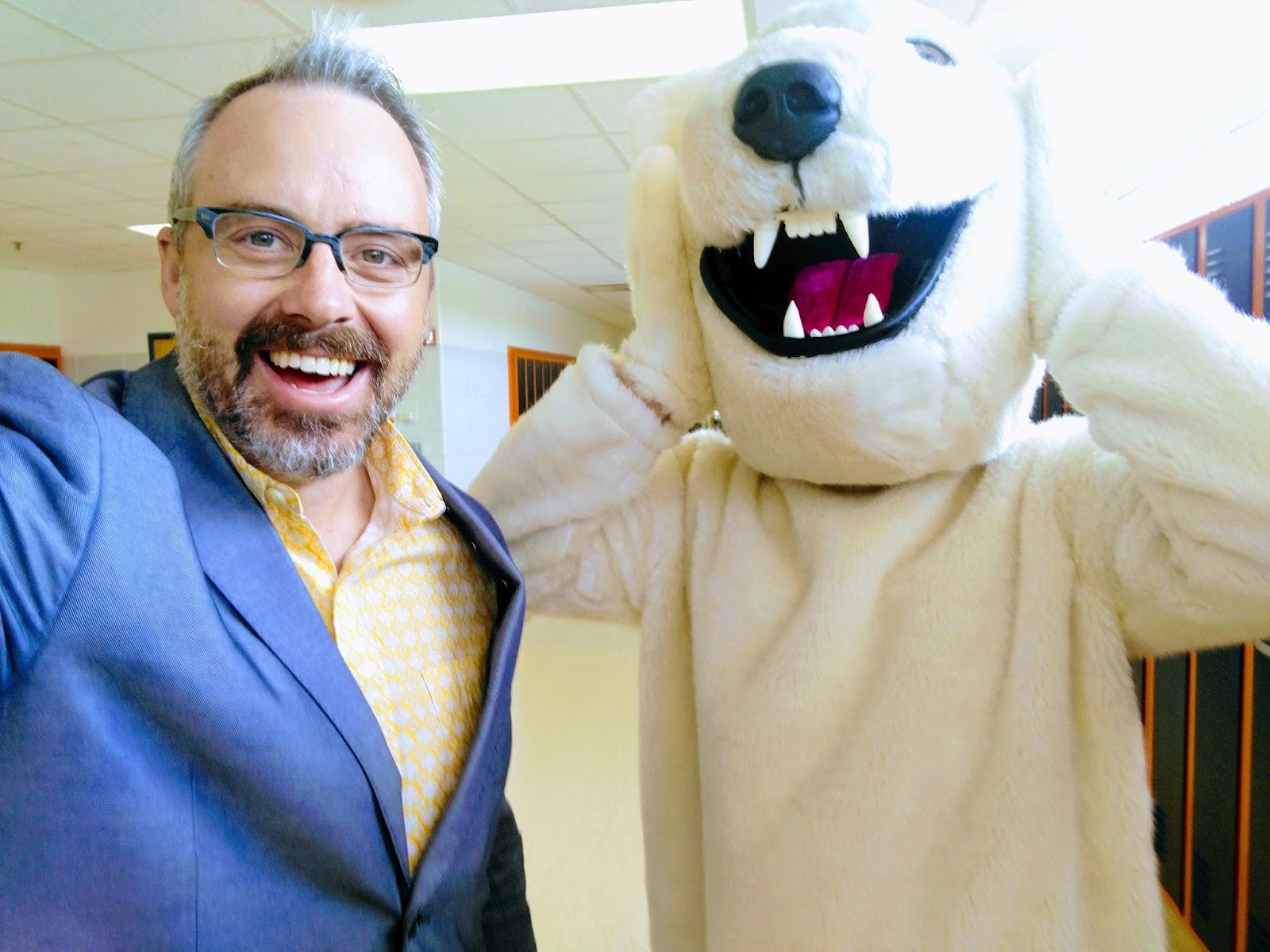
Congratulations to these WBL teachers who are now Google Certified Educators!

balgord.jpeg
wackerpic.jpeg
stumo.jpeg
Christine Balgord - Central
Phil Wacker - South Campus
Erin Stumo - North Campus

kay&bear.jpeg
osbornebear.jpeg
lehr.jpeg
Heather Kay - North Campus
Jill Osborne - North Campus
Josh Lehr - North Campus

centralgroup.jpeg
lacasse.jpg
IMG_20170922_101722.jpg
Karin Hogen - Central
Kim Lacasse - Central
Carla Jerry - Central

Atkins
Ariana Lowther - Otter Lake
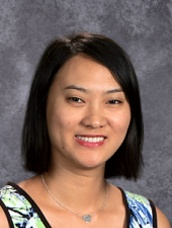
Hui Xu - North, South, Birch Lake
Sarah Atkins - South Campus

Herder.jpeg
garrisonandbear.jpg
File:Who is it.png - Wikimedia Commons
Kendra Herder - Central

This could be you!

Are you interested in joining this amazing group of educators? Watch for details and registration information for the next boot camp which will be coming soon.

What is the Google Educator Certification? The Google Educator Certification is designed for educators and classroom teachers who wish to demonstrate proficiency in using Google for Education tools. The Level 1 status indicates that an educator is able to successfully implement G Suite for Education into their teaching practice in order to enhance teaching and learning. The Level 2 status indicates that an educator is able to successfully integrate a wider range of Google for Education tools and other technologies in order to transform their teaching practice.

Why certify?
  • The learning is practical and centered on classroom integration.
  • The examination is situation based and assesses your ability to authentically utilize Google Applications in classroom settings.
  • The Google Certified Educator badges validate learning.

Monday, October 2, 2017

District Policy: Digital Presence/ Communication + Google Slides Updates


What is the district policy on your digital presence and communication?

Frequent, convenient and scheduled communication, along with a consistently updated calendar, remain the essential elements of our digital presence and communication. We will continue to collaboratively review digital presence standards as we evaluate the strengths of Google Classroom, Schoology, Skyward, email updates, and new tools such as Illuminate, Seesaw, and Flipgrid.


Google Slides Updates

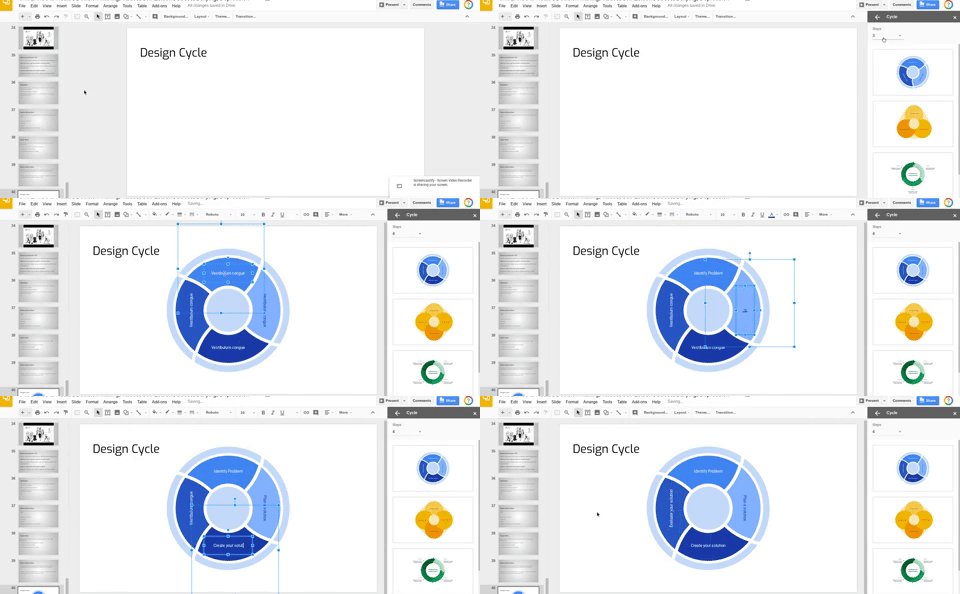
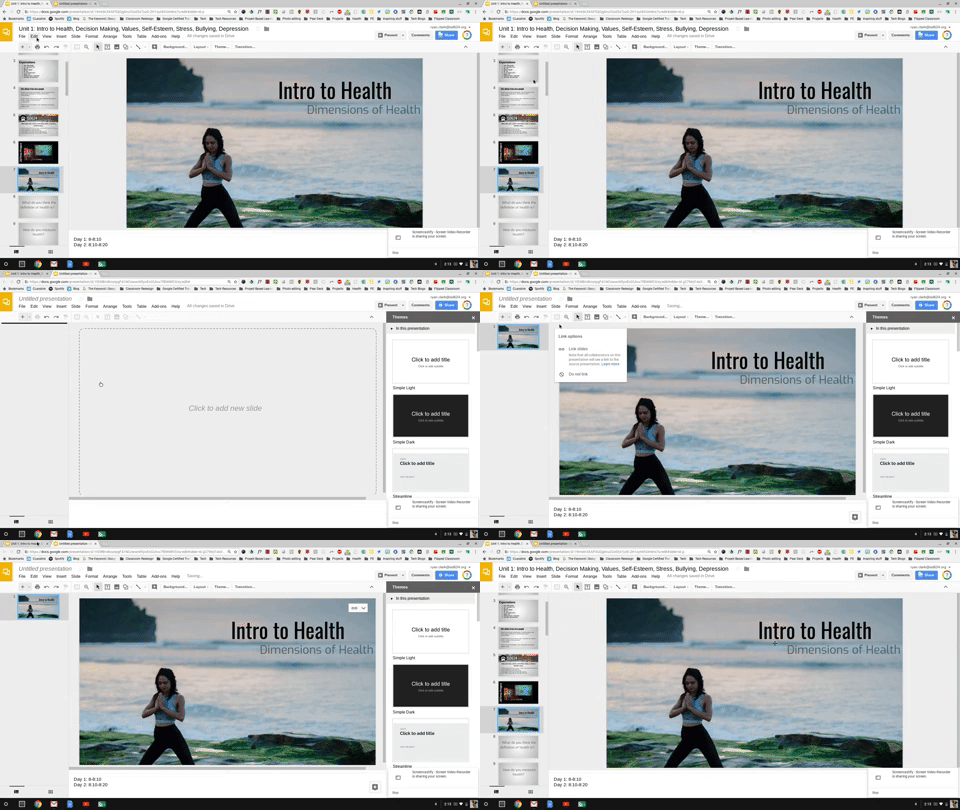
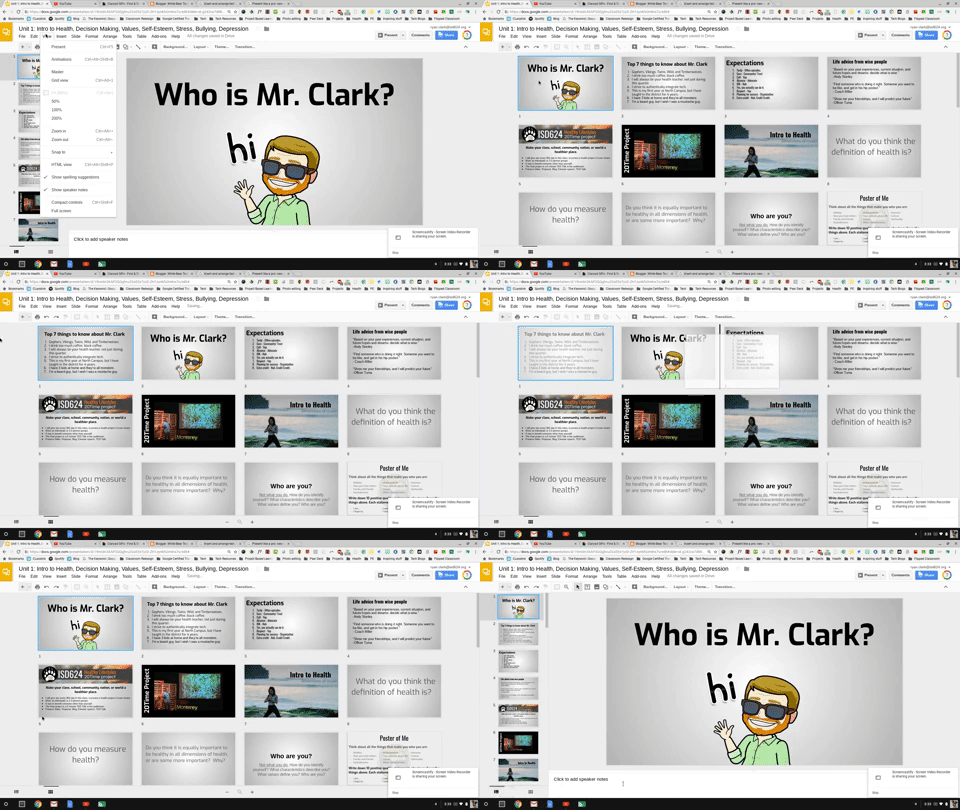
Google has added a bunch of new features to Slides for G Suite customers like drag & drop integration between Keep and Slides, insert ready-made diagrams, link slides between slide decks to mirror updates, skip slides during your presentation without deleting them, and reorganize the order of your slides in grid view. The biggest update is the addition of add-ons, like Pear Deck and Unsplash, that allows users to build better presentations.


Insert Diagrams or ready-to-use visualizations. 

The diagram will get added to the slide and is ready to get edited to the needs of the user. This is great for when you need to effectively share timelines, processes or hierarchies. (Click here to read more)


Link Slides

Making sure data is up to date, repeatedly copying slides from one presentation to another is a major time-sink. Now, you can link and sync slides from multiple presentations with a click. This way, you can maintain a single source of truth and easily update linked slides to match the source.

Skip Slides

Tailor presentations to different audiences with the Skip slide feature. You can now choose to skip select slides without fully deleting them when you present from your phone or laptop.

Grid view

Select Grid view to view all your slides at once as thumbnails. This helps you easily reorder or change formats of multiple slides.


Drag-and-drop integration between Keep and Slides.

What this means is that you can now just drag notes from Google Keep into your presentation, so there’s no need to type in the data manually anymore. (Click here to read more)


Google Slides Supports Add-Ons.


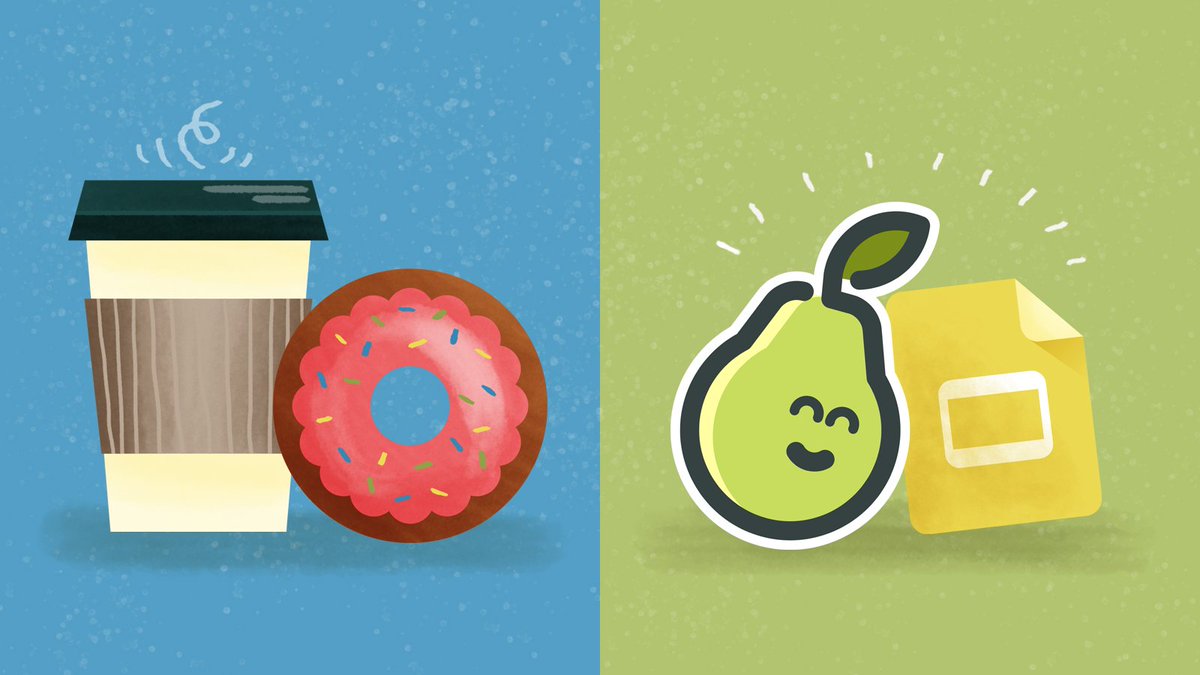
Pear Deck + Google Slides

In the past, you hopped between Google Slides to design your presentation and Pear Deck to add the magic of interactive questions (Pear DeckMore informationHow to). It worked, but it wasn’t optimal. The developer teams from Pear Deck and Google collaborated to create an add-on for Google Slides. You will love the 100% participation and student engagement you get with Pear Deck and the freedom to make your slides to look just so.

Image result for pear deck and google slides

Unsplash + Google Slides

Unsplash (link to add) is a vibrant community of creatives curating a resource of beautiful high-quality free images and photos you can download and use for any project. No attribution required. As of last week, the entire Unsplash library of high-resolution photos is now available directly in Google Slides for free use in your presentations.

Image result for unsplash google slides